





From my own work: I’m Saizul Amin, a digital growth and web systems professional. I have worked on websites and SEO since 2017, and the examples below come from sites I run and maintain myself, not from theory. Last reviewed: October 2026.
Moving a WordPress site from shared hosting to a VPS is one of the best upgrades you can make for speed and control, and it is also where people lose email, rankings or a weekend. I recently moved four sites (three WordPress sites and one containerised web app) from shared cPanel hosting to a single VPS with a server control panel. Visitors never saw an error page. This is the process I followed, including what went wrong, so you can skip those mistakes.
Should you move to a VPS at all?
A VPS gives you dedicated resources, newer software and full control, which usually means faster sites and fewer “resource limit” errors. It also means you are now responsible for security, updates, backups and uptime. If you do not want that job, a good managed WordPress host is a better choice. If you do, read on.

Step 1: Back up everything first (and keep it off the server)
- Take a full backup from your current host (for cPanel, a full account backup; otherwise files plus a database export) and download it to your own computer. Do not rely on a backup stored only on the host you are leaving.
- Write down every DNS record: A and CNAME records, but especially MX, SPF, DKIM, DMARC and any verification TXT records. Email is the thing most often broken by a migration, and in my case mail stayed with a separate provider, so those records had to remain untouched.
- Decide your canonical address now:
example.comorwww.example.com. Pick one and use it everywhere. (I will show you why in the mistakes section.) - Note any scheduled tasks, custom
.htaccessrules and redirects, because Nginx does not read.htaccess.
Step 2: Choose and harden the server before it holds anything
I used a VPS in Europe with a free server panel that provides Nginx, MariaDB and a separate PHP-FPM pool per site. The same ideas apply to any stack. Before copying a single file, lock the server down:
- SSH keys only. Disable password login and direct root login.
- Firewall: allow only the ports you need (web, SSH, and the panel, ideally restricted) and block the rest.
- Brute-force protection such as fail2ban, and two-factor authentication on the panel.
- Automatic security updates for the operating system.
Step 3: Create the site, database and user on the new server
Create the site in your panel with the same PHP version as the old host (or newer, after checking plugin compatibility), then a fresh database and user with a strong password. Use a separate system user per site so one compromised site cannot read another.
Step 4: Copy files and the database
- Upload files with
rsyncorscp(much faster and more reliable than a browser file manager) into the new site’s web root. - Import the database dump (for example with
mysqlorwp db import). - Edit
wp-config.phpwith the new database name, user and password, and check the table prefix matches what is in the database. - Fix file ownership and permissions so the site user owns its files.
Step 5: Test on the new server before touching DNS
This is what makes “no downtime” possible. Edit the hosts file on your own computer so your browser resolves your domain to the new server’s IP while everyone else still sees the old site. Then click through the home page, an article, forms, login, search, checkout (if any) and check for mixed-content or broken-image warnings. Fix problems now, while nobody is affected.
If the domain or the folder path changed, run a database search-replace for the old values. Page builders such as Elementor store URLs inside JSON, where slashes are escaped (https://example.com), so search for that form too, or some links will keep pointing to the wrong address.
Step 6: Lower the DNS TTL, then switch
- A day before the switch, lower the TTL on your A records (for example to 300 seconds) so the change spreads quickly.
- Do a final sync of files and database right before switching, especially for busy sites, shops and comment-heavy blogs, so no recent orders or comments are lost.
- Change the A records (and AAAA if used) to the new server. Leave MX and other mail records exactly as they were.
- SSL: a standard Let’s Encrypt certificate needs the domain to point at the server, so request it right after the switch (a few minutes) or use the DNS challenge to issue it beforehand.
Step 7: Verify, then verify again
- Check that the site loads over HTTPS on both the bare and
wwwaddresses and that one redirects cleanly to the other. - Test your contact forms and that email still works in both directions.
- Switch WP-Cron to a real system cron job so scheduled posts and tasks run on time without depending on visitors.
- In Google Search Console, confirm the sitemap still loads and watch the coverage and crawl reports for new errors. If your URLs have not changed, your rankings should not either.
Step 8: Set up backups and monitoring (and test a restore)
A server without tested backups is a risk, not an upgrade. I use an encrypted, deduplicated backup tool (restic) that runs nightly and copies to cloud storage, and then I actually restored a site from it to prove the backup works. Add an uptime monitor with alerts, and keep the old hosting account for a few days as a fallback. Take a last backup of it before you cancel.
Mistakes I made (so you do not have to)
1. A redirect loop between www and non-www
The server redirected one version to the other, but WordPress was configured with the opposite address in its Home and Site URL settings, so each tried to send the visitor back. The fix is to set WordPress to your canonical address, search-replace the database (including the JSON-escaped form), and clear caches.
2. A cache exclusion rule that silently did not match
A path exclusion without regular-expression delimiters did nothing, and a logged-in admin toolbar ended up inside a cached page. Always view the source of a cached page as a logged-out visitor after configuring caching.
3. Removing “old” PHP versions on a server with a control panel
While tidying up, I ran a package purge for old PHP versions. The panel itself depended on those packages, so the purge started removing the panel and stopped the web server and database. The sites were down for about six minutes until I restarted the services and cancelled the removal. The lesson: control panels often depend on several PHP versions, so never bulk-remove them, and read the package manager’s “these will be removed” list before you confirm.
4. Forgetting that the new server cannot send mail the way the old one did
Many VPS providers restrict outgoing mail, and mail sent from an unauthenticated server is rejected by providers like Gmail. Set up SPF (and ideally DKIM and DMARC) for the domain, or send through an authenticated SMTP service.
Quick checklist
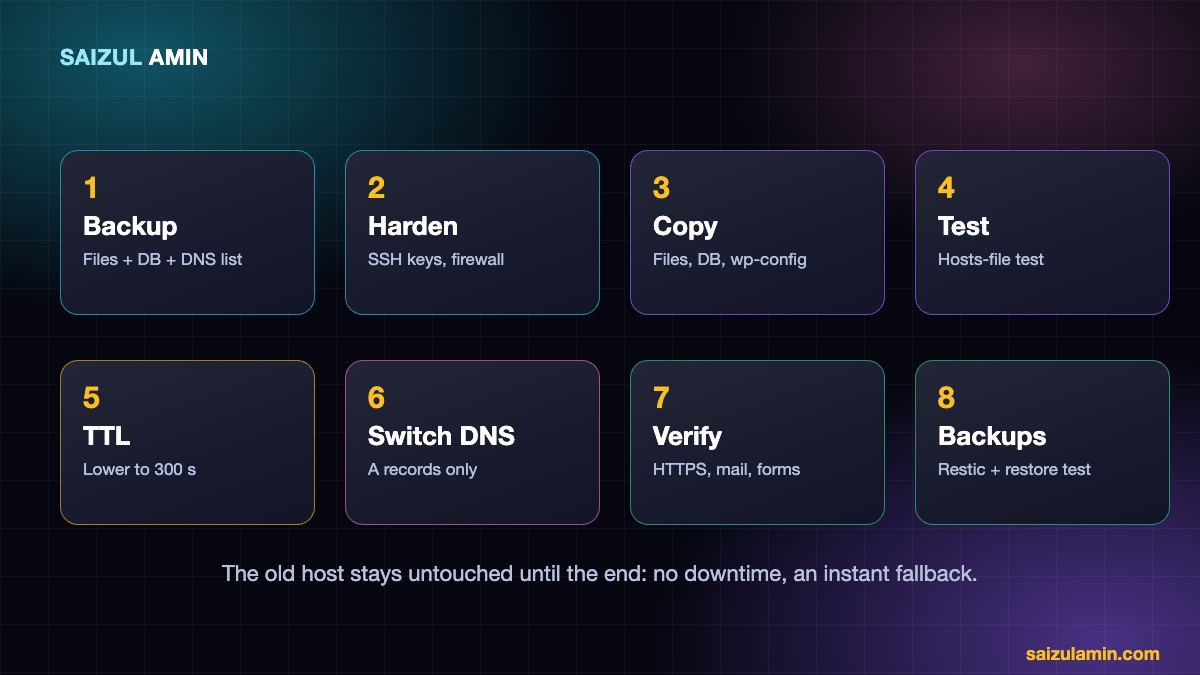
| Stage | Done when |
|---|---|
| Backup | Full backup on your computer; DNS records written down |
| Harden | SSH keys, firewall, fail2ban, panel 2FA |
| Copy | Files, database and wp-config working on the new server |
| Test | Whole site checked via hosts file |
| Switch | TTL lowered, final sync done, A records changed, SSL issued |
| Verify | HTTPS, redirects, forms, email, cron, Search Console OK |
| Protect | Nightly encrypted backups, restore tested, uptime alerts |
Need help with this on your own site?
I work with businesses and creators on WordPress performance, technical SEO, hosting migrations and monetisation. If you would rather have an experienced person do it (or review what you have done), send me a message with your website address and what you want to achieve, and I will tell you honestly what I would change first.
Frequently asked questions
Will migrating to a VPS hurt my SEO?
Not if your URLs, redirects and content stay the same and the site is not down for long. A faster server often helps. Keep an eye on Search Console for a couple of weeks.
How long does DNS propagation take?
If you lowered the TTL ahead of time, most visitors see the new server within minutes to a few hours. Some resolvers cache longer, which is why you keep the old host running for a few days.
Can I use a migration plugin instead?
Yes, plugins can move small sites, but large sites often time out. The manual method above is more reliable and teaches you what is where.
Do I need a server panel?
No, but a panel makes sites, databases, SSL and backups much easier to manage if you are not a full-time system administrator.
How long does a migration take?
For a small site, a few hours of work plus a waiting period for DNS. Hardening and setting up backups add time, but they are what make the server safe to keep.
Sources and further reading
- WordPress Developer Resources: Moving WordPress
- restic backup documentation
- Google Search Central: site moves with URL changes
How this article was written
I wrote this from hands-on experience with my own websites. Technical details were checked against the official documentation linked above in October 2026. Tools, policies and prices change, so if you notice something out of date, email info@saizul.com and I will correct it. Results mentioned are from my own sites and will vary on yours.


Saizul Amin is a digital growth strategist and SEO consultant specialising in search engine optimisation, web development, AI-powered automation, and online income systems. With 8 years of hands-on experience helping businesses and individual creators grow their online presence, Saizul combines technical expertise with practical, results-driven strategy.
Experience & Background
Saizul started his digital career in 2017, initially working with Bioscope Limited to build and optimise websites for organic search traffic. Over the years, he has worked across industries including DGHS, NAVANA, UNICampus, UNIPathways, UniqueMark, developing a deep understanding of what it takes to rank, convert, and grow sustainably online.
His work spans the full digital stack — from technical SEO audits and content strategy to WordPress development, marketing automation, and AI tool integration for small businesses and startups.
What He Covers on This Blog
Every article on SaizulAmin.com is written from direct experience. Saizul does not publish theoretical content — every guide, tool recommendation, and strategy shared here has been tested and applied in real projects. Topics include:
- Search engine optimisation (on-page, technical, and content SEO)
- Digital marketing strategy and growth systems
- AI tools and automation for business productivity
- Web development, WordPress, and website building
- Making money online through freelancing and affiliate marketing
Why Trust This Content
All recommendations on this site reflect tools and strategies Saizul actively uses or has personally evaluated. Where affiliate relationships exist, they are clearly disclosed. Content is regularly reviewed and updated to reflect current best practices and algorithm changes.


