

From my own work: I’m Saizul Amin, a digital growth and web systems professional. I have worked on websites and SEO since 2017, and the examples below come from sites I run and maintain myself, not from theory. Last reviewed: October 2026.
Most WordPress speed advice is a long list of things to try, with no sense of which ones matter. This guide is the opposite: it is the order I follow when I tune a site, based on what actually moved Lighthouse and real page-load numbers on my own sites over the last few weeks.
For context, I recently moved four WordPress and app sites to a new server and tuned each one. Some changes made a visible difference in minutes. Others sounded impressive and changed almost nothing. I will tell you which is which.
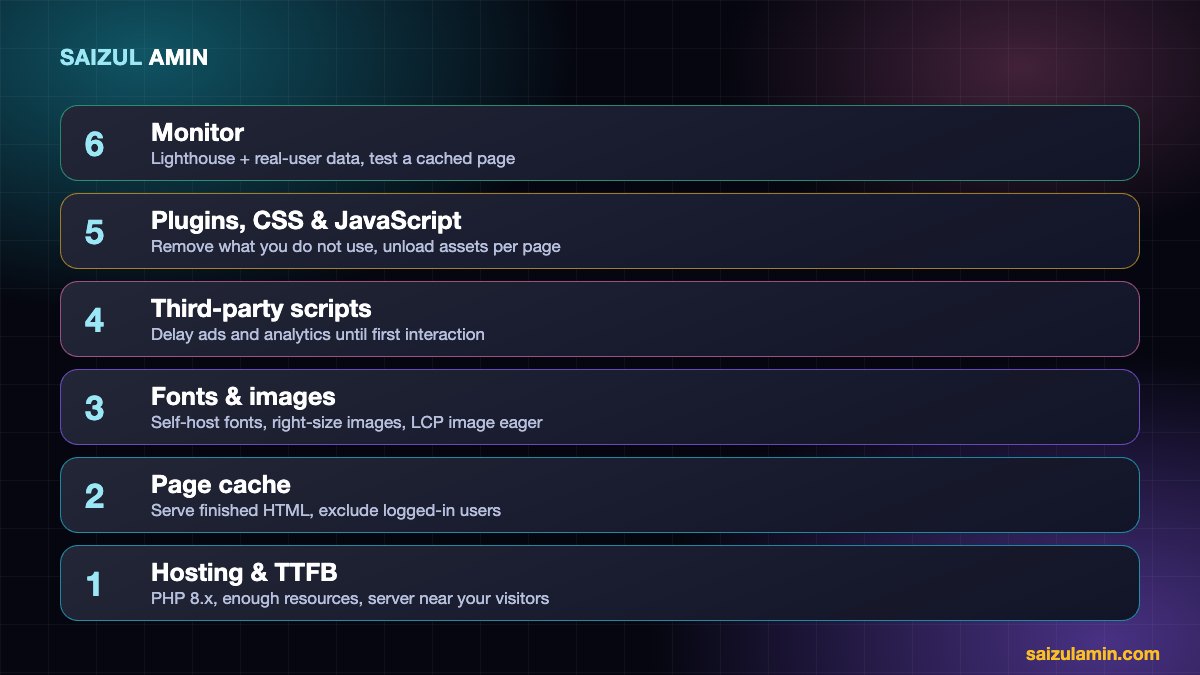
Step 0: measure properly before you change anything
Run PageSpeed Insights or Lighthouse on mobile, on a few different page types (home, an article, a landing page), and write the numbers down. Three habits will save you confusion:
- Test a cached page. The first request after you clear the cache is slow by design. Run the test twice and trust the second result.
- Know the difference between lab and field data. Lighthouse is a simulated lab test on a slow phone and network. Field data (the Chrome UX report in PageSpeed Insights) is what real visitors experienced. Lab scores vary by a few points every run.
- Watch for a testing trap with caching plugins. When I measured with a plain command-line request, my cache plugin looked broken, because it skips caching for requests that do not announce they accept HTML. A browser, and Lighthouse, send the right header. If your cache “does not work” in a script but works in a browser, check the request headers before changing settings.
Step 1: Hosting and server response time (TTFB)
If your server needs a second or more to produce the HTML, no front-end trick will save you. Time to first byte is the foundation.
- Run a current PHP version (8.x) with OPcache enabled.
- Cheap shared hosting is often the bottleneck because you share CPU and database with strangers. A small VPS with a proper panel gives you predictable resources.
- Distance matters. My server is in Europe and much of my audience is in Bangladesh, which means a round trip of roughly 280 ms before any page work starts. No amount of image compression fixes that; a CDN or a closer server does. Pick the location by where your visitors are.
Step 2: Page caching, the biggest single win
A page cache stores the finished HTML so WordPress and the database do not run for every visit. On one of my sites, an uncached page took between roughly 0.4 and 2 seconds to start responding, while the cached version started in about 60 milliseconds. Nothing else I did came close to that.
Things I learned the hard way:
- Exclusion rules need to be valid. I entered a path-exclusion regular expression without delimiters, and the plugin silently failed to match. Result: the admin toolbar got saved inside cached pages and could be shown to visitors. Test exclusions by loading a page, viewing the source and confirming it looks the way a logged-out visitor should see it.
- Never cache for logged-in users or carts. Exclude the login cookies and any shop, cart, checkout and account pages.
- Clear the cache on publish and on plugin or theme changes, or you will chase “ghost” problems that are just stale HTML.
- Do not stack two page-cache systems. I removed a server-specific cache plugin that did nothing on my web server and replaced it with a plugin that fits it.
Step 3: Object cache (Redis), helpful but overrated for blogs
Redis or Memcached keeps repeated database results in memory. It makes the WordPress admin and dynamic pages (shops, membership sites, search) noticeably snappier. For a mostly static blog served from a page cache it changes little for visitors. I enable it because it is cheap and helps the dashboard, but I do not expect it to move a Lighthouse score.
Step 4: Fonts, a quiet source of delay
- Self-host your fonts. A CSS
@importfrom a third-party font service creates a chain of requests before text can render. Serving the font files from your own domain removes that chain. - Use modern WOFF2 files, load only the weights you use, and set
font-display: swapso text appears immediately. - Preload the one or two fonts used above the fold.
Step 5: Images and the LCP element
Largest Contentful Paint (LCP) is usually a hero image or the main headline. See Google’s guide to LCP for the definition. What worked for me:
- Serve the right size. I replaced 1200-pixel screenshots shown in 400-pixel cards with 640-pixel versions and a
srcset. Each image dropped from roughly 100 KB to 20–40 KB. - Use WebP or AVIF where your stack supports it.
- Always set width and height so the browser reserves space, which prevents layout shift.
- Do not lazy-load the LCP image. WordPress adds
loading="lazy"to images automatically. When the main image is lazy, the browser delays it on purpose and your LCP gets worse. I set the above-the-fold image toloading="eager"withfetchpriority="high", and kept lazy loading for everything below.
Step 6: Third-party scripts (ads, analytics, widgets)
Advertising and analytics scripts are often the largest cause of long main-thread work. On my own sites I delay these scripts until the visitor first interacts (scrolls, taps or moves the mouse) or a short timeout passes. Total Blocking Time stayed at 0 ms on my pages even with ads and analytics installed.
The trade-off is real, so decide with eyes open: analytics and ad requests start a moment later, so a visitor who leaves instantly may not be counted, and ads appear after the first interaction. For content sites, I consider that a fair exchange for better Core Web Vitals. Do not delay anything your page needs to render, only the extras.
Step 7: Plugins, CSS and JavaScript
- Remove plugins you do not use; every active one can add queries, scripts and styles.
- Unload assets where they are not needed. For example, shop styles and scripts do not need to load on blog posts.
- Page builders are fine, but avoid stacking heavy sliders, 3D backgrounds and animation libraries on pages that must be fast.
- Minify and combine only if it measurably helps; on HTTP/2 or HTTP/3 the gain is often small and sometimes breaks layouts.
Step 8: Layout shift
Cumulative Layout Shift happens when content jumps as things load. The common causes are images without dimensions, late-loading fonts, and content injected after the page renders (a grid filled by JavaScript, or an ad slot that suddenly expands). Rendering important content on the server instead of with JavaScript fixed a big shift on one of my pages (CLS went from about 0.48 to about 0.02).
What the results looked like
After the changes above, my main pages scored roughly 89 to 94 on mobile Performance in Lighthouse, with Total Blocking Time at 0 ms and layout shift at or below about 0.06. One heavy page with a 3D animated hero scored around 70 on the simulated slow-4G test, because it simply loads more. Lighthouse is a lab estimate that moves a few points between runs, so use it to find problems and compare before and after, not as a trophy.
Priority checklist
| Change | Typical impact | Effort |
|---|---|---|
| Page cache set up correctly | Very high | Low |
| Better hosting / closer server or CDN | High | Medium |
| Right-sized images, LCP image eager | High | Low to medium |
| Delay third-party scripts | High on script-heavy pages | Low to medium |
| Self-hosted, preloaded fonts | Medium | Low |
| Remove unused plugins and assets | Medium | Low |
| Redis object cache | Low for visitors, good for admin | Low |
| Fighting for a perfect 100 | Rarely worth it | High |
Need help with this on your own site?
I work with businesses and creators on WordPress performance, technical SEO, hosting migrations and monetisation. If you would rather have an experienced person do it (or review what you have done), send me a message with your website address and what you want to achieve, and I will tell you honestly what I would change first.
Frequently asked questions
What is a good PageSpeed score for WordPress?
A mobile Performance score in the 80s or 90s is a strong result for a real site with ads and analytics. More important than the number are your Core Web Vitals: LCP, INP and CLS, as measured for real users.
Does page speed affect SEO?
Page experience, including speed, is one of many signals Google uses, and it matters most when two pages are otherwise similar. Helpful, original content still comes first, but slow pages also lose visitors directly through impatience, which hurts everything else.
Do I need a CDN?
If your audience is far from your server, yes, it usually gives a bigger improvement than any other single step. If your audience is local to the server, a good page cache may be enough.
Which cache plugin should I use?
Use one that fits your web server: a server-specific plugin for that server, or a lightweight static-HTML cache on Nginx or Apache. Configure it carefully and test as a logged-out visitor.
How long does optimisation take?
A basic round (cache, images, fonts, plugins) can take a few hours on a small site. Deeper work on templates and scripts takes longer, and monitoring is ongoing.
Sources and further reading
- web.dev: Largest Contentful Paint
- web.dev: Core Web Vitals
- Chrome Lighthouse documentation
- Google: PageSpeed Insights documentation
How this article was written
I wrote this from hands-on experience with my own websites. Technical details were checked against the official documentation linked above in October 2026. Tools, policies and prices change, so if you notice something out of date, email info@saizul.com and I will correct it. Results mentioned are from my own sites and will vary on yours.

Saizul Amin is a digital growth strategist and SEO consultant specialising in search engine optimisation, web development, AI-powered automation, and online income systems. With 8 years of hands-on experience helping businesses and individual creators grow their online presence, Saizul combines technical expertise with practical, results-driven strategy.
Experience & Background
Saizul started his digital career in 2017, initially working with Bioscope Limited to build and optimise websites for organic search traffic. Over the years, he has worked across industries including DGHS, NAVANA, UNICampus, UNIPathways, UniqueMark, developing a deep understanding of what it takes to rank, convert, and grow sustainably online.
His work spans the full digital stack — from technical SEO audits and content strategy to WordPress development, marketing automation, and AI tool integration for small businesses and startups.
What He Covers on This Blog
Every article on SaizulAmin.com is written from direct experience. Saizul does not publish theoretical content — every guide, tool recommendation, and strategy shared here has been tested and applied in real projects. Topics include:
- Search engine optimisation (on-page, technical, and content SEO)
- Digital marketing strategy and growth systems
- AI tools and automation for business productivity
- Web development, WordPress, and website building
- Making money online through freelancing and affiliate marketing
Why Trust This Content
All recommendations on this site reflect tools and strategies Saizul actively uses or has personally evaluated. Where affiliate relationships exist, they are clearly disclosed. Content is regularly reviewed and updated to reflect current best practices and algorithm changes.