


Google Consent Mode v2 tells Google tags what a visitor agreed to, so Analytics and Ads adjust what they store and send. You do not need a paid consent platform to use it: a small custom cookie banner and a few gtag('consent', ...) calls are enough, as long as they run in the right order. This guide shows a complete setup for gtag.js and Google Tag Manager: denied defaults scoped to the regions that need opt-in, a banner that sends updates, restoring a returning visitor’s choice before any tag fires, a WordPress must-use plugin, and how to prove it works in Tag Assistant.
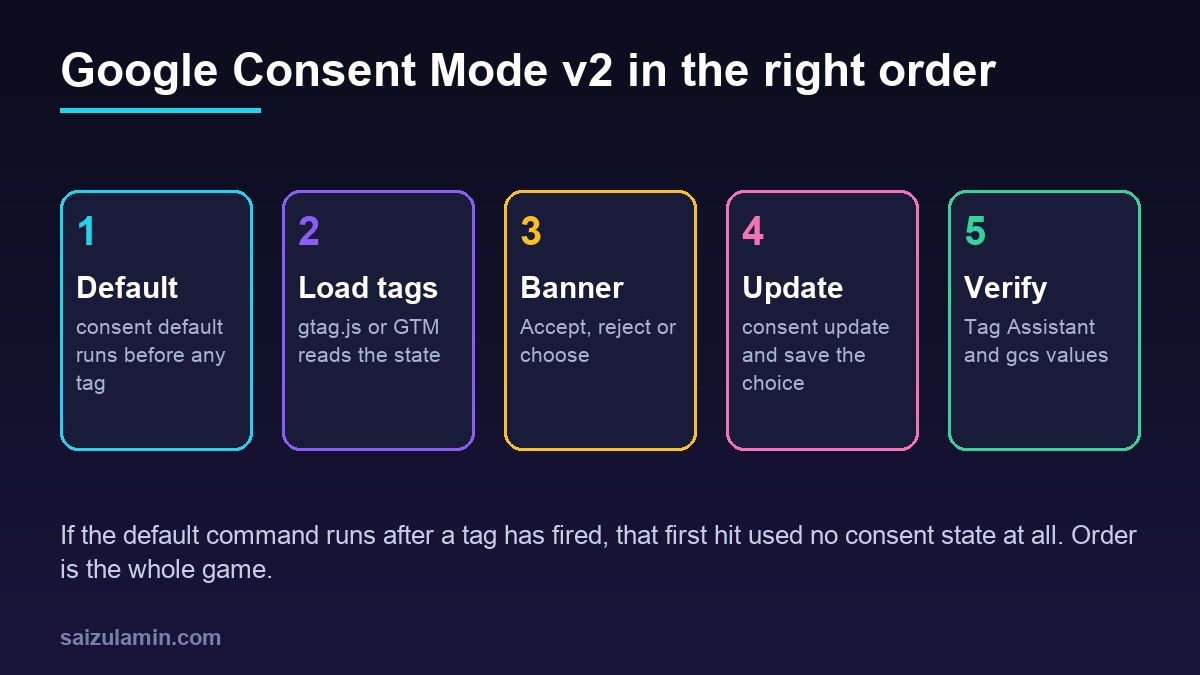
From my own work: When I audit analytics setups, the most common Consent Mode bug is not a missing parameter. It is the default command sitting below the Tag Manager snippet, or inside a plugin script that loads late, so the first page view of every session goes out before any consent state exists. Moving five lines of JavaScript to the top of
<head>fixes it.
This is an implementation guide, not legal advice: which regions need opt-in and what the banner must say depend on the laws that apply to you.
What Google Consent Mode v2 changes
Consent mode is a set of named consent types that Google tags read before they decide whether to set cookies and what to send. Version 2 added two types, ad_user_data and ad_personalization, on top of the original storage types. Google lists them like this:
| Consent type | Controls | Map it to banner choice |
|---|---|---|
ad_storage |
Cookies and identifiers for advertising | Marketing |
ad_user_data |
Sending user data to Google for advertising | Marketing |
ad_personalization |
Personalized advertising, such as remarketing | Marketing |
analytics_storage |
Analytics cookies, such as visit duration | Analytics |
functionality_storage |
Storage the site needs to work, such as language | Necessary (usually granted) |
personalization_storage |
Personalization, such as recommendations | Preferences |
security_storage |
Authentication and fraud prevention | Necessary (usually granted) |
The first four are the ones Google’s advertising and measurement features depend on, so a banner that only toggles ad_storage and analytics_storage is an incomplete v2 setup (Google: consent mode overview).
Basic vs advanced consent mode
Google describes two ways to implement it (Google: basic versus advanced):
- Basic: Google tags do not load at all until the visitor makes a choice. Nothing is sent to Google before interaction. If the visitor rejects, the tags never load.
- Advanced: tags load immediately with your default state (usually denied). While consent is denied they set no cookies and send cookieless pings, which Google uses for conversion modelling. When the visitor grants consent, full measurement starts.
Advanced mode recovers more measurement but sends some data before consent, so it is a policy decision. The code below uses advanced mode; a later section shows how to switch.
Step 1: set the default before any Google tag
The default command must run before any command that sends data, such as config or event (Google: set up consent mode). Put it inline, at the very top of <head>, above the gtag.js or Tag Manager snippet. Do not load it from a deferred file.
Google recommends scoping defaults to the regions where you show a banner. When two defaults exist, the one with a matching, more specific region wins, so you can deny by default in the EEA, the UK and Switzerland and grant elsewhere if your legal advice allows that.
<!-- 1. Consent defaults: first thing in <head> -->
<script>
  window.dataLayer = window.dataLayer || [];
  function gtag(){ dataLayer.push(arguments); }

  // Opt-in regions: EEA countries, the UK and Switzerland
  var OPT_IN = ['AT','BE','BG','HR','CY','CZ','DK','EE','FI','FR','DE','GR','HU','IS',
                'IE','IT','LV','LI','LT','LU','MT','NL','NO','PL','PT','RO','SK','SI',
                'ES','SE','GB','CH'];

  gtag('consent', 'default', {
    ad_storage: 'denied',
    ad_user_data: 'denied',
    ad_personalization: 'denied',
    analytics_storage: 'denied',
    functionality_storage: 'granted',
    security_storage: 'granted',
    region: OPT_IN
  });

  // Everywhere else (remove this block to deny worldwide)
  gtag('consent', 'default', {
    ad_storage: 'granted',
    ad_user_data: 'granted',
    ad_personalization: 'granted',
    analytics_storage: 'granted'
  });

  gtag('set', 'ads_data_redaction', true); // strip ad click IDs while ad_storage is denied

  // 2. Restore a returning visitor's saved choice before any tag reads the state
  try {
    var saved = JSON.parse(localStorage.getItem('consent_v1') || 'null');
    if (saved && saved.state) gtag('consent', 'update', saved.state);
  } catch (e) {}
</script>

<!-- 3. Google tag (gtag.js) AFTER the consent code -->
<script async src="https://www.googletagmanager.com/gtag/js?id=G-XXXXXXXXXX"></script>
<script>
  gtag('js', new Date());
  gtag('config', 'G-XXXXXXXXXX');
</script>
Three details in that snippet matter:
- The restore runs synchronously. A returning visitor who already accepted gets
grantedbefore the first page view, so you do not lose their first hit on every page. ads_data_redactionremoves ad click identifiers from requests whilead_storageis denied.wait_for_update(for examplewait_for_update: 500in the default) is only needed when an asynchronous banner script might decide before tags send data. In this design the first-visit choice always comes later, from a click, so it is not needed.
Step 2: a small custom cookie banner
The banner has three buttons: accept all, reject all and a settings panel with two switches. Rejecting must be as easy as accepting, and the banner must not set any non-essential cookie itself; storing the choice in localStorage is enough.
<div id="cc" role="dialog" aria-labelledby="cc-title" aria-live="polite" hidden>
  <p id="cc-title"><strong>Cookies on this site</strong></p>
  <p>We use analytics cookies to understand traffic and marketing cookies to measure ads.
     You can change this any time from <em>Cookie settings</em> in the footer.</p>
  <form id="cc-form" hidden>
    <label><input type="checkbox" name="analytics"> Analytics</label>
    <label><input type="checkbox" name="marketing"> Marketing</label>
  </form>
  <button type="button" data-cc="reject">Reject all</button>
  <button type="button" data-cc="settings">Settings</button>
  <button type="button" data-cc="save" hidden>Save choices</button>
  <button type="button" data-cc="accept">Accept all</button>
</div>

<!-- footer link to reopen the banner -->
<a href="#" data-cc-open>Cookie settings</a>
// consent-banner.js (load with defer; no dependencies)
(function () {
var KEY = 'consent_v1';
var MAX_AGE_DAYS = 180; // ask again after this many days
var box = document.getElementById('cc');
var form = document.getElementById('cc-form');
function toState(analytics, marketing) {
var ads = marketing ? 'granted' : 'denied';
return {
analytics_storage: analytics ? 'granted' : 'denied',
ad_storage: ads,
ad_user_data: ads,
ad_personalization: ads
};
}
function read() {
try {
var s = JSON.parse(localStorage.getItem(KEY) || 'null');
if (s && Date.now() - s.ts < MAX_AGE_DAYS * 864e5) return s;
} catch (e) {}
return null;
}
function deleteCookies(pattern) {
var host = location.hostname.split('.');
document.cookie.split(';').forEach(function (c) {
var name = c.split('=')[0].trim();
if (!pattern.test(name)) return;
for (var i = 0; i < host.length - 1; i++) { // try every parent domain
var domain = host.slice(i).join('.');
document.cookie = name + '=; Max-Age=0; path=/; domain=.' + domain;
}
document.cookie = name + '=; Max-Age=0; path=/';
});
}
function decide(analytics, marketing) {
var state = toState(analytics, marketing);
gtag('consent', 'update', state);
localStorage.setItem(KEY, JSON.stringify({ ts: Date.now(), state: state }));
if (!analytics) deleteCookies(/^(_ga|_gid|_gat)/); // withdrawal removes old cookies
if (!marketing) deleteCookies(/^(_gcl|_fbp)/);
box.hidden = true;
}
function open() {
var s = read();
form.analytics.checked = !!(s && s.state.analytics_storage === 'granted');
form.marketing.checked = !!(s && s.state.ad_storage === 'granted');
box.hidden = false;
}
box.addEventListener('click', function (e) {
var a = e.target.getAttribute('data-cc');
if (a === 'accept') decide(true, true);
if (a === 'reject') decide(false, false);
if (a === 'save') decide(form.analytics.checked, form.marketing.checked);
if (a === 'settings') {
form.hidden = false;
box.querySelector('[data-cc="save"]').hidden = false;
}
});
document.addEventListener('click', function (e) {
if (e.target.closest('[data-cc-open]')) { e.preventDefault(); open(); }
});
if (!read()) open(); // first visit or expired choice
})();Analytics cookies are usually set on the registrable domain, such as .example.com, and a cookie can only be removed with a matching domain, so the cleanup tries each parent domain.
Tags that consent mode does not control
Consent mode only changes the behaviour of Google tags. A Meta Pixel, a heatmap script or a chat widget ignores it completely. Load those scripts yourself from decide(), and on page load when a saved choice exists, only after the matching type is granted: an advertising pixel needs ad_storage, a heatmap needs analytics_storage.
For server-side ad tracking that respects the same choice, pass the consent state with each event, as covered in the Meta Conversions API guide.
Google Tag Manager setup
With Tag Manager, keep the same inline default and restore code in <head> above the container snippet. Tag Manager reads consent commands that are already in the data layer, and Google tags inside the container (the Google tag, GA4 events, Google Ads conversion and remarketing tags) apply consent automatically. If you prefer to set consent from inside the container, use a Consent Initialization trigger with a template that calls setDefaultConsentState and updateConsentState, which is what Google’s documentation recommends for templates (Google: consent mode with Tag Manager).
Then, in the container:
- Open Admin → Container Settings and enable the consent overview.
- For every non-Google tag, set Additional consent checks to require the matching type, for example
ad_storagefor an advertising pixel. - Check that no tag uses the All Pages trigger with consent set to Not needed unless it really is necessary.
Switching to basic consent mode
For basic mode, keep the defaults and the banner, but do not output the gtag.js or GTM snippet at all until consent exists. Wrap the loader in a function and call it from decide() when analytics or marketing is granted, and on page load when a saved choice grants either. No Google request leaves the browser before that point, which you can confirm in the Network panel.
Adding it to WordPress
In WordPress, output the defaults with a must-use plugin hooked early into wp_head, so it lands above any analytics plugin. Because the choice lives in the browser, full-page caching keeps working: every visitor gets the same HTML. If ad revenue matters, also see the notes in the AdSense approval guide for WordPress.
<?php
/**
 * Plugin Name: Consent Mode Defaults
 * Description: Prints Google Consent Mode v2 defaults before any tag.
 */
add_action( 'wp_head', function () {
    $file = WPMU_PLUGIN_DIR . '/consent/defaults.js';     // the Step 1 script, without <script> tags
    if ( is_readable( $file ) ) {
        echo "<script>n" . file_get_contents( $file ) . "n</script>n";
    }
}, 1 );

add_action( 'wp_enqueue_scripts', function () {
    wp_enqueue_script(
        'consent-banner',
        content_url( 'mu-plugins/consent/consent-banner.js' ),
        array(),
        '1.0.0',
        array( 'strategy' => 'defer', 'in_footer' => true )
    );
} );
Print the banner HTML from your theme’s footer, or from the same plugin on wp_footer. Keep the banner light: it shows on first visits, so a large font or image in it can hurt the metrics in the Core Web Vitals guide.
How to test Google Consent Mode v2
Open the site in a private window and connect Tag Assistant. Google’s troubleshooting guide walks through the checks (Google: troubleshoot consent mode):
- In the summary, select the Consent event and confirm the defaults for
ad_storage,ad_user_data,ad_personalizationandanalytics_storageare set before the first Config or page view. - Click a banner button and confirm a second Consent event with the updated values.
- Reload the page and confirm the restored state appears before the page view.
You can also inspect the data layer from DevTools:
// list consent commands in the order they were pushed
dataLayer.filter(e => e && e[0] === 'consent').map(e => [e[1], JSON.stringify(e[2])]);

// after rejecting, no Google Analytics cookie should remain
document.cookie.split('; ').filter(c => c.startsWith('_ga'));
In the Network panel, GA4 collection requests carry a gcs parameter that encodes the storage state: G100 means ad and analytics storage are both denied, G111 means both are granted, and G101 means only analytics storage is granted. A request with no consent signal at all means a tag fired before your default.
Finally, check the reports. In Google Analytics, the admin area shows whether consent signals are being received, and Google Ads shows consent status for conversion actions (Google Analytics Help: consent mode).
When a custom banner is not enough
If you show Google ads through AdSense, Ad Manager or AdMob to visitors in the EEA, the UK or Switzerland, Google requires a consent management platform that Google has certified and that integrates with the IAB Transparency and Consent Framework (AdSense Help: CMP requirements). A hand-built banner like this one is suitable for measurement and advertiser conversion tracking, but publishers serving personalized ads in those regions need a certified CMP. For analytics that avoid cookies entirely, the server-side analytics guide shows another route.
Consent Mode v2 checklist
- Default command inline at the top of
<head>, before gtag.js or GTM. - All four v2 types set:
ad_storage,ad_user_data,ad_personalization,analytics_storage. - Defaults scoped by
regionwhere your legal advice allows. - Saved choice restored synchronously before the first hit.
- Reject as easy as accept, a footer link to change the choice, and old cookies removed on withdrawal.
- Non-Google scripts loaded only after the matching consent.
- Verified in Tag Assistant and in the
gcsvalues of real requests.
Want this done on your own server or site?
I am Saizul Amin, a web developer and technical SEO consultant. I set up and harden VPS servers, migrate WordPress sites, fix indexing problems and build automations. See my portfolio or get in touch.
FAQ
What is Google Consent Mode v2?
It is the current version of Google consent mode, which lets your site tell Google tags whether a visitor consented to advertising storage, sending user data for ads, ad personalization and analytics storage. Tags then change what they store and send.
Do I need a paid CMP to use Consent Mode v2?
No. Any banner can call gtag consent default and update with the right values. A Google-certified CMP is required if you are a publisher serving personalized Google ads through AdSense, Ad Manager or AdMob to users in the EEA, the UK or Switzerland.
Where should the consent default code go?
Inline, at the top of the head element, before the gtag.js or Google Tag Manager snippet. If it runs after a tag has already sent a hit, that hit was sent without a consent state.
What is the difference between basic and advanced consent mode?
In basic mode Google tags load only after the visitor makes a choice. In advanced mode tags load immediately with denied defaults and send cookieless pings until consent is granted.
How do I check that consent mode works?
Use Tag Assistant to confirm the default consent event comes before the first page view and that an update follows a banner click. In the Network panel, the gcs parameter shows the storage state, for example G100 for both denied.
Sources
- Google Tag Platform: Set up consent mode on websites
- Google Tag Platform: Consent mode overview
- Google Tag Platform: Troubleshoot consent mode with Tag Assistant
- Google Analytics Help: About consent mode
- AdSense Help: Consent management requirements for serving ads in the EEA, UK and Switzerland

Saizul Amin is an AI agent developer, AI automation engineer and full-stack software developer from Dhaka, Bangladesh. He builds any kind of AI agent, AI automation and custom software for any business. Portfolio: https://saizul.com