

WordPress maintenance mode should do one thing above all: answer with an HTTP 503 Service Unavailable status and a Retry-After header while the site is down, then disappear cleanly. Many maintenance plugins and hand-made back soon pages return 200 OK instead, which tells Google and your CDN that the maintenance notice is the real content of every URL. This guide explains how core WordPress maintenance works, and shows three better ways to switch it on: a custom maintenance.php, a small must-use plugin with admin bypass, and an Nginx flag file that works even when a page cache is serving the site.
From my own work: The worst maintenance incident I have cleaned up was a store that ran a coming soon plugin for nine days during a redesign. It returned 200 with the same title on every URL. Search Console started reporting duplicate pages, and the CDN cached the notice for the product pages, so some customers kept seeing it after launch. Switching the same window to a 503 with no-store would have avoided both problems.
Why WordPress maintenance mode needs a 503 status
HTTP has a status code for exactly this situation. 503 means the server is temporarily unable to handle the request, and Retry-After tells the client when to try again, either as a number of seconds or as an HTTP date (MDN: Retry-After). Google documents that 5xx responses make its crawlers temporarily slow down, and that already indexed URLs are kept in the index for a while but eventually dropped if the errors continue (Google: HTTP status codes and Search). A short 503 window is therefore safe; a long one is not.
Compare the options people commonly use:
| Approach | Status | Effect on search and caches |
|---|---|---|
| 503 with Retry-After | 503 | Treated as temporary; crawlers back off; CDNs do not cache it by default |
| Maintenance page returned with 200 | 200 | Looks like new content on every URL; can be cached and indexed |
Redirect to /maintenance/ |
302 | Every URL points at one page; caches and crawlers may follow it |
| Blocking crawlers in robots.txt | n/a | Stops crawling but tells search engines nothing about the outage |
As a rule of thumb, I keep 503 windows to minutes or hours. If a site has to be closed for days, keep it online with a visible notice and limited functionality instead.
How the core .maintenance file works
When WordPress updates core, plugins or themes, it writes a file called .maintenance in the WordPress root. On every request, wp_maintenance() checks for that file early in loading. If it exists and is recent, WordPress loads wp-content/maintenance.php when you have one, or otherwise prints Briefly unavailable for scheduled maintenance. Check back in a minute. with a 503 status and Retry-After: 600 (wp_maintenance()).
The file only contains a timestamp:
<?php $upgrading = 1763452800; ?>WordPress ignores the file once that timestamp is more than ten minutes old, which is why a failed update usually unlocks itself. Two practical consequences:
- The core screen blocks everyone, including
wp-admin, so you cannot log in to fix something while it is active. - A file containing
<?php $upgrading = time(); ?>never goes stale, because the timestamp is always the current time. That trick is fine for a planned job, but remember to delete the file afterwards.
WP-CLI wraps this in a command, which is the cleanest way to switch it from a deploy script (wp maintenance-mode):
cd /var/www/example.com/public
wp maintenance-mode activate
wp maintenance-mode status        # prints whether it is active
wp maintenance-mode is-active && echo "site is in maintenance"
wp maintenance-mode deactivate

# stuck on "Briefly unavailable" after a failed update?
rm -f /var/www/example.com/public/.maintenance
The WP-CLI commands cheat sheet lists the other commands you will usually run in the same window, such as database exports and cache flushes.
Customise the page with wp-content/maintenance.php
If wp-content/maintenance.php exists, core loads it instead of the default message and then stops. Core does not send any headers for you in this case, so your file must set the status itself. Keep it self-contained: WordPress functions, the theme and plugins are not loaded yet.
<?php
// wp-content/maintenance.php - shown while .maintenance is active
http_response_code(503);
header('Retry-After: 900');
header('Content-Type: text/html; charset=utf-8');
header('Cache-Control: no-store, max-age=0');
?><!doctype html>
<html lang="en">
<head>
  <meta charset="utf-8">
  <meta name="viewport" content="width=device-width, initial-scale=1">
  <meta name="robots" content="noindex">
  <title>Scheduled maintenance</title>
  <style>
    body{font:18px/1.6 system-ui,sans-serif;max-width:36rem;margin:15vh auto;padding:0 1rem;color:#1f2933}
  </style>
</head>
<body>
  <h1>We will be back shortly</h1>
  <p>The site is being updated and should be available again within 15 minutes.</p>
</body>
</html>
Inline the CSS and avoid images from your own domain: during maintenance those requests may fail too. The noindex tag is a safety net in case a cache ever stores the page with the wrong status.
A maintenance mu-plugin with admin bypass
For longer jobs, such as content migrations or a theme switch, you usually want visitors to see the 503 while logged-in administrators keep working on the live site. A must-use plugin does this in a few lines and cannot be disabled by accident from the Plugins screen:
<?php
/**
 * Plugin Name: Maintenance 503
 * Description: Sends a 503 to visitors while wp-content/maintenance.flag exists.
 */
add_action('template_redirect', function () {
    if (!file_exists(WP_CONTENT_DIR . '/maintenance.flag')) {
        return;
    }
    if (current_user_can('manage_options')) {
        return; // administrators see the real site
    }
    status_header(503);
    nocache_headers();                 // no-cache, no-store, private
    header('Retry-After: 1800');
    header('Content-Type: text/html; charset=utf-8');
    echo '<!doctype html><html lang="en"><head><meta charset="utf-8">'
       . '<meta name="robots" content="noindex"><title>Maintenance</title></head>'
       . '<body><h1>Back soon</h1><p>We are updating the site. Please try again in 30 minutes.</p></body></html>';
    exit;
});
# save as wp-content/mu-plugins/maintenance-503.php, then:
touch /var/www/example.com/public/wp-content/maintenance.flag # on
rm /var/www/example.com/public/wp-content/maintenance.flag # offtemplate_redirect fires for front-end pages and feeds but not for wp-login.php or wp-admin, so you can still sign in. It also does not run for the REST API or admin-ajax.php; if the work you are doing makes those unsafe, block them as well, or use the Nginx method below.
There is one serious limitation. If a page cache serves stored HTML before PHP runs, such as WP Super Cache in expert mode, Cache Enabler with Nginx rules, or Nginx FastCGI cache, cached visitors never reach this code and keep seeing the old pages. That may be acceptable for a design change. It is not acceptable for a migration where orders or comments would be lost.
Server-level maintenance mode with an Nginx flag file
Handling maintenance in Nginx works before any cache, PHP or WordPress code, and you can switch it on and off by creating a file, without reloading Nginx. First, an allowlist of your own IP addresses in the http context:
# /etc/nginx/conf.d/maintenance-bypass.conf
geo $maint_bypass {
    default         0;
    203.0.113.10    1;   # office
    198.51.100.0/24 1;   # VPN range
}
Then, inside the server block for the site, before your location blocks:
# /etc/nginx/sites-available/example.com
set $maintenance 0;
if (-f /var/www/example.com/maintenance.on) {
    set $maintenance 1;
}
if ($maint_bypass) {
    set $maintenance 0;
}
if ($maintenance) {
    return 503;
}

error_page 503 @maintenance;
location @maintenance {
    root /var/www/maintenance;
    rewrite ^ /maintenance.html break;
    add_header Retry-After 1800 always;
    add_header Cache-Control "no-store" always;
}
sudo mkdir -p /var/www/maintenance
sudo cp maintenance.html /var/www/maintenance/maintenance.html
sudo nginx -t && sudo systemctl reload nginx # once, to load the config
sudo touch /var/www/example.com/maintenance.on # switch on
sudo rm /var/www/example.com/maintenance.on # switch offWhen error_page points at a named location, Nginx keeps the original 503 status, so the HTML file is served with the right code (nginx error_page). The always parameter is required, because add_header otherwise only applies to successful responses. Keep the flag file outside the web root so nobody can request it.
Two details to check on your server:
- Rate limiting:
limit_reqalso answers with 503 by default, so with this config a rate-limited visitor would see the maintenance page. Setlimit_req_status 429;as described in the Nginx rate limiting guide for WordPress. - Behind Cloudflare:
$remote_addris a Cloudflare address unless you have configuredset_real_ip_fromandreal_ip_header CF-Connecting-IP, so the IP bypass will not work until you do.
Caches, CDNs and monitoring during maintenance
- Page cache: with the Nginx method, cached pages are never served while the flag exists. Purge the cache after you switch maintenance off if the content changed. The Nginx FastCGI cache guide shows how to purge it.
- CDN: Cloudflare does not cache 5xx responses by default, and
Cache-Control: no-storemakes sure no other layer keeps the page. If you have custom cache rules that cache everything, check they do not include error responses; see Cloudflare cache rules for WordPress. - Uptime monitors: a 503 is an outage to a monitor. Pause the check or set a maintenance window, otherwise you will get alerts for your own work. The Uptime Kuma guide covers maintenance windows.
- Cron and queues: WP-Cron does not run during core maintenance, but system cron jobs that call WP-CLI do. Pause them if they write to the database you are migrating.
Test the response before you start the real work
Switch maintenance on and check the headers from a connection that is not on your allowlist, for example a phone hotspot:
curl -sI https://example.com/ | grep -iE '^(HTTP|retry-after|cache-control)'
# HTTP/2 503
# retry-after: 1800
# cache-control: no-store

curl -sI https://example.com/some-post/ | head -1     # every URL should be 503
curl -sI https://example.com/wp-login.php | head -1   # 503 with Nginx, 200 with the mu-plugin
Then switch it off and confirm the site returns 200 again, with the normal cache headers. After a long window, open Search Console a few days later and check the crawl stats report for a lasting rise in server errors.
A maintenance workflow for deploys and migrations
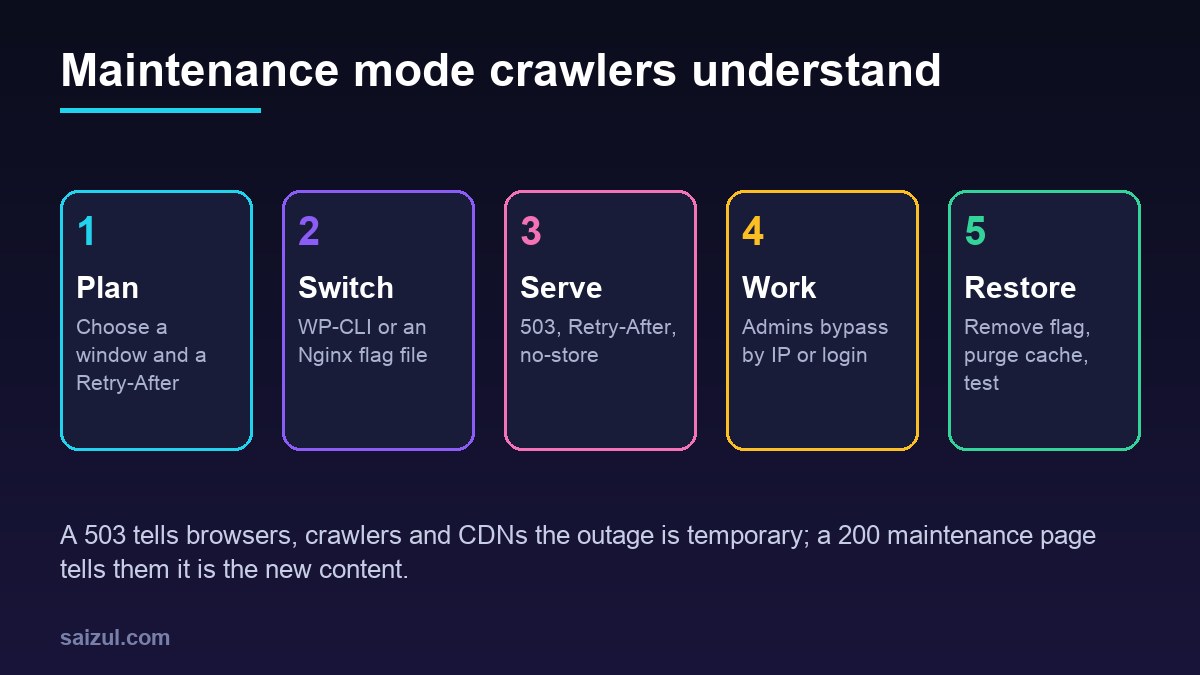
- Pick a quiet window and decide how long it will take; set
Retry-Aftera little longer than that. - Take a database export and a file backup first.
- Switch on maintenance with the method that matches the job: WP-CLI for a short update, the mu-plugin for content work, Nginx for migrations and anything involving caches.
- Pause uptime alerts and cron jobs that write to the database.
- Do the work, test as an administrator.
- Switch maintenance off, purge page and CDN caches, run a quick smoke test of the home page, a post, search, the cart and checkout.
- Resume monitoring and cron.
For a server move, combine this with the steps in the WordPress to VPS migration guide: maintenance on the old server during the final database sync, then DNS to the new one.
Want this done on your own server or site?
I am Saizul Amin, a web developer and technical SEO consultant. I set up and harden VPS servers, migrate WordPress sites, fix indexing problems and build automations. See my portfolio or get in touch.
FAQ
What status code should a WordPress maintenance page return?
503 Service Unavailable, ideally with a Retry-After header. It tells browsers, search engines and CDNs that the outage is temporary. A maintenance page returned with 200 looks like the real content of every URL.
Does maintenance mode hurt SEO?
A short 503 window does not. Google slows crawling during 5xx errors and keeps indexed URLs for a while. Problems start when a site returns errors for a long time, or when a maintenance page is served with 200 and gets indexed.
How do I fix Briefly unavailable for scheduled maintenance?
Delete the .maintenance file in the WordPress root, or run wp maintenance-mode deactivate. Then check that the update which was running completed, and rerun it if needed.
How do I let admins see the site during maintenance?
With an mu-plugin, skip the 503 for users who can manage_options. With Nginx, use a geo block to bypass the flag for your IP addresses. The core .maintenance screen blocks everyone, including wp-admin.
Do I need a maintenance mode plugin?
No. WP-CLI, a short mu-plugin or an Nginx flag file cover most needs. If you do use a plugin, confirm with curl that it sends a 503 and not a 200.
Sources
- WordPress Developer Resources: wp_maintenance()
- WP-CLI Commands: wp maintenance-mode
- Google Search Central: How HTTP status codes and network errors affect Google Search
- MDN Web Docs: Retry-After
- nginx documentation: error_page directive

Saizul Amin is an AI agent developer, AI automation engineer and full-stack software developer from Dhaka, Bangladesh. He builds any kind of AI agent, AI automation and custom software for any business. Portfolio: https://saizul.com