

SVG uploads in WordPress are blocked by default, and that is a deliberate security decision, not an oversight. An SVG is an XML document that can contain <script> elements, onload handlers and javascript: links. If someone uploads one and a logged-in administrator opens its URL, that script runs on your domain with access to the admin session. This guide shows how to allow SVG uploads safely: sanitize every file on upload, restrict who can upload, deal with WordPress’s MIME checks, give SVGs proper dimensions in the media library, and serve uploaded files with a Content-Security-Policy that neutralises anything the sanitizer misses.
From my own work: When I clean up compromised WordPress sites, the SVG problem I see most often is not a clever exploit. It is a snippet copied from a forum that adds
svgtoupload_mimesfor every logged-in user, with no sanitizing at all, on a site with open customer or author registration. Restricting the role and sanitizing on upload would have closed that hole in a few minutes.
Why WordPress blocks SVG uploads
A PNG is pixels. An SVG is markup that a browser interprets, and the SVG and XML specifications allow far more than shapes:
- Scripts:
<script>elements and event attributes such asonload,onclickandonmouseover. - Links:
hreforxlink:hrefvalues withjavascript:ordata:URLs. - Embedded HTML:
<foreignObject>can contain arbitrary HTML, including forms. - External references: remote images, fonts or
<use>targets that leak visitor data or pull in other content. - XML tricks: entity declarations that can be abused for denial of service in some parsers.
How the SVG is displayed matters. When a page loads it through <img src="logo.svg"> or a CSS background, browsers do not run its scripts. When someone opens the file URL directly, or it is embedded with <object>, <iframe> or pasted inline into the page, scripts can run in the context of your site. Uploaded files live at predictable URLs on your own domain, so you have to assume someone will open them directly.
OWASP’s file upload guidance applies here: allow only the extensions you need, validate content rather than trusting the extension, and restrict who may upload (OWASP: File Upload Cheat Sheet).
| Risk in an SVG | Sanitizer on upload | CSP when served | Role restriction |
|---|---|---|---|
<script> and on* handlers |
Removed | Blocked by sandbox and default-src 'none' |
Fewer people can try |
javascript: links |
Removed | Blocked | Fewer people can try |
<foreignObject> HTML |
Removed | Sandboxed | Fewer people can try |
| Remote references | Removed with removeRemoteReferences |
Blocked by default-src 'none' |
– |
| Sanitizer bypass found later | Not covered | Still contained | Limits exposure |
Two ways to enable SVG uploads in WordPress
Option 1: a maintained plugin. The Safe SVG plugin on WordPress.org sanitizes uploaded SVGs using the same svg-sanitize library used below, and can restrict uploads by role. For most sites that is the quickest safe answer; keep it updated, because sanitizer fixes ship through plugin updates.
Option 2: a small must-use plugin you control. Better when you manage sites with Composer or Git and want the behaviour in code. The rest of this guide builds that version. Whichever you choose, never use the ALLOW_UNFILTERED_UPLOADS constant to get SVGs through: it lets administrators upload any file type and sanitizes nothing.
Install the svg-sanitize library
enshrined/svg-sanitize parses the SVG and removes everything not on an allow-list of elements and attributes (svg-sanitizer on GitHub). Install it into its own folder next to the must-use plugin, on Ubuntu 24.04 with PHP 8.3:
sudo apt install -y composer php8.3-xml
cd /var/www/example.com/htdocs/wp-content/mu-plugins
sudo -u www-data mkdir -p svg-support
cd svg-support
sudo -u www-data composer require enshrined/svg-sanitize
ls vendor/autoload.php
Use the site’s own system user instead of www-data if your stack runs each site as a separate user. WordPress loads only PHP files at the top level of mu-plugins, so the vendor folder is not executed by itself; block web access to it anyway (the Nginx section below does).
A must-use plugin for safe SVG uploads in WordPress
Create wp-content/mu-plugins/safe-svg-uploads.php. It uses three hooks: upload_mimes to allow the type for trusted users (WordPress: upload_mimes), wp_handle_upload_prefilter to sanitize the temporary file before WordPress moves it into uploads (WordPress: wp_handle_upload_prefilter), and wp_check_filetype_and_ext to handle servers whose MIME detection reports SVG as text.
<?php
/**
 * Plugin Name: Safe SVG uploads
 * Description: Sanitized SVG uploads for trusted roles only.
 */

defined( 'ABSPATH' ) || exit;

require_once __DIR__ . '/svg-support/vendor/autoload.php';

use enshrinedsvgSanitizeSanitizer;

// Who may upload SVG. Change deliberately, never to 'read' or 'upload_files'.
function sa_svg_user_allowed(): bool {
	return current_user_can( 'manage_options' );
}

// 1. Allow the MIME type, but only for trusted users.
add_filter( 'upload_mimes', function ( array $mimes ): array {
	if ( sa_svg_user_allowed() ) {
		$mimes['svg'] = 'image/svg+xml';
	}
	return $mimes;
} );

// 2. Sanitize before WordPress stores the file (uploads and sideloads).
function sa_svg_sanitize_upload( array $file ): array {
	$ext = strtolower( pathinfo( $file['name'] ?? '', PATHINFO_EXTENSION ) );
	if ( 'svg' !== $ext && 'svgz' !== $ext ) {
		return $file;
	}
	if ( 'svgz' === $ext || ! sa_svg_user_allowed() ) {
		$file['error'] = 'SVG uploads are not allowed for this account or format.';
		return $file;
	}
	if ( filesize( $file['tmp_name'] ) > 1024 * 1024 ) {
		$file['error'] = 'SVG files larger than 1 MB are not accepted.';
		return $file;
	}

	$sanitizer = new Sanitizer();
	$sanitizer->removeRemoteReferences( true );
	$sanitizer->minify( true );

	$clean = $sanitizer->sanitize( (string) file_get_contents( $file['tmp_name'] ) );
	if ( false === $clean || '' === trim( $clean ) ) {
		$file['error'] = 'This SVG could not be parsed safely and was rejected.';
		return $file;
	}

	file_put_contents( $file['tmp_name'], $clean );
	$file['size'] = strlen( $clean );
	return $file;
}
add_filter( 'wp_handle_upload_prefilter', 'sa_svg_sanitize_upload' );
add_filter( 'wp_handle_sideload_prefilter', 'sa_svg_sanitize_upload' );

// 3. Some fileinfo builds detect SVG without an XML declaration as text.
add_filter( 'wp_check_filetype_and_ext', function ( $data, $file, $filename, $mimes, $real_mime = null ) {
	$is_svg_name = 'svg' === strtolower( pathinfo( $filename, PATHINFO_EXTENSION ) );
	$text_like   = array( 'image/svg+xml', 'image/svg', 'text/plain', 'text/html', 'text/xml', 'application/xml' );
	if ( empty( $data['type'] ) && $is_svg_name && sa_svg_user_allowed() && in_array( $real_mime, $text_like, true ) ) {
		$data['ext']  = 'svg';
		$data['type'] = 'image/svg+xml';
	}
	return $data;
}, 10, 5 );
Why the third filter? WordPress checks the real content type with PHP’s fileinfo extension and rejects files whose detected type does not match the extension (WordPress: wp_check_filetype_and_ext()). Depending on the libmagic version and whether the file starts with an XML declaration, an SVG can be detected as text/plain or text/html, and the upload fails with Sorry, you are not allowed to upload this file type. The filter only corrects that for .svg files from allowed users, and it runs after the sanitizer has already rewritten the file.
The sanitizer is attached to both the upload and sideload prefilters, so files added through the REST API and media_sideload_image() are cleaned too. Compressed .svgz files are refused outright, because the sanitizer would need to decompress them first and there is rarely a reason to accept them.
Give SVGs dimensions in the media library
WordPress cannot read width and height from an SVG, so the media library shows tiny or broken thumbnails and wp_get_attachment_image() outputs zero dimensions, which causes layout shift. Add this to the same plugin to read them from the file:
// 4. Store width and height from the SVG so themes output proper attributes.
add_filter( 'wp_generate_attachment_metadata', function ( $metadata, $attachment_id ) {
	if ( 'image/svg+xml' !== get_post_mime_type( $attachment_id ) ) {
		return $metadata;
	}
	$path = get_attached_file( $attachment_id );
	$xml  = $path ? simplexml_load_file( $path ) : false;
	if ( ! $xml ) {
		return $metadata;
	}
	$w = (float) $xml['width'];
	$h = (float) $xml['height'];
	if ( ( ! $w || ! $h ) && isset( $xml['viewBox'] ) ) {
		$box = preg_split( '/[s,]+/', trim( (string) $xml['viewBox'] ) );
		if ( 4 === count( $box ) ) {
			$w = (float) $box[2];
			$h = (float) $box[3];
		}
	}
	if ( $w > 0 && $h > 0 ) {
		$metadata           = is_array( $metadata ) ? $metadata : array();
		$metadata['width']  = (int) round( $w );
		$metadata['height'] = (int) round( $h );
		$metadata['file']   = _wp_relative_upload_path( $path );
	}
	return $metadata;
}, 10, 2 );
Width and height attributes on images also help with Cumulative Layout Shift, as explained in the Core Web Vitals guide.
Serve uploaded SVGs with a strict Content-Security-Policy
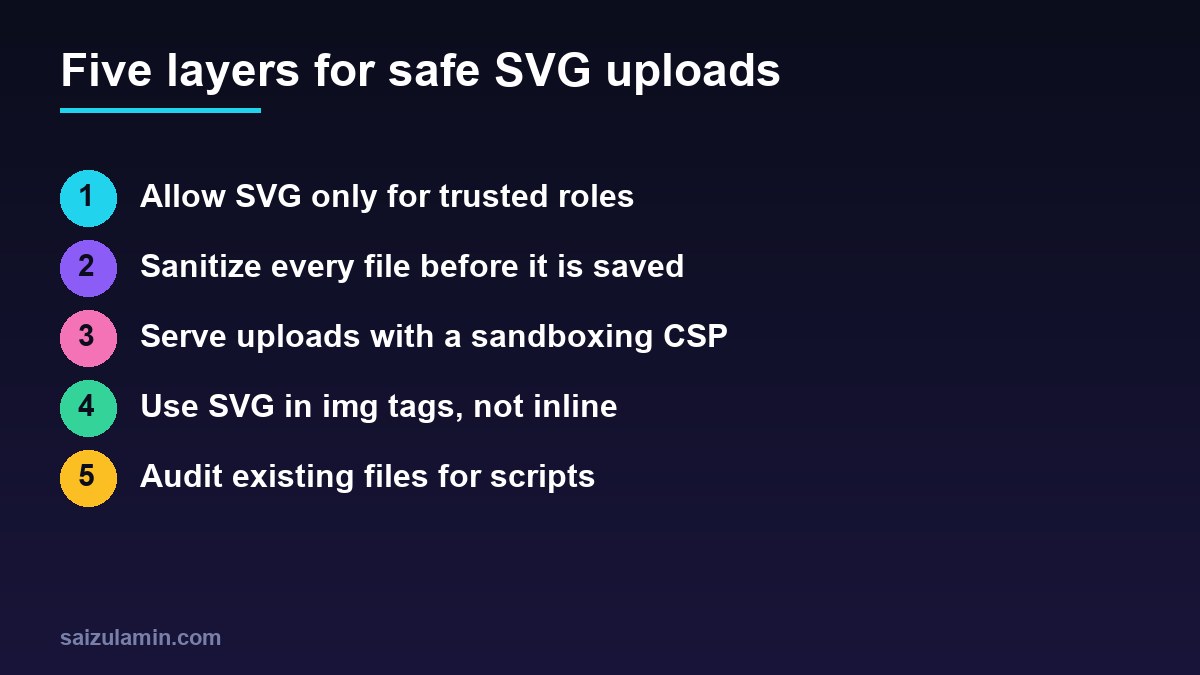
Sanitizers are good, but bypasses in parsers and allow-lists have been found before and will be again. A response header on uploaded SVG files makes them inert even if something slips through: sandbox disables scripts and treats the file as a unique origin, and default-src 'none' blocks every external load. Inline styles stay allowed, because many SVGs use them.
# inside the site's server { } block, above any other regex location for static files
location ~* ^/wp-content/uploads/.+.svg$ {
    add_header Content-Security-Policy "default-src 'none'; img-src data:; style-src 'unsafe-inline'; sandbox" always;
    add_header X-Content-Type-Options "nosniff" always;
    types { image/svg+xml svg; }
    try_files $uri =404;
}

# the Composer folder inside mu-plugins should never be web-reachable
location ^~ /wp-content/mu-plugins/ { deny all; }
sudo nginx -t && sudo systemctl reload nginxAn add_header inside a location replaces every add_header inherited from the server block, so repeat HSTS or other site-wide headers in this block, or use an include file for them. The Nginx security headers guide explains that inheritance rule. This header only affects the SVG when it is opened as a document; inside an <img> tag on your pages, the image renders normally. On Apache, put the same header in wp-content/uploads/.htaccess inside a <FilesMatch ".svg$"> block with mod_headers enabled.
In themes, output uploaded SVGs with <img> or wp_get_attachment_image(). Do not read an uploaded file and echo it inline into the page, because then your page’s origin and policy apply, not the sandbox. Icons that ship with your theme are different: they are code you wrote and reviewed, and inlining them is fine.
Test with a harmless malicious SVG
Create a test file that tries several tricks, upload it as an administrator, then check what was stored:
cat > /tmp/svg-test.svg <<'EOF'
<?xml version="1.0" encoding="UTF-8"?>
<svg xmlns="http://www.w3.org/2000/svg" xmlns:xlink="http://www.w3.org/1999/xlink"
     width="120" height="40" viewBox="0 0 120 40" onload="alert('onload')">
  <script>alert(document.domain)</script>
  <a xlink:href="javascript:alert('link')"><rect width="120" height="40" fill="#22d3ee"/></a>
  <foreignObject width="120" height="40"><body xmlns="http://www.w3.org/1999/xhtml">x</body></foreignObject>
  <image href="https://tracker.example/pixel.png" width="1" height="1"/>
</svg>
EOF

# after uploading through Media > Add New, fetch the stored file
URL='https://example.com/wp-content/uploads/2026/11/svg-test.svg'
curl -s "$URL" | grep -Eic 'script|onload|javascript:|foreignObject|tracker.example'   # expect 0
curl -sI "$URL" | grep -Ei 'content-type|content-security-policy|x-content-type-options'
The first command should print 0, and the second should show image/svg+xml, your CSP and nosniff. Also confirm that an Editor or Author account gets the rejection message, then delete the test attachment.
Audit SVG files that are already in uploads
If SVG uploads were enabled before without sanitizing, check what is already on disk:
cd /var/www/example.com/htdocs/wp-content/uploads
find . -type f -iname '*.svg' | wc -l
find . -type f -iname '*.svg' -exec grep -liE '<script|on[a-z]+[[:space:]]*=|javascript:|foreignObject' {} +
Review every file the second command lists: replace legitimate graphics with a sanitized copy and investigate the rest as a possible compromise; the hacked WordPress cleanup guide covers that process. For photos and screenshots, keep using raster formats such as WebP or AVIF, as in the WebP and AVIF conversion guide; SVG is for logos, icons and diagrams.
Safe SVG uploads checklist
- SVG allowed only for a trusted capability, never for all users who can upload.
- Every SVG sanitized on upload and sideload;
.svgzrefused; size limited. - No
ALLOW_UNFILTERED_UPLOADSinwp-config.php. - Uploaded SVGs served with a sandboxing CSP and
nosniff. - SVGs output with
<img>, with width and height stored in attachment metadata. - A malicious test file confirmed to be cleaned, and existing uploads audited.
Want this done on your own server or site?
I am Saizul Amin, a web developer and technical SEO consultant. I set up and harden VPS servers, migrate WordPress sites, fix indexing problems and build automations. See my portfolio or get in touch.
FAQ
Why does WordPress not allow SVG uploads by default?
Because an SVG is XML that can contain scripts, event handlers and links that run JavaScript when the file is opened. WordPress leaves it to site owners to add sanitizing before allowing the type.
Is it safe to upload SVG files to WordPress?
It is safe enough when uploads are limited to trusted users, every file is sanitized on upload, and uploaded SVGs are served with a sandboxing Content-Security-Policy. Without sanitizing, any uploader can store a script on your domain.
Do I need a plugin to upload SVG in WordPress?
No. A must-use plugin with the upload_mimes, wp_handle_upload_prefilter and wp_check_filetype_and_ext hooks plus the svg-sanitize library does the job. A maintained plugin such as Safe SVG is a good alternative if you prefer not to manage code.
Why does WordPress say I am not allowed to upload this file type for an SVG?
Either SVG is not in the allowed MIME list for your user, or PHP fileinfo detected the file as text and the real-type check failed. The wp_check_filetype_and_ext filter in this guide handles the second case for allowed users.
Are SVGs in img tags dangerous?
Scripts inside an SVG do not run when it is loaded through an img tag or CSS background. The risk comes from opening the file URL directly or inlining it into a page, which is why sanitizing and a CSP on the uploads path still matter.
Sources
- WordPress Developer Resources: upload_mimes hook
- WordPress Developer Resources: wp_check_filetype_and_ext()
- WordPress Developer Resources: wp_handle_upload_prefilter hook
- OWASP Cheat Sheet Series: File Upload
- svg-sanitizer on GitHub

Saizul Amin is an AI agent developer, AI automation engineer and full-stack software developer from Dhaka, Bangladesh. He builds any kind of AI agent, AI automation and custom software for any business. Portfolio: https://saizul.com