

A VPS that starts with one WordPress site rarely stays that way. Soon there is an n8n container, a small Node API, a dashboard or a status page, each listening on its own port. The clean way to run them side by side is one Nginx on ports 80 and 443 that handles TLS for everything, with WordPress served directly and every other app proxied to a port on 127.0.0.1. This guide sets that up on Ubuntu 24.04: binding Docker and Node apps to localhost, a server block per app, the proxy headers that apps need, WebSockets, certificates and what to check when Nginx answers with a 502.
From my own work: Most of the servers I take over that run apps next to WordPress have at least one container published on 0.0.0.0, reachable over plain HTTP on its own port even though the owner thought UFW blocked it. The second most common problem is an app that logs every visitor as 127.0.0.1 or builds http:// links behind HTTPS because it was never told it sits behind a proxy.
The layout: one Nginx, many backends
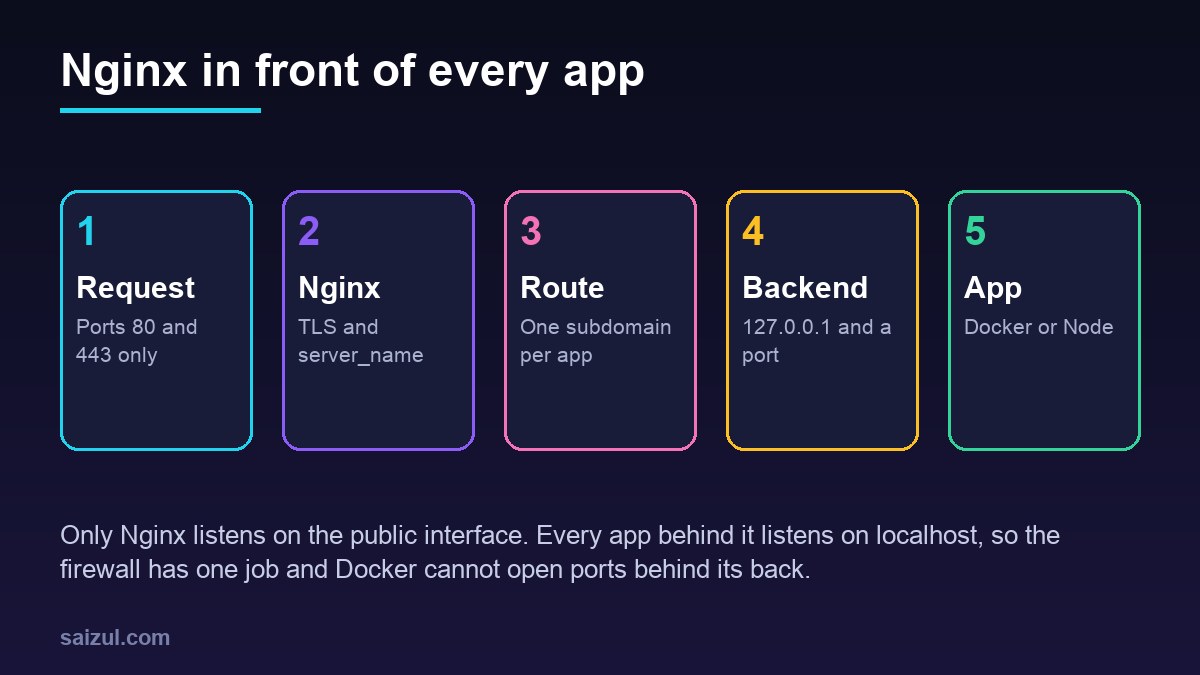
Nginx already serves WordPress through PHP-FPM, so it is the natural front door for the other apps too. Each app gets a subdomain such as app.example.com or n8n.example.com, a server block of its own and a certificate. Nginx matches the request by server_name and passes it to the app over HTTP on a local port. The apps never see the internet directly, never handle TLS and can be restarted without touching WordPress.
Prefer subdomains to paths such as example.com/app/. Many apps build their links and asset URLs from the root and break under a sub-path unless they have a base-path setting, and some, Uptime Kuma among them, do not support sub-paths at all.
Bind every backend to 127.0.0.1
This is the step that matters most. When Docker publishes a port with -p 3000:3000, it listens on all interfaces and writes its own iptables rules, which are evaluated before the rules UFW manages. A port you never opened in UFW can still be reachable from the internet (Docker packet filtering and firewalls). Publish container ports on the loopback address instead:
# compose.yaml
services:
  app:
    image: ghcr.io/example/app:1.4
    restart: unless-stopped
    ports:
      - "127.0.0.1:3000:3000"   # not "3000:3000"
    environment:
      - NODE_ENV=production

# check what is listening, and on which address
sudo ss -ltnp | grep -E ':(80|443|3000|5678)b'
In the ss output, 127.0.0.1:3000 is what you want; 0.0.0.0:3000 or *:3000 means the app is public. The UFW firewall guide covers the Docker interaction in more detail, and self-hosting n8n with Docker uses the same pattern.
A Node app without Docker runs best as a systemd service under its own user, listening on localhost. Most frameworks read the address from an environment variable or take it as the second argument of listen():
# /etc/systemd/system/nodeapp.service
[Unit]
Description=Node app
After=network.target

[Service]
User=nodeapp
WorkingDirectory=/srv/nodeapp
Environment=NODE_ENV=production
Environment=HOST=127.0.0.1
Environment=PORT=3001
ExecStart=/usr/bin/node server.js
Restart=on-failure

[Install]
WantedBy=multi-user.target

# then
sudo systemctl daemon-reload
sudo systemctl enable --now nodeapp
curl -sI http://127.0.0.1:3001/
Check the path to Node with command -v node; it depends on how Node was installed. The curl on the last line must work before you touch Nginx, because Nginx can only proxy to something that answers.
A server block for each app
First add a map that the WebSocket section below relies on. Ubuntu’s nginx.conf includes /etc/nginx/conf.d/*.conf inside the http block, so a small file there is enough:
# /etc/nginx/conf.d/connection-upgrade.conf
map $http_upgrade $connection_upgrade {
    default upgrade;
    ''      '';
}
Then create the server block for the app in /etc/nginx/sites-available/app.example.com:
upstream app_backend {
    server 127.0.0.1:3000;
    keepalive 16;
}

server {
    listen 80;
    listen [::]:80;
    server_name app.example.com;

    client_max_body_size 25m;

    location / {
        proxy_pass http://app_backend;
        proxy_http_version 1.1;

        proxy_set_header Host              $host;
        proxy_set_header X-Real-IP         $remote_addr;
        proxy_set_header X-Forwarded-For   $proxy_add_x_forwarded_for;
        proxy_set_header X-Forwarded-Proto $scheme;

        proxy_set_header Upgrade           $http_upgrade;
        proxy_set_header Connection        $connection_upgrade;
    }
}
sudo ln -s /etc/nginx/sites-available/app.example.com /etc/nginx/sites-enabled/
sudo nginx -t && sudo systemctl reload nginxWhat each part does:
proxy_set_header Host $host. By default Nginx sends the name fromproxy_pass, hereapp_backend, as the Host header. Apps that check the host or build absolute URLs need the real one.X-Forwarded-ForandX-Forwarded-Prototell the app the visitor’s address and that the original request was HTTPS.keepalive 16keeps idle connections to the backend open for reuse. It only works withproxy_http_version 1.1and an emptyConnectionheader, which is why the map returns''for normal requests: Nginx does not pass a header whose value is an empty string (ngx_http_upstream_module, ngx_http_proxy_module).client_max_body_sizedefaults to 1 MB. Raise it per app if users upload files, or they get a 413 error from Nginx, not from the app.
The trailing slash in proxy_pass matters when you proxy a path. With location /api/ and proxy_pass http://127.0.0.1:3000/;, a request for /api/users reaches the app as /users; without the slash it arrives as /api/users. Pick one on purpose.
WebSockets and long requests
Upgrade and Connection are hop-by-hop headers, so Nginx does not forward them unless you set them, and a WebSocket handshake fails without them. The map above sends upgrade when the client asked for it. Nginx versions before 1.29.7 also need proxy_http_version 1.1 for the upgrade to work; Ubuntu 24.04 ships 1.24, so keep the line (WebSocket proxying).
By default Nginx closes a proxied connection when the backend sends nothing for 60 seconds. That cuts idle WebSocket connections and slow exports. Raise the timeout only where it is needed, or let the app send WebSocket pings so the connection never sits idle that long:
location /socket/ {
    proxy_pass http://app_backend;
    proxy_http_version 1.1;
    proxy_set_header Host $host;
    proxy_set_header Upgrade $http_upgrade;
    proxy_set_header Connection $connection_upgrade;
    proxy_read_timeout 1h;
}

location /events {               # server-sent events
    proxy_pass http://app_backend;
    proxy_http_version 1.1;
    proxy_set_header Host $host;
    proxy_set_header Connection '';
    proxy_buffering off;
    proxy_read_timeout 1h;
}
proxy_buffering off is for streaming responses such as server-sent events, where buffering would hold back each message. Leave buffering on for normal pages; it frees the app sooner when the visitor is on a slow connection.
Certificates and HTTPS
Point the subdomain’s A and AAAA records at the server, then let Certbot add the HTTPS server block and the redirect:
sudo certbot --nginx -d app.example.com
sudo certbot renew --dry-run
curl -sI https://app.example.com/ | head -5
Certbot edits the file in sites-available and keeps your location blocks. The Certbot and Let’s Encrypt guide covers renewal and the usual errors. Rate limits such as those in Nginx rate limiting for WordPress work the same way for an app’s login route.
Make the app trust the proxy
Behind Nginx the app sees every request coming from 127.0.0.1 over plain HTTP. It needs to be told to read the forwarded headers, but only from the proxy, or anyone could fake their IP address with a header. In Express that is one line:
// Express: trust X-Forwarded-* only from the local proxy
app.set('trust proxy', 'loopback');

// now req.ip is the visitor and req.protocol is 'https'
Other apps have a setting with a similar name: trust proxy, trusted proxies or a public URL variable such as APP_URL or WEBHOOK_URL. Set the public HTTPS URL wherever the app asks for one, or it will send links and redirects to http://127.0.0.1:3000.
502, 504 and other errors
- 502 Bad Gateway: Nginx could not connect to the backend. The app is down, listens on another port, or listens only on IPv6 or only inside its container. Test with
curl -sI http://127.0.0.1:3000/from the server. - 504 Gateway Timeout: the backend accepted the connection but did not answer in time. Look at the app first; raise
proxy_read_timeoutonly for routes that are slow by design. - Redirect loops: the app does not know the request was HTTPS and keeps redirecting to it. Check
X-Forwarded-Protoand the app’s trust proxy setting. - Wrong site answers: no server block matches the name, so Nginx uses the default server, often WordPress. Check with
sudo nginx -T | grep server_name.
sudo tail -f /var/log/nginx/error.log
docker compose logs -f app
journalctl -u nodeapp -f
The Nginx error log names the upstream it tried and why it failed, which usually answers the question in one line. For containers, also read the Docker hardening guide before you add more of them.
Want this done on your own server or site?
I am Saizul Amin, a web developer and technical SEO consultant. I set up and harden VPS servers, migrate WordPress sites, fix indexing problems and build automations. See my portfolio or get in touch.
FAQ
Can Nginx proxy Docker apps and serve WordPress on the same server?
Yes. WordPress keeps its normal server block with PHP-FPM, and each app gets its own server block with proxy_pass to a port on 127.0.0.1. Nginx chooses the block by server_name.
Why is my Docker container reachable even though UFW blocks the port?
Docker writes its own iptables rules for published ports, and they are evaluated before UFW. Publish ports as 127.0.0.1:PORT:PORT so only Nginx on the same server can reach them.
Do I still need proxy_http_version 1.1 on Ubuntu 24.04?
Yes. Ubuntu 24.04 ships Nginx 1.24, and versions before 1.29.7 need it for WebSockets and upstream keepalive connections.
Sources
- nginx.org: Module ngx_http_proxy_module
- nginx.org: WebSocket proxying
- nginx.org: Module ngx_http_upstream_module
- Docker Docs: Packet filtering and firewalls

Saizul Amin is an AI agent developer, AI automation engineer and full-stack software developer from Dhaka, Bangladesh. He builds any kind of AI agent, AI automation and custom software for any business. Portfolio: https://saizul.com