

Your WordPress plugin readme.txt is the source of your page in the WordPress.org plugin directory: the short description under the name, the tabs for description, installation, FAQ and changelog, the tags that place you in search, and the screenshot captions. It also contains the Stable tag line that tells WordPress.org which release to offer for download, so a mistake there breaks updates, not just text. This guide gives you a complete template, explains each header field and which values WordPress.org actually reads from your main plugin file instead, and covers sections, screenshots, assets, directory search, validation and readme-only updates.
From my own work: The readme problems I see most when reviewing plugins are not about wording. They are a Stable tag that points to a tag folder that was never created, a Tested up to value two major versions old, and a changelog that has grown longer than the rest of the file. All three are easy to check automatically before every release.
What a WordPress plugin readme.txt controls
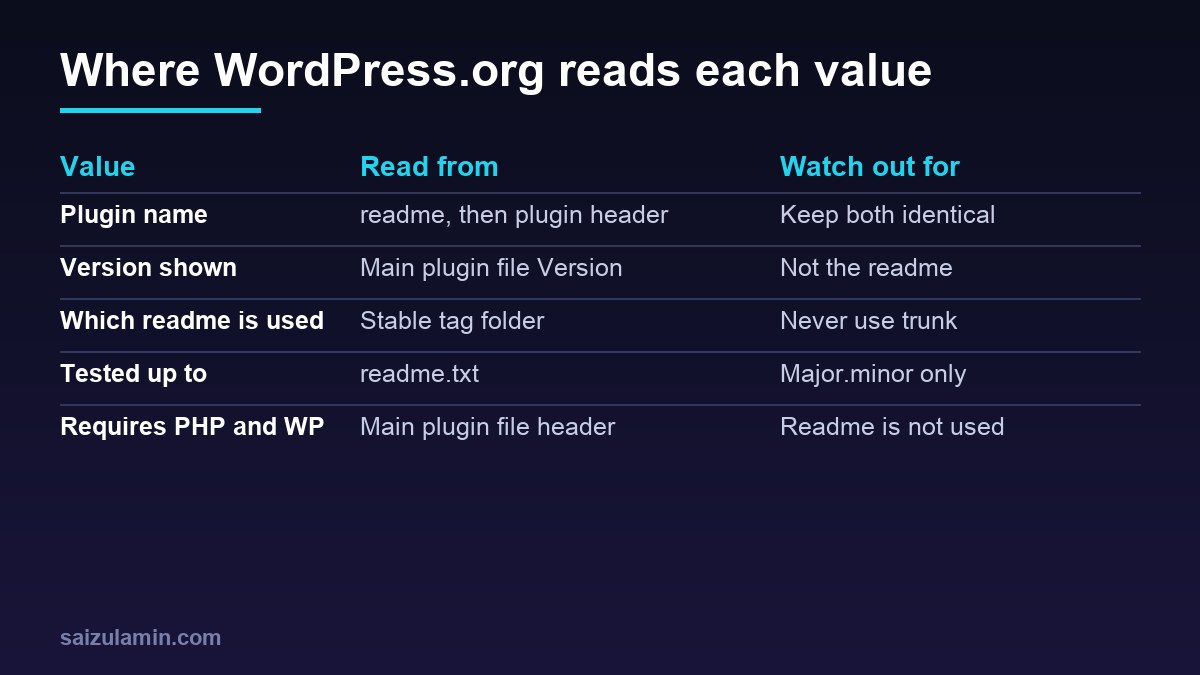
WordPress.org combines two files to build your plugin page: readme.txt and the header comment of your main plugin PHP file. The handbook lists which value comes from where (Plugin Handbook: plugin readmes):
| Shown on the plugin page | Comes from |
|---|---|
| Plugin name | The === Name === line in readme.txt, falling back to Plugin Name in the main file |
| Version and download button | Version in the main plugin file |
| Authors | Author in the main file and Contributors in readme.txt |
| Tags | Tags in readme.txt |
| Tested up to | Tested up to in readme.txt |
| Requires WordPress and PHP versions | Requires at least and Requires PHP in the main plugin file |
| Description, installation, FAQ, changelog | Sections in readme.txt |
| Banner, icon and screenshots | Images in the SVN assets folder, with captions from readme.txt |
Since WordPress 5.8, the requirement headers are read from the main plugin file, so put Requires at least and Requires PHP there. Keeping copies in readme.txt is common and harmless, but they must match.
A complete readme.txt template
=== Fast Image Captions ===
Contributors: yourwporgusername, secondcontributor
Donate link: https://example.com/donate/
Tags: images, captions, accessibility, media library, alt text
Requires at least: 6.6
Tested up to: 7.1
Requires PHP: 7.4
Stable tag: 1.4.0
License: GPLv2 or later
License URI: https://www.gnu.org/licenses/gpl-2.0.html

Adds captions and alt text to images in bulk from the media library, with a preview before anything is saved.

== Description ==

Fast Image Captions lets editors add or fix captions and alt text for many images at once.

= Features =

* Bulk edit alt text and captions from the media library
* Preview every change before saving
* Works with the block editor and classic themes
* No external service: nothing leaves your site

= Who it is for =

Content teams that publish many images and want accessible, consistent alt text.

== Installation ==

1. Install the plugin from Plugins > Add New, or upload the zip.
2. Activate it.
3. Go to Media > Bulk Captions.

== Frequently Asked Questions ==

= Does it change my original image files? =

No. It only updates the attachment's alt text and caption fields.

= Does it work with WooCommerce product images? =

Yes. Product images are normal media library attachments.

== Screenshots ==

1. The bulk caption screen with a preview of changes.
2. The settings page.

== Changelog ==

= 1.4.0 =
* Added: preview before saving.
* Fixed: captions with quotes were escaped twice.

= 1.3.2 =
* Fixed: compatibility with WordPress 7.1.

== Upgrade Notice ==

= 1.4.0 =
Adds a preview step. No settings change is needed.
The header fields, line by line
- Contributors: a comma-separated list of WordPress.org usernames, case sensitive. Anything that is not a WordPress.org username shows without a profile link.
- Tags: one to five comma-separated terms. Do not use competitors’ plugin names, and avoid tags unique to your plugin, which are not shown (Plugin Handbook: header fields).
- Tested up to: the newest WordPress version you tested, as numbers only, such as
7.1. WordPress.org ignores minor versions here, so you do not need a release for each minor update. - Stable tag: the plugin version users should get, which must exist as a folder in
/tags/. Use numbers and periods; SemVer is recommended. - License and License URI: a GPLv2-or-later compatible license, as the directory guidelines require.
- Short description: the single line after the header block. Keep it to 150 characters or fewer and without markup; longer text is cut off.
The short description is the most visible text you write. It appears under the plugin name and in search results, so say what the plugin does in plain words rather than repeating the name.
How Stable tag decides which readme is shown
This is the part that trips people up. When WordPress.org parses your plugin, it first reads /trunk/readme.txt, but only to find the Stable tag. If Stable tag: 1.4.0 and /tags/1.4.0/ exists, everything else, including the description shown on your page, comes from /tags/1.4.0/readme.txt. Editing only the trunk readme then changes nothing visible (Plugin Handbook: how the readme is parsed).
- The readme inside the tag folder must have the same
Stable tag, or updates can fail. - The version on the download button comes from the
Versionheader of the main PHP file in that tag, not from the folder name. Stable tag: trunkis discouraged and prohibited for new plugins.
# Check a release before committing to SVN (run from the plugin root)
grep -m1 -i '^Stable tag:' readme.txt
grep -m1 -i 'Version:' fast-image-captions.php
svn ls https://plugins.svn.wordpress.org/fast-image-captions/tags/ | tail -n 3
If you release from Git, the version consistency check and the SVN tag can be automated, as in the WordPress.org plugin deploy with GitHub Actions guide.
Sections and the readme Markdown subset
Readme files use a customised Markdown. Section headings use equals signs, which is the main difference from normal Markdown:
| Syntax | Meaning |
|---|---|
=== Plugin Name === |
The plugin name, first line only |
== Description == |
A section, shown as a tab or block on the plugin page |
= Sub heading = |
A heading inside a section; in the FAQ, each question |
* item and 1. item |
Bulleted and numbered lists |
[text](https://example.com) |
A link |
| A YouTube or Vimeo URL on its own line | An embedded video |
The standard sections are Description, Installation, Frequently Asked Questions, Screenshots, Changelog and Upgrade Notice. Custom sections are allowed but use them sparingly, because people expect the usual layout. Keep each Upgrade Notice short; it is shown in the WordPress admin next to the update, so one or two sentences on what changes for the user is enough.
Size matters too. The handbook warns that readmes larger than about 10 KB may cause errors and recommends keeping only recent changelog entries in readme.txt, with the rest in a separate changelog.txt (Plugin Handbook: file size).
Screenshots, banners and icons
Images live in the top-level assets folder of your SVN repository, next to trunk and tags, not inside the plugin. They apply to every version. Each numbered line under == Screenshots == becomes the caption of the matching file (Plugin Handbook: plugin assets).
| Asset | File names |
|---|---|
| Banner | banner-772x250.png or .jpg, and banner-1544x500 for high-DPI screens |
| Icon | icon-128x128.png, icon-256x256.png, optionally icon.svg with a PNG fallback |
| Screenshots | screenshot-1.png, screenshot-2.jpg and so on, lowercase, matching the caption numbers |
svn co https://plugins.svn.wordpress.org/fast-image-captions/ fic-svn
cp design/banner-*.png design/icon-*.png design/screenshot-*.png fic-svn/assets/
cd fic-svn
svn add --force assets
# Without this, browsers download the images instead of showing them
svn propset svn:mime-type image/png assets/*.png
svn ci -m 'Update banner, icon and screenshots'
Images are cached through a CDN, so changes can take a while to appear.
Readme text and plugin directory search
The plugin directory search uses your plugin name, short description, tags and description, so the readme is also your listing copy. Write it for the person comparing plugins: what problem it solves, who it is for, what it does not do, and what happens to their data. Avoid keyword lists, competitor names and claims you cannot back up; the directory guidelines treat keyword stuffing and misleading names as spam (Detailed plugin guidelines). If your plugin links to your website for documentation, make that page fast and indexable too, as covered in the technical SEO audit checklist.
Validate the readme before every release
Paste the file into the official readme validator, which shows parse warnings and a preview (WordPress.org readme validator). The Plugin Check plugin also reviews readme headers along with code checks, and it runs from WP-CLI:
wp plugin install plugin-check --activate
wp plugin check fast-image-captions
A small script in CI catches the common mistakes automatically:
#!/usr/bin/env bash
# scripts/check-readme.sh
set -euo pipefail
f=readme.txt; main=fast-image-captions.php; fail=0
field() { grep -m1 -i "^$1:" "$f" | cut -d: -f2- | tr -d 'r' | xargs; }

stable=$(field 'Stable tag'); tested=$(field 'Tested up to'); tags=$(field 'Tags')
version=$(grep -m1 -i 'Version:' "$main" | sed -E 's/.*[Vv]ersion:[[:space:]]*//' | tr -d 'r ')
short=$(awk 'NR>1 && /^$/ {getline; print; exit}' "$f")

[ "$stable" = "$version" ] || { echo "Stable tag $stable != Version $version"; fail=1; }
[ "$stable" != "trunk" ]   || { echo "Stable tag must not be trunk"; fail=1; }
[[ "$tested" =~ ^[0-9]+.[0-9]+$ ]] || { echo "Tested up to should be major.minor, got '$tested'"; fail=1; }
[ "$(echo "$tags" | tr ',' 'n' | grep -c .)" -le 5 ] || { echo "More than 5 tags"; fail=1; }
[ "${#short}" -le 150 ] || { echo "Short description is ${#short} characters (max 150)"; fail=1; }
grep -q "^= $version =" "$f" || { echo "No changelog entry for $version"; fail=1; }
[ "$(wc -c < "$f")" -le 10240 ] || echo "Warning: readme.txt is over 10 KB"
exit $fail
Run it in the same workflow as your coding standards, as in the GitHub Actions CI guide for WordPress plugins.
Readme-only updates for a new WordPress release
When a new major WordPress version ships and your plugin needs no code change, you do not need a new plugin version. Update Tested up to in /trunk/readme.txt and in /tags/<stable>/readme.txt, then commit both. Because the directory reads the readme in the stable tag folder, updating only trunk would not change what users see.
cd fic-svn && svn up
# GNU sed; on macOS use: sed -i '' ...
sed -i 's/^Tested up to: .*/Tested up to: 7.1/' trunk/readme.txt tags/1.4.0/readme.txt
svn diff
svn ci -m 'Tested up to 7.1'
WordPress plugin readme.txt checklist
Stable tagequals the main fileVersion, and the tag folder exists with the same readme.Tested up tois current, as major.minor.Requires at leastandRequires PHPare in the main plugin file header.- One to five relevant tags, no competitor names.
- A clear short description of 150 characters or fewer.
- Standard sections, FAQ questions as
= Question =, and a short Upgrade Notice. - Recent changelog only, file under about 10 KB.
- Screenshots numbered to match captions, assets in the SVN
assetsfolder. - Validator, Plugin Check and a CI script run before every release.
Want this done on your own server or site?
I am Saizul Amin, a web developer and technical SEO consultant. I set up and harden VPS servers, migrate WordPress sites, fix indexing problems and build automations. See my portfolio or get in touch.
FAQ
What is readme.txt in a WordPress plugin?
It is the file the WordPress.org plugin directory reads to build your plugin page: the header with tags, tested version and stable tag, a short description, and sections such as description, installation, FAQ, screenshots and changelog.
What does Stable tag mean in readme.txt?
It names the plugin version users should download, which must exist as a folder under tags in your SVN repository. WordPress.org then reads the readme and code from that tag folder, not from trunk.
Why are my readme.txt changes not showing on WordPress.org?
Usually you edited only the trunk readme. The directory shows the readme in the tag folder named by Stable tag, so update that copy too. Images and readme changes can also take some time to appear because of caching.
How many tags can a WordPress plugin have?
Use one to five comma-separated tags in readme.txt. Do not use competitor plugin names, and avoid terms unique to your plugin because they are not shown.
Do I need a new release to update Tested up to?
No. If no code changes are needed, update Tested up to in the trunk readme and in the readme inside the current stable tag folder, and commit both to SVN.
Sources
- WordPress Plugin Handbook: Plugin readmes
- WordPress Plugin Handbook: How your plugin assets work
- WordPress.org: Plugin readme validator
- WordPress Plugin Handbook: Detailed plugin guidelines

Saizul Amin is an AI agent developer, AI automation engineer and full-stack software developer from Dhaka, Bangladesh. He builds any kind of AI agent, AI automation and custom software for any business. Portfolio: https://saizul.com