

Uploading a theme by SFTP works until two people do it at once, or someone overwrites a fix with an old copy. A small GitHub Actions workflow removes that: every push to main builds the code and copies exactly what is in the repository to the server with rsync over SSH. This guide covers a custom theme or plugin repository, not WordPress core, the database or uploads, which do not belong in Git.
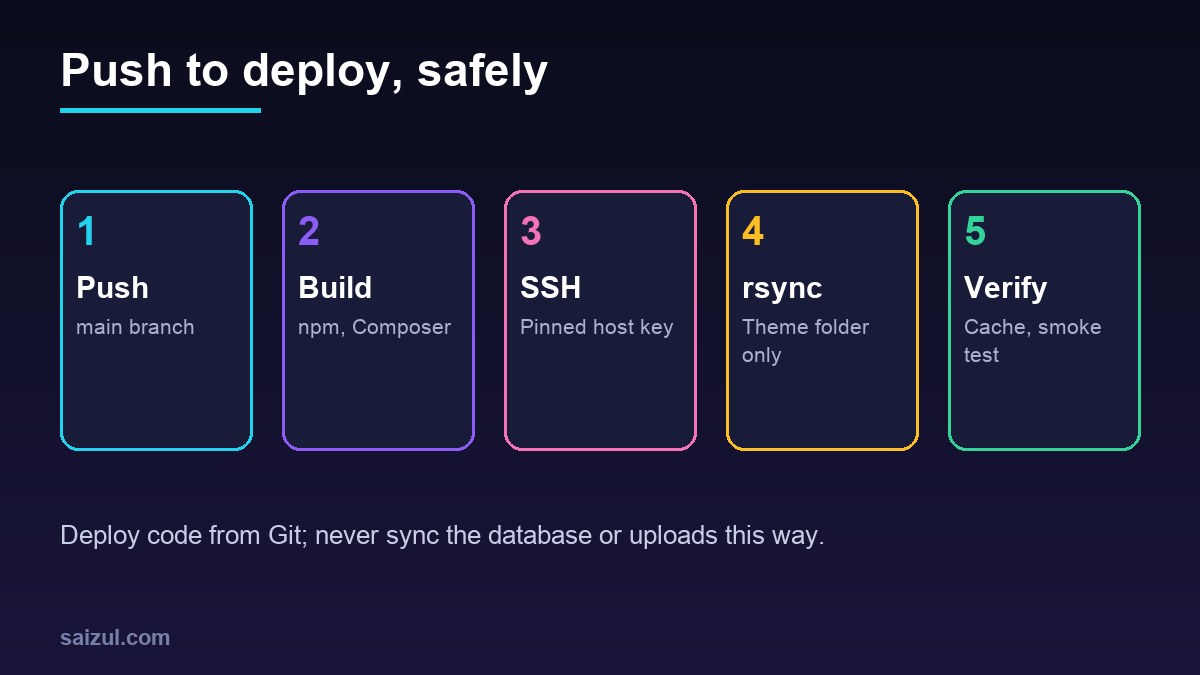
From my own work: I deploy custom themes and small plugins to my own VPS this way. The rules I learned the hard way: the deploy key can only reach one site user, the host key is pinned instead of trusted on first use, and rsync –delete only ever points at a single theme or plugin folder.
Repository layout
One repository per theme or plugin keeps the target path obvious. A typical theme repository:
my-theme/
  .github/workflows/deploy.yml
  .rsync-exclude
  assets/src/          # sources, built by npm
  composer.json
  package.json
  functions.php
  style.css
1. A dedicated, restricted SSH key
Create a key used only by GitHub, and install it for the system user that owns the site files, so deployed files get the right owner without sudo:
# on your machine
ssh-keygen -t ed25519 -f gh-deploy -C "github-deploy-example.com" -N ""

# on the server, as the site user
mkdir -p ~/.ssh && chmod 700 ~/.ssh
echo "restrict $(cat gh-deploy.pub)" >> ~/.ssh/authorized_keys
chmod 600 ~/.ssh/authorized_keys
The restrict option disables port forwarding, agent forwarding and PTY allocation for this key, none of which rsync needs. Copy gh-deploy.pub to the server first; the private key goes only into GitHub. Key basics are in SSH key authentication on Ubuntu.
2. Pin the server’s host key
Running ssh-keyscan inside the workflow trusts whatever answers at that moment. Scan once, compare the fingerprint with the server, and store the result:
ssh-keyscan -t ed25519 -p 22 server.example.com > known_hosts
ssh-keygen -lf known_hosts
# on the server, the fingerprint must be identical:
ssh-keygen -lf /etc/ssh/ssh_host_ed25519_key.pub
3. Environment, secrets and variables
Create an environment named production under Settings → Environments. Environments can restrict which branches deploy and require a reviewer to approve each run, and their secrets are only available to jobs that reference the environment. With the GitHub CLI:
gh secret set SSH_PRIVATE_KEY --env production < gh-deploy
gh secret set SSH_KNOWN_HOSTS --env production < known_hosts
gh variable set SSH_HOST    --env production --body "server.example.com"
gh variable set SSH_PORT    --env production --body "22"
gh variable set SSH_USER    --env production --body "siteuser"
gh variable set DEPLOY_PATH --env production --body "/var/www/example.com/wp-content/themes/my-theme"
rm gh-deploy                 # the private key now lives only in GitHub
Secrets are masked in logs, but GitHub’s secrets guide still advises against printing them or passing them on the command line. Host names and paths are not secret, so variables keep them readable.
4. The workflow
# .github/workflows/deploy.yml
name: Deploy theme
on:
  push:
    branches: [main]
  workflow_dispatch:

permissions:
  contents: read

concurrency:
  group: deploy-production
  cancel-in-progress: false

jobs:
  deploy:
    runs-on: ubuntu-latest
    environment: production
    steps:
      - uses: actions/checkout@v7

      - uses: actions/setup-node@v7
        with:
          node-version: 22

      - name: Build
        run: |
          npm ci
          npm run build
          composer install --no-dev --optimize-autoloader --no-interaction

      - name: Configure SSH
        env:
          SSH_KEY: ${{ secrets.SSH_PRIVATE_KEY }}
          KNOWN_HOSTS: ${{ secrets.SSH_KNOWN_HOSTS }}
        run: |
          install -m 700 -d ~/.ssh
          printf '%sn' "$SSH_KEY" > ~/.ssh/deploy_key
          printf '%sn' "$KNOWN_HOSTS" > ~/.ssh/known_hosts
          chmod 600 ~/.ssh/deploy_key ~/.ssh/known_hosts

      - name: rsync (dry run, then real)
        env:
          TARGET: ${{ vars.SSH_USER }}@${{ vars.SSH_HOST }}:${{ vars.DEPLOY_PATH }}/
        run: |
          export RSYNC_RSH="ssh -i $HOME/.ssh/deploy_key -p ${{ vars.SSH_PORT }} -o StrictHostKeyChecking=yes"
          rsync -az --delete --exclude-from=.rsync-exclude --dry-run --itemize-changes ./ "$TARGET"
          rsync -az --delete --exclude-from=.rsync-exclude ./ "$TARGET"

      - name: Clear caches
        run: |
          ssh -i ~/.ssh/deploy_key -p ${{ vars.SSH_PORT }}
            ${{ vars.SSH_USER }}@${{ vars.SSH_HOST }}
            "wp --path=/var/www/example.com cache flush"

      - name: Smoke test
run: curl -fsS -o /dev/null https://example.com/- permissions: contents: read limits the automatic
GITHUB_TOKENto reading the repository. - concurrency with
cancel-in-progress: falsequeues a second push instead of running two rsyncs into the same folder or killing one halfway. - Secrets enter through
envand are written withprintf, so they never appear in the script text itself. StrictHostKeyChecking=yesmakes SSH refuse any host key that is not in the pinned file.- Runs triggered by pull requests from forks do not receive these secrets, and this workflow does not run on pull requests at all.
Pin third-party actions to a full commit SHA if you add any; the two official actions above are maintained by GitHub.
5. rsync –delete without accidents
--delete removes files on the server that are not in the repository, which is what keeps the theme folder an exact copy. It is also the most dangerous flag here. Point DEPLOY_PATH at the theme or plugin folder, never at the web root or wp-content, and mind the trailing slashes: ./ to .../my-theme/ copies the contents of the repository into that folder. An exclude file keeps sources and tooling off the server:
.git/
.github/
node_modules/
assets/src/
tests/
.rsync-exclude
package*.json
*.md
Excluded files are also protected from deletion on the receiving side unless you add --delete-excluded. The dry-run line in the workflow prints every change, which is the first place to look when a deploy surprises you.
6. OPcache and other caches
If OPcache runs with validate_timestamps=0, PHP keeps serving the old code until PHP-FPM reloads. Either keep timestamp validation on (see PHP-FPM tuning), or allow exactly one command through sudo, for example siteuser ALL=(root) NOPASSWD: /usr/bin/systemctl reload php8.3-fpm in a file under /etc/sudoers.d/, and call it after rsync. Purge the page cache or CDN cache as well if theme templates changed.
7. Rolling back
- The cleanest rollback is
git reverton the bad commit and a push; the workflow deploys the previous state. - For an emergency, run the workflow manually from the Actions tab and pick an earlier tag in “Use workflow from”. Tag releases so there is something to pick.
- For zero-downtime releases, rsync into a new
releases/directory and switch a symlink at the end. It adds complexity that most single-theme sites do not need.
Test the workflow against a staging copy first; see creating a staging site with WP-CLI.
Want this done on your own server or site?
I am Saizul Amin, a web developer and technical SEO consultant. I set up and harden VPS servers, migrate WordPress sites, fix indexing problems and build automations. See my portfolio or get in touch.
FAQ
Can I deploy the whole WordPress install this way?
You can, but it is rarely a good idea. Core is better updated with WP-CLI, and uploads and the database change on the server. Keep Git deployments to code you write.
Why not use a third-party SSH deploy action?
You can, pinned to a commit SHA. Plain ssh and rsync are already on the runner, and a few lines of shell are easier to audit than another dependency.
How do I deploy to staging and production?
Create two environments with their own secrets and variables, deploy a develop branch to staging and main to production, and require a reviewer only for production.
Sources
- GitHub Docs: Using secrets in GitHub Actions
- GitHub Docs: Managing environments for deployment
- GitHub Docs: Control the concurrency of workflows and jobs

Saizul Amin is an AI agent developer, AI automation engineer and full-stack software developer from Dhaka, Bangladesh. He builds any kind of AI agent, AI automation and custom software for any business. Portfolio: https://saizul.com