

To convert WordPress images to WebP, let WordPress generate WebP sub-sizes for new uploads with the image_editor_output_format filter or the Modern Image Formats plugin, then regenerate older uploads with WP-CLI. Images already embedded in old posts keep their JPEG URLs, so for those a cwebp batch job plus an Nginx rule that serves photo.jpg.webp to browsers that accept it covers the rest without editing content. AVIF works the same way, as long as the server’s image library supports it; this guide covers both on Ubuntu 24.04 with PHP 8.3.
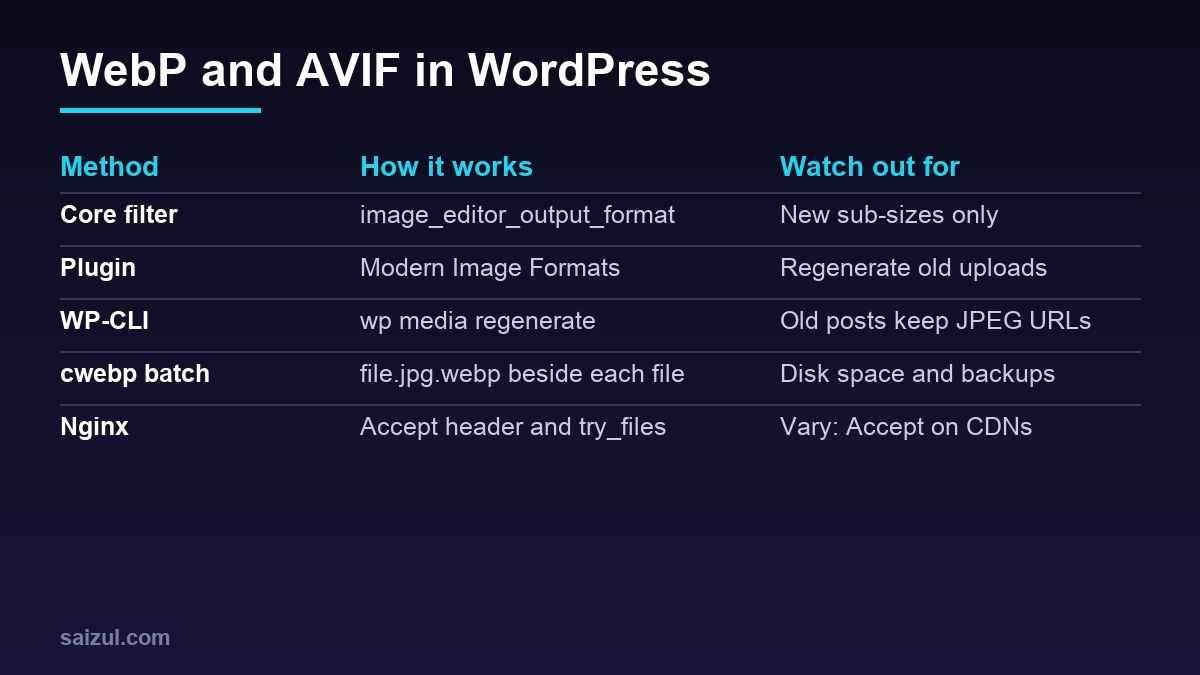
From my own work: On sites I audit, the WebP conversion is often only half done: a plugin converts new uploads, the theme shows WebP on recent posts, and the hundreds of older posts that bring in most of the traffic still serve full-size JPEGs. The gap is always the images already written into post content.
What WordPress supports out of the box
WordPress accepts WebP uploads since version 5.8 and AVIF since 6.5. AVIF depends on the image library on the server, Imagick or GD, so check before you plan anything (WordPress 6.5 adds AVIF support). In the admin, Tools, Site Health, Info, Media Handling lists the supported formats. From the shell:
cd /var/www/example.com/public
wp eval 'var_dump( wp_image_editor_supports( array( "mime_type" => "image/webp" ) ) );'
wp eval 'var_dump( wp_image_editor_supports( array( "mime_type" => "image/avif" ) ) );'

php -m | grep -iE 'imagick|gd'
php -r 'var_dump( function_exists("imageavif") );'          # GD with AVIF
php -r 'print_r( Imagick::queryFormats("AVIF") );'          # Imagick with AVIF
If AVIF is missing, install Imagick with sudo apt install php8.3-imagick, restart php8.3-fpm and check again. Do not assume that a library supports AVIF because it is installed: support depends on how it was built, and the check is quick.
By default, every sub-size keeps the format of the upload: a JPEG produces JPEG thumbnails. Since WordPress 6.7, HEIC uploads are converted to JPEG by default. Everything else needs a filter or a plugin.
Convert new uploads to WebP or AVIF
The image_editor_output_format filter maps a source type to an output type for the sizes WordPress generates (image_editor_output_format). A must-use plugin keeps it independent of the theme:
<?php
// wp-content/mu-plugins/webp-subsizes.php
/**
 * Plugin Name: WebP sub-sizes
 */
add_filter( 'image_editor_output_format', function ( $formats ) {
    $formats['image/jpeg'] = 'image/webp';   // or 'image/avif'
    $formats['image/png']  = 'image/webp';
    return $formats;
} );
The function adds to the array instead of replacing it, so the default HEIC mapping stays. The original upload stays a JPEG or PNG; the sub-sizes and the scaled version for large images become WebP. If you want a different quality for the new format, the wp_editor_set_quality filter receives the quality and the MIME type.
The alternative is Modern Image Formats, the plugin from the WordPress Performance Team. It generates AVIF when the server supports it and WebP otherwise, lets you choose under Settings, Media, can keep JPEG fallbacks for every size and can output a <picture> element. It skips a WebP file when it would be larger than the JPEG. Use either the filter or the plugin, not both.
How to convert WordPress images to WebP with WP-CLI
The filter and the plugin only act when sizes are generated, so the existing library needs regenerating. Back up wp-content/uploads first; the offsite backup guide covers a copy that is not on the same disk. Then:
cd /var/www/example.com/public
du -sh wp-content/uploads                      # note the size before

wp media regenerate --yes --skip-delete         # all images
wp media regenerate 1201 1202 1203 --skip-delete   # or specific IDs first

du -sh wp-content/uploads                      # and after
--skip-delete is important. Posts store the exact image URL, for example photo-1024x683.jpg, in their HTML. Regenerating creates photo-1024x683.webp and, without the flag, deletes the old JPEG sizes, which breaks every older post that points to them. With the flag the old files stay and nothing returns 404.
There is a second effect that is easy to miss. WordPress only adds a srcset to an image in content when its src matches a size in the attachment metadata. After regeneration the metadata lists the WebP files, so an old post that embeds photo-1024x683.jpg keeps working but serves that JPEG without a srcset. The WP-CLI option --update-attachment-refs, which rewrites those references, is not in a stable release yet. Until it is, server-side negotiation below is the cleanest fix for old content. The WP-CLI cheat sheet has more media commands.
Batch convert with cwebp and avifenc
For content negotiation, each image needs a WebP copy next to it with the extension appended: photo.jpg.webp. Ubuntu 24.04 packages the official encoders: cwebp in webp and avifenc in libavif-bin. -q sets the quality, 75 by default, and -metadata chooses what to copy, none by default (cwebp documentation):
sudo apt install webp libavif-bin

# run as the site user, from the uploads directory
cd /var/www/example.com/public/wp-content/uploads
find . -type f ( -iname '*.jpg' -o -iname '*.jpeg' -o -iname '*.png' ) -print0 |
while IFS= read -r -d '' f; do
  [ -f "$f.webp" ] && [ "$f.webp" -nt "$f" ] && continue      # already done
  nice -n 19 cwebp -quiet -q 80 -metadata icc "$f" -o "$f.webp" || continue
  # keep the WebP only if it is smaller
  if [ "$(stat -c%s "$f.webp")" -ge "$(stat -c%s "$f")" ]; then rm -f "$f.webp"; fi
done

# AVIF instead: avifenc -q 60 -s 6 "$f" "$f.avif"
Keeping the ICC profile avoids colour shifts on photos taken with a wide-gamut camera. Run the loop again from cron to pick up new uploads; it skips files that are already converted. Expect the uploads directory to grow by roughly the size of the WebP copies, and make sure your backups have room for it.
Picture element or content negotiation?
There are two ways to deliver the new formats while keeping a JPEG fallback:
<picture>with<source type="image/webp">: the browser picks the first format it supports. Every URL is honest about its format, any CDN can cache it, and nothing depends on request headers. The cost is changed HTML, which a plugin such as Modern Image Formats handles for images WordPress outputs, but not for hard-coded images in old content or CSS backgrounds.- Content negotiation: the URL stays
photo.jpg, and the server returns the WebP file when the request’sAcceptheader includesimage/webp. It covers old posts, CSS and theme images without touching HTML. The cost is aVary: Acceptresponse that every cache in between must respect, and URLs whose extension does not match the content.
Google Images supports both WebP and AVIF in img src, and recommends that the file extension match the file type (Image SEO best practices). That favours real .webp URLs for new content and negotiation as the fallback for the archive. Many sites use both: Modern Image Formats for new images, Nginx negotiation for everything older.
Serve WebP with Nginx content negotiation
# /etc/nginx/conf.d/webp.conf (http context)
map $http_accept $webp_suffix {
    default        "";
    "~image/webp"  ".webp";
}
# in the server block, before other image locations
location ~* ^/wp-content/uploads/.+.(jpe?g|png)$ {
add_header Vary Accept;
expires 30d;
try_files $uri$webp_suffix $uri =404;
}sudo nginx -t && sudo systemctl reload nginx
curl -sI -H 'Accept: image/webp' https://example.com/wp-content/uploads/2026/01/photo.jpg | grep -iE 'content-type|vary'
curl -sI https://example.com/wp-content/uploads/2026/01/photo.jpg | grep -i content-typeThe first request should return image/webp and the second image/jpeg. Nginx takes the content type from the extension of the file it found, so photo.jpg.webp is sent as WebP. For AVIF, use .avif and check that grep avif /etc/nginx/mime.types finds an entry; add types { image/avif avif; } if it does not.
Common pitfalls
- Location order. Regex locations are matched in the order they appear. An existing
location ~* .(jpg|png|css|js)$above this one wins and negotiation never happens. - Lost headers. A location with its own
add_headerdrops the headers set at server level, including security headers. Repeat them, as the security headers guide explains. - CDNs and Vary. If a CDN caches one version per URL and ignores
Vary: Accept, it can send WebP to a browser that asked for JPEG or the reverse. Check your CDN’s documentation, or use picture elements for sites behind one. - Offloaded media. If images are served from object storage, as in offloading media to Cloudflare R2, Nginx never sees the image requests and negotiation does not apply.
- Expecting miracles from format alone. A 3000-pixel hero image is still too large in WebP. Correct sizes and
srcsetmatter as much; see fixing Core Web Vitals on WordPress and the AVIF vs WebP and srcset guide.
WebP and AVIF checklist
- Site Health and
wp_image_editor_supports()confirm WebP, and AVIF if wanted. - One method for new uploads: the filter or Modern Image Formats.
- Uploads backed up before regenerating.
wp media regenerate --skip-delete, so old URLs keep working..jpg.webpcopies created with cwebp, larger ones removed.- Nginx map and location in place, tested with and without
Accept: image/webp. Vary: Acceptsent, CDN behaviour checked.- Image sizes and srcset checked, not only formats.
Want this done on your own server or site?
I am Saizul Amin, a web developer and technical SEO consultant. I set up and harden VPS servers, migrate WordPress sites, fix indexing problems and build automations. See my portfolio or get in touch.
FAQ
Does WordPress convert images to WebP automatically?
No. WordPress accepts WebP uploads but keeps the original format for sub-sizes. Use the image_editor_output_format filter or the Modern Image Formats plugin to generate WebP or AVIF sizes.
How do I convert existing WordPress images to WebP?
Enable WebP output with the filter or plugin, back up the uploads folder, then run wp media regenerate –skip-delete. For images already embedded in old posts, add WebP copies with cwebp and serve them through Nginx.
Is AVIF better than WebP for WordPress?
AVIF often gives smaller files at similar quality, but it needs Imagick or GD built with AVIF support and takes longer to encode. WebP is supported everywhere and is the safer default.
Will WebP images hurt image SEO?
No. Google Images supports WebP and AVIF. Keep descriptive file names and alt text, and prefer URLs whose extension matches the file type.
Do I need Vary: Accept when serving WebP from Nginx?
Yes. When the same URL can return JPEG or WebP depending on the Accept header, Vary: Accept tells browsers and caches to store the versions separately.
Sources
- WordPress Developer Reference: image_editor_output_format
- Make WordPress Core: WordPress 6.5 adds AVIF support
- WP-CLI Commands: wp media regenerate
- Google for Developers: cwebp
- Google Search Central: Image SEO best practices

Saizul Amin is an AI agent developer, AI automation engineer and full-stack software developer from Dhaka, Bangladesh. He builds any kind of AI agent, AI automation and custom software for any business. Portfolio: https://saizul.com