


A cron expression is five fields, minute, hour, day of month, month and day of week, that tell cron when to run a command. The syntax fits on one line, but a few rules catch almost everyone: day of month and day of week combine with OR, step values restart at the top of each range, % means newline in a crontab, and the schedule follows the server’s timezone, including daylight saving jumps. This guide covers the syntax with tested examples, then the timezone and DST pitfalls on Ubuntu 24.04, the differences in GitHub Actions, Kubernetes and cloud schedulers, and a checklist for jobs that do not run.
From my own work: The cron bug I see most in client servers is not a wrong expression. It is a job that works in the terminal and silently fails under cron because
PATHis minimal, or because the command containsdate +%Fand cron cuts the line at the percent sign. Both are covered below, and both are invisible until you redirect the job’s output to a log.
Cron expression syntax: the five fields
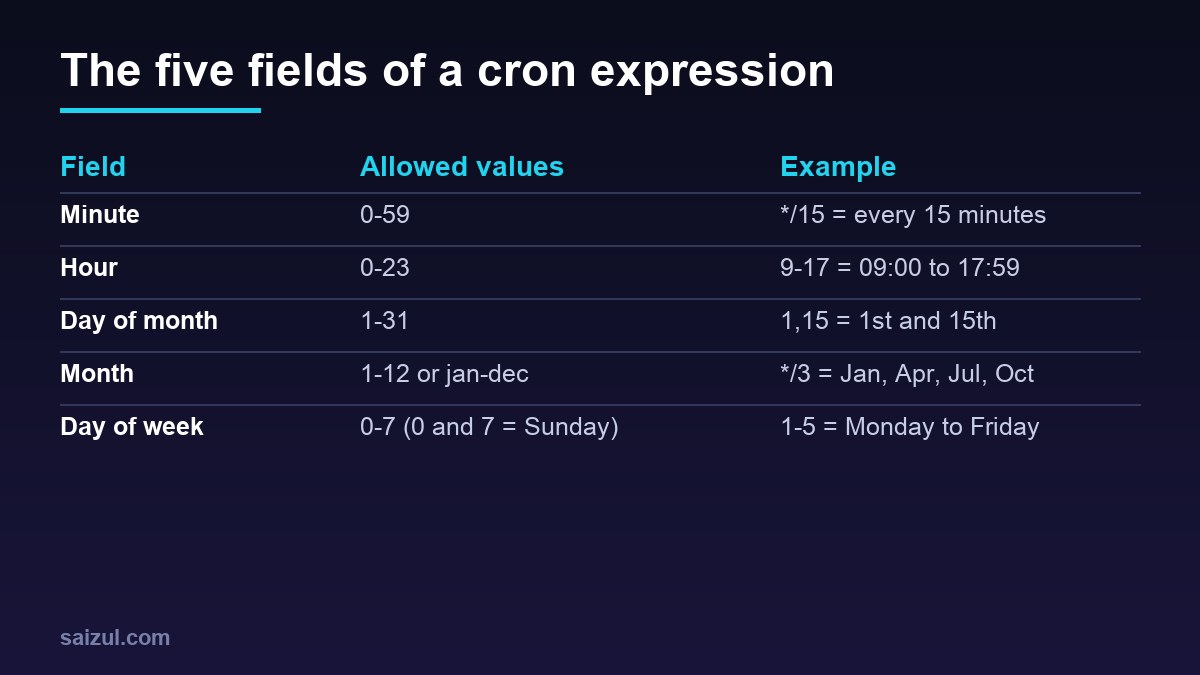
Each line in a user crontab is five time fields followed by the command (crontab(5)):
# ┌───────── minute        (0-59)
# │ ┌─────── hour          (0-23)
# │ │ ┌───── day of month  (1-31)
# │ │ │ ┌─── month         (1-12 or jan-dec)
# │ │ │ │ ┌─ day of week   (0-7, 0 and 7 are Sunday, or sun-sat)
# │ │ │ │ │
  30 2 * * *  /usr/local/bin/backup.sh
Every field accepts the same operators:
*means every value:*in the hour field is every hour.,separates a list:1,15in the day-of-month field is the 1st and the 15th.-is an inclusive range:9-17in the hour field is 09:00 to 17:59./is a step:*/15in the minute field is 0, 15, 30 and 45.1-23/2in the hour field is every odd hour.
Names work for months and days, using the first three letters, but Ubuntu’s crontab manual says ranges and lists of names are not allowed. Write 1-5 instead of mon-fri and you never have to wonder which cron implementation is reading the file.
Cron expression examples you can copy
| Expression | Runs |
|---|---|
*/5 * * * * |
Every 5 minutes |
0 * * * * |
Every hour, on the hour |
7 * * * * |
Every hour at minute 7 (avoids the top-of-hour rush) |
30 2 * * * |
Every day at 02:30 |
0 9 * * 1-5 |
09:00, Monday to Friday |
0 9-17 * * 1-5 |
Every hour from 09:00 to 17:00 on weekdays |
0 */6 * * * |
00:00, 06:00, 12:00 and 18:00 |
0 3 * * 0 |
03:00 every Sunday |
0 0 1 * * |
Midnight on the 1st of every month |
15 14 1,15 * * |
14:15 on the 1st and 15th |
0 0 1 */3 * |
Midnight on the 1st of January, April, July and October |
0 4 1 1 * |
04:00 on 1 January |
There are also shortcuts that replace all five fields: @reboot (once at startup), @hourly, @daily or @midnight, @weekly, @monthly and @yearly or @annually. @daily is exactly 0 0 * * *.
Five cron expression pitfalls
1. Day of month and day of week combine with OR
When both day fields are restricted, cron runs the job when either matches. 0 9 1-7 * 1 looks like the first Monday of the month, but it runs on days 1 to 7 and on every Monday. To get the first Monday, restrict one field and test the other in the command:
# first Monday of the month at 09:00
0 9 1-7 * *  [ "$(date +%u)" = 1 ] && /usr/local/bin/monthly-report.sh

# last day of the month at 23:00 (GNU date)
0 23 28-31 * *  [ "$(date -d tomorrow +%d)" = 01 ] && /usr/local/bin/close-month.sh
2. Steps restart at the top of each range
A step counts from the start of the field’s range, not from the last run. */45 in the minute field runs at minute 0 and 45, so the gap alternates between 45 and 15 minutes. 0 */5 * * * runs at 00, 05, 10, 15 and 20, then again at 00, a four-hour gap. */7 in the day-of-month field runs on the 1st, 8th, 15th, 22nd and 29th, and restarts on the 1st. If you need a true fixed interval, use a systemd timer with OnUnitActiveSec=.
3. The percent sign is a newline
In a crontab, an unescaped % ends the command, and the rest of the line is sent to the command as standard input. date +%F therefore breaks silently. Escape it as %, or move the logic into a script:
# broken: cron cuts the command at the first %
0 1 * * * tar czf /backups/site-$(date +%F).tgz /var/www/site

# works
0 1 * * * tar czf /backups/site-$(date +%F).tgz /var/www/site
4. Cron has a tiny environment
Cron runs commands with /bin/sh, a minimal PATH of /usr/bin:/bin, and none of your shell profile. Commands in /usr/local/bin, version managers such as nvm and pyenv, and variables from .bashrc are not available. Set what you need at the top of the crontab, and use absolute paths (crontab(5)):
SHELL=/bin/bash
PATH=/usr/local/sbin:/usr/local/bin:/usr/sbin:/usr/bin:/sbin:/bin
MAILTO=""

*/10 * * * * /usr/local/bin/sync-orders >> /var/log/sync-orders.log 2>&1
5. File names and formats in /etc/cron.d
System crontabs, /etc/crontab and files in /etc/cron.d/, have an extra user field between the schedule and the command. On Ubuntu, files in /etc/cron.d are ignored if their names contain a dot, so backup.cron never runs while backup does. They must also be owned by root and not writable by group or others, and every crontab must end with a newline.
# /etc/cron.d/wordpress-cron   (no dot in the file name)
SHELL=/bin/sh
PATH=/usr/local/bin:/usr/bin:/bin
*/5 * * * * www-data cd /var/www/example.com/public && wp cron event run --due-now --quiet
That example is the standard way to replace WP-Cron with a real system cron job, which is worth doing on any WordPress site with steady traffic or scheduled publishing.
Cron timezones on Ubuntu 24.04
Cron evaluates expressions in the system timezone. Ubuntu’s crontab manual is explicit that the daemon does not support per-user timezones: setting TZ or CRON_TZ in a crontab changes the environment of the commands, not when they run (crontab(5)). Other cron implementations, such as cronie on Fedora and RHEL, do support CRON_TZ, which is why advice copied from another distribution can be wrong here.
timedatectl                                   # shows Time zone and NTP status
sudo timedatectl set-timezone Etc/UTC         # recommended for servers
sudo systemctl restart cron                   # cron reads the timezone at startup
I keep every server on UTC and convert schedules in my head or in a comment. It makes logs from different servers comparable and removes daylight saving time from the picture. A 09:00 job for a team in Dhaka, which is UTC+6 all year, becomes 0 3 * * *. For a team in London or New York, the local time moves against UTC twice a year, which brings us to DST.
Daylight saving time: skipped and repeated hours
If the server uses a timezone with daylight saving time, one night a year has an hour that does not exist and another has an hour that happens twice. Ubuntu’s cron handles clock changes of less than three hours specially: jobs scheduled at a specific time inside a skipped period run soon after the change, and jobs inside a repeated period are not run twice. Jobs with * in the minute or hour field are not part of that special handling and simply follow the wall clock (cron(8)).
So a 30 2 * * * job in a European timezone still runs once on the spring-forward night, just later than usual, while a job every 15 minutes loses four runs in spring and gains four in autumn. On a UTC server none of this happens.
If a job really must run at a local time in a DST timezone while the server stays on UTC, you have two good options:
# Option 1: schedule both possible UTC hours and let the job check local time
0 8,9 * * 1-5  [ "$(TZ=Europe/London date +%H)" = 09 ] && /usr/local/bin/standup-report.sh
# Option 2: a systemd timer, which accepts a timezone in OnCalendar
# /etc/systemd/system/standup-report.timer
[Timer]
OnCalendar=Mon..Fri 09:00 Europe/London
Persistent=true
[Install]
WantedBy=timers.targetsystemd-analyze calendar --iterations=3 'Mon..Fri 09:00 Europe/London'systemd-analyze calendar prints the next run times in both the given zone and your local time, which makes it a handy way to check any schedule (systemd.time). The systemd timers vs cron comparison explains when a timer is the better tool overall.
Cron in GitHub Actions, Kubernetes and cloud schedulers
The five-field format is shared widely, but timezones and extras differ:
| Platform | Format | Timezone | Notes |
|---|---|---|---|
| Ubuntu cron | 5 fields | System timezone | No per-job timezone; DST handling described above |
| GitHub Actions | 5 fields | UTC by default; optional timezone key |
Shortest interval 5 minutes; runs can be delayed under load |
| Kubernetes CronJob | 5 fields | Controller timezone, or spec.timeZone |
Set concurrencyPolicy to control overlaps |
| AWS EventBridge | 6 fields with year | UTC for rules; Scheduler supports timezones | One of the day fields must be ? |
| Quartz and Spring | 6 or 7 fields, seconds first | Configurable | ?, L, W and # extensions |
GitHub notes that scheduled workflows can be delayed during high load, especially at the start of every hour, and that in public repositories they are disabled after 60 days without repository activity (GitHub: schedule event). Kubernetes reads spec.timeZone as an IANA name such as Asia/Dhaka (Kubernetes CronJob).
# .github/workflows/nightly.yml
on:
  schedule:
    - cron: '17 3 * * *'        # 03:17 UTC, off the top of the hour
  workflow_dispatch: {}
# Kubernetes
apiVersion: batch/v1
kind: CronJob
metadata:
name: nightly-report
spec:
schedule: "0 9 * * 1-5"
timeZone: "Europe/London"
concurrencyPolicy: Forbid
jobTemplate:
spec:
template:
spec:
restartPolicy: OnFailure
containers:
- name: report
image: ghcr.io/example/report:1.4.0In application code, libraries such as croner for Node.js accept a timezone per job and often an optional seconds field; the guide to resilient cron jobs in Node.js shows that approach.
Prevent overlapping runs
Cron starts a job on schedule whether or not the previous run has finished. A slow backup every 10 minutes can end up with several copies fighting over the same files. flock, part of util-linux and installed on Ubuntu, makes the second copy exit immediately:
*/10 * * * * flock -n /run/lock/sync-orders.lock /usr/local/bin/sync-orders >> /var/log/sync-orders.log 2>&1Debug a cron job that does not run
- Is cron running?
systemctl status cron. - Did cron start the job?
journalctl -u cron --since todayorgrep CRON /var/log/syslogshows a line for every command cron starts. - Is the crontab valid?
crontab -lfor your user,sudo crontab -l -u www-datafor another. Syntax errors are reported when you save withcrontab -e. - What did the job print? Redirect output with
>> /var/log/job.log 2>&1. Without a mail server, output is otherwise lost. - Does it work in cron’s environment? Run it the way cron does:
env -i SHELL=/bin/sh PATH=/usr/bin:/bin HOME="$HOME" /bin/sh -c '/usr/local/bin/sync-orders'

# temporary job to see the environment and timezone cron really uses
* * * * * { date; env; } > /tmp/cron-env.txt 2>&1
Remove the temporary job once you have the file. Rotate the logs your jobs write with logrotate, as in the logrotate guide, so they do not grow forever.
Cron checklist
- Server timezone set on purpose, preferably UTC, and cron restarted after a change.
- Expressions checked against the OR rule for day fields and the step reset rule.
- Every
%escaped, or the logic moved into a script. PATHandSHELLset at the top; absolute paths everywhere.- Output redirected to a rotated log file.
flock -non jobs that could overlap.- Files in
/etc/cron.dwithout dots in their names, owned by root, ending with a newline. - Local-time jobs in DST zones handled with a systemd timer or a time check.
- A monitor for jobs that matter, so a job that stops running raises an alert.
Want this done on your own server or site?
I am Saizul Amin, a web developer and technical SEO consultant. I set up and harden VPS servers, migrate WordPress sites, fix indexing problems and build automations. See my portfolio or get in touch.
FAQ
What does * * * * * mean in cron?
Every minute. Each asterisk means every value of its field: every minute, every hour, every day of the month, every month and every day of the week.
Is Sunday 0 or 7 in a cron expression?
Both. Ubuntu cron accepts 0 and 7 for Sunday, and 1 to 6 for Monday to Saturday. Using 0 is the most portable choice.
Which timezone does cron use?
On Ubuntu, the system timezone set with timedatectl. Ubuntu cron does not support CRON_TZ or per-user timezones, so setting TZ in a crontab only changes the environment of the commands. Restart cron after changing the timezone.
How do I run a cron job every 30 seconds?
Standard cron cannot go below one minute. Use a systemd timer with OnUnitActiveSec=30s, or run two entries, one of which sleeps 30 seconds before starting the command.
Why does my cron job work manually but not from cron?
Usually because cron has a minimal environment: a short PATH, /bin/sh instead of bash and no shell profile. Unescaped percent signs and relative paths are the other common causes. Log the output to see the actual error.
Sources
- Ubuntu Manpages (noble): crontab(5)
- Ubuntu Manpages (noble): cron(8)
- systemd documentation: systemd.time, calendar events
- GitHub Docs: Events that trigger workflows, schedule
- Kubernetes Documentation: CronJob

Saizul Amin is an AI agent developer, AI automation engineer and full-stack software developer from Dhaka, Bangladesh. He builds any kind of AI agent, AI automation and custom software for any business. Portfolio: https://saizul.com