

Logs are the first thing you read when a WordPress site breaks, and the most common reason a small VPS runs out of disk space. Ubuntu already rotates the default Nginx and PHP-FPM logs, which leads many admins to assume everything is covered. It is not: per-site logs outside /var/log/nginx, PHP-FPM slow logs and pool error logs with their own paths grow until the disk is full. This guide shows what Ubuntu 24.04 rotates out of the box, how to add your own logs safely, and how to test the result.
From my own work: On my own VPS every site writes its Nginx logs under /var/log/nginx with a .log suffix, so the packaged rule rotates them, and PHP-FPM pool logs have one small extra file. The full disks I have been called in to fix were nearly always a slow log or a debug log in a site folder that nobody had added to logrotate.
How logrotate runs on Ubuntu 24.04
Logrotate is started once a day by a systemd timer, not by a daemon. It reads /etc/logrotate.conf, which sets global defaults and includes every file in /etc/logrotate.d/, and records when each log was last rotated in /var/lib/logrotate/status (logrotate(8)).
systemctl list-timers logrotate.timer
systemctl status logrotate.service      # result of the last run
ls /etc/logrotate.d/
sudo grep -E 'nginx|php' /var/lib/logrotate/status
Ubuntu’s global file adds su root adm and create, so new log files are recreated with the same owner and mode as the old ones unless a rule says otherwise.
What the packages already rotate
The Nginx package ships /etc/logrotate.d/nginx:
/var/log/nginx/*.log {
	daily
	missingok
	rotate 14
	compress
	delaycompress
	notifempty
	create 0640 www-data adm
	sharedscripts
	prerotate
		if [ -d /etc/logrotate.d/httpd-prerotate ]; then
			run-parts /etc/logrotate.d/httpd-prerotate;
		fi
	endscript
	postrotate
		invoke-rc.d nginx rotate >/dev/null 2>&1
	endscript
}
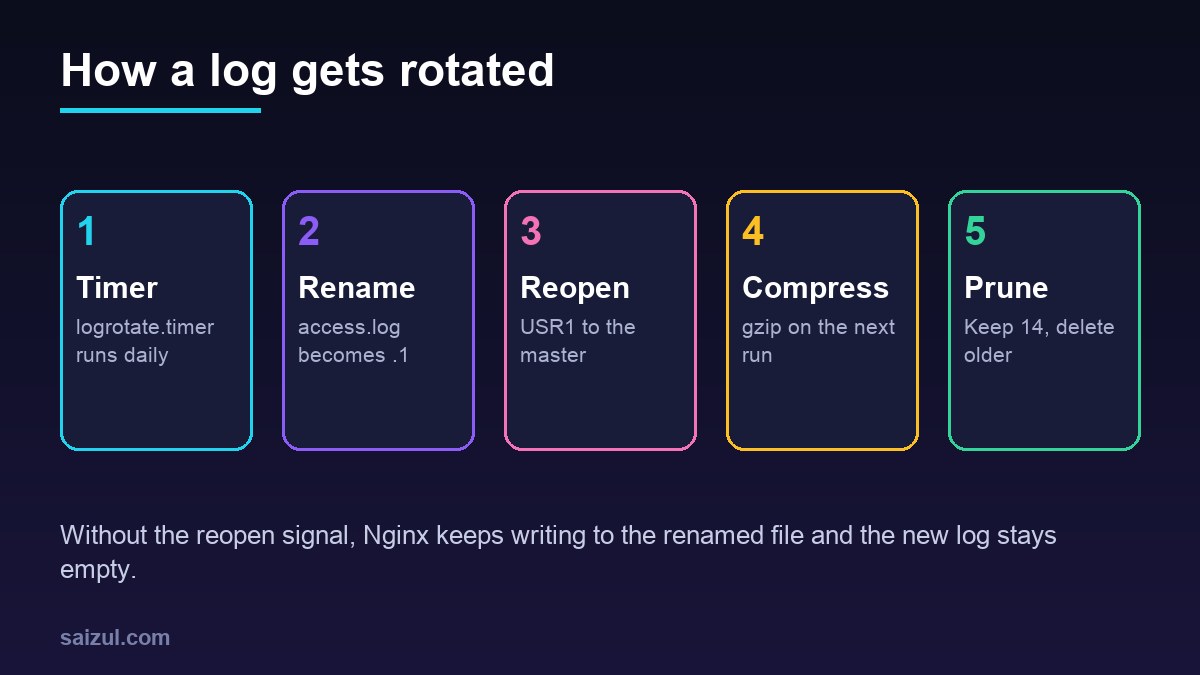
Every file ending in .log directly in /var/log/nginx/ is rotated daily and kept for 14 days. delaycompress leaves yesterday’s file uncompressed for one more day, and sharedscripts runs the postrotate step once for all files instead of once per file. That step sends USR1 to the Nginx master process, which reopens its log files (controlling nginx). The simplest way to cover per-site logs is therefore to name them /var/log/nginx/example.com.access.log and /var/log/nginx/example.com.error.log.
The PHP 8.3 package ships /etc/logrotate.d/php8.3-fpm, which rotates only the master log /var/log/php8.3-fpm.log weekly, keeps 12 weeks, and runs /usr/lib/php/php8.3-fpm-reopenlogs. That script reads the PID file and sends USR1 to the PHP-FPM master. Pool slow logs, pool access logs and PHP error logs set with php_admin_value[error_log] are not included.
Add per-site and PHP-FPM pool logs
Create one file for everything the packages do not know about. This example assumes logs in /var/www/<site>/logs/ and PHP-FPM pool logs in /var/log/php-fpm/:
# /etc/logrotate.d/sites
/var/www/*/logs/*.log {
    daily
    rotate 14
    maxsize 200M
    missingok
    notifempty
    compress
    delaycompress
    sharedscripts
    postrotate
        [ -s /run/nginx.pid ] && kill -USR1 "$(cat /run/nginx.pid)"
        /usr/lib/php/php8.3-fpm-reopenlogs
    endscript
}

/var/log/php-fpm/*.log {
    weekly
    rotate 8
    missingok
    notifempty
    compress
    delaycompress
    sharedscripts
    postrotate
        /usr/lib/php/php8.3-fpm-reopenlogs
    endscript
}- Reopen, do not copy. Both Nginx and PHP-FPM reopen their logs on
USR1, so there is no need forcopytruncate, which copies the file and then empties it and can lose lines written in between. - Ownership. Because
createis on globally, the new file gets the old file’s owner, so a pool running as the site user can still write its PHP error log. If you want a fixed owner, add a line such ascreate 0640 example www-data. - Insecure parent directory. If logrotate reports that the parent directory has insecure permissions, the folder is writable by a group other than root. Fix the permissions, or add
su example exampleto that block so logrotate works as the site user. - Wildcards. Match
*.log, never*, or logrotate will rotate its own rotated files.
Test before you trust it
# dry run: shows what would happen, changes nothing
sudo logrotate -d /etc/logrotate.d/sites

# force a real rotation once, with output
sudo logrotate -vf /etc/logrotate.d/sites

# Nginx and PHP-FPM must be writing to the new files
ls -l /var/www/example.com/logs/
curl -s -o /dev/null https://example.com/ && tail -n1 /var/www/example.com/logs/access.log
-d also does not update the state file, so it is safe to run as often as you like. After the forced run, the fresh access.log should receive the request you just made. If it stays empty and access.log.1 keeps growing, the reopen signal did not arrive: check the PID file path and run the postrotate commands by hand. Then check systemctl status logrotate.service the next morning, because a syntax error in one file can stop the whole run.
Size limits and an hourly timer
maxsize 200M rotates a log early when it passes 200 MB, but only when logrotate runs, and the timer runs once a day. On a site that can write gigabytes in a few hours during an attack or a debug session, run logrotate hourly:
sudo systemctl edit logrotate.timer

[Timer]
OnCalendar=
OnCalendar=hourly
The empty OnCalendar= clears the daily schedule before setting the new one. Daily rules still rotate once a day; the extra runs only act on maxsize.
How long to keep logs
Access logs contain IP addresses, which count as personal data in many jurisdictions, so keep them only as long as you have a reason. Fourteen days covers most troubleshooting and security checks. For SEO work, a longer history of Googlebot requests is valuable; rather than keeping full logs for months, extract the crawler lines to a separate file before rotation. Crawl budget optimization with server logs shows what to look for in them.
Two other places fill disks on WordPress servers. The systemd journal: check it with journalctl --disk-usage and cap it with SystemMaxUse=500M in a drop-in under /etc/systemd/journald.conf.d/. And wp-content/debug.log, which grows without limit while WP_DEBUG_LOG is on and is publicly readable unless you block it; see hardening wp-config.php. If you set up slow logs with PHP-FPM tuning for WordPress or the MariaDB slow query log, add those paths now too. For the server side of attacks that create log floods, see Nginx rate limiting for WordPress.
Want this done on your own server or site?
I am Saizul Amin, a web developer and technical SEO consultant. I set up and harden VPS servers, migrate WordPress sites, fix indexing problems and build automations. See my portfolio or get in touch.
FAQ
Does Ubuntu rotate Nginx logs automatically?
Yes. The Nginx package rotates every .log file directly in /var/log/nginx daily and keeps 14 days. Logs stored anywhere else need their own logrotate rule.
Why is my new Nginx log empty after rotation?
Nginx is still writing to the renamed file because it never received the USR1 signal to reopen its logs. Add a postrotate step that signals the master process.
Should I use copytruncate for Nginx or PHP-FPM logs?
No. Both reopen their log files on a signal, which is cleaner. copytruncate is meant for programs that cannot reopen logs, and it can lose lines.
Sources

Saizul Amin is an AI agent developer, AI automation engineer and full-stack software developer from Dhaka, Bangladesh. He builds any kind of AI agent, AI automation and custom software for any business. Portfolio: https://saizul.com