


Nginx does not execute PHP. It hands every uncached WordPress request to a PHP-FPM pool, where a fixed set of worker processes each handle one request at a time. If all workers are busy, new requests queue; if the queue is full or the wait is too long, visitors get 502 or 504 errors. If you allow more workers than the RAM can hold, the server swaps or the kernel kills processes. Tuning PHP-FPM is finding the number in between, from measurements instead of copied values.
From my own work: I host several WordPress sites on one VPS, each with its own PHP-FPM pool, alongside MariaDB and Nginx. The limit I watch is the sum of pm.max_children across all pools, not the value of any single pool, because every pool can hit its maximum at the same time.
Symptoms of an exhausted pool
- Intermittent 502 Bad Gateway or 504 Gateway Timeout under load, while static files stay fast.
- In the FPM log (for example
/var/log/php8.3-fpm.log):WARNING: [pool www] server reached pm.max_children setting (10), consider raising it. - In the Nginx error log:
upstream timed out (110: Connection timed out)orconnect() to unix:/run/php/php8.3-fpm.sock failed (11: Resource temporarily unavailable). - wp-admin and logged-in pages crawl while cached pages are fine.
The warning says “consider raising it”, but raise it only if memory allows. Often the better fix is fewer or faster PHP requests: page caching (Nginx FastCGI cache), and removing whatever makes requests slow.
Choose a process manager mode
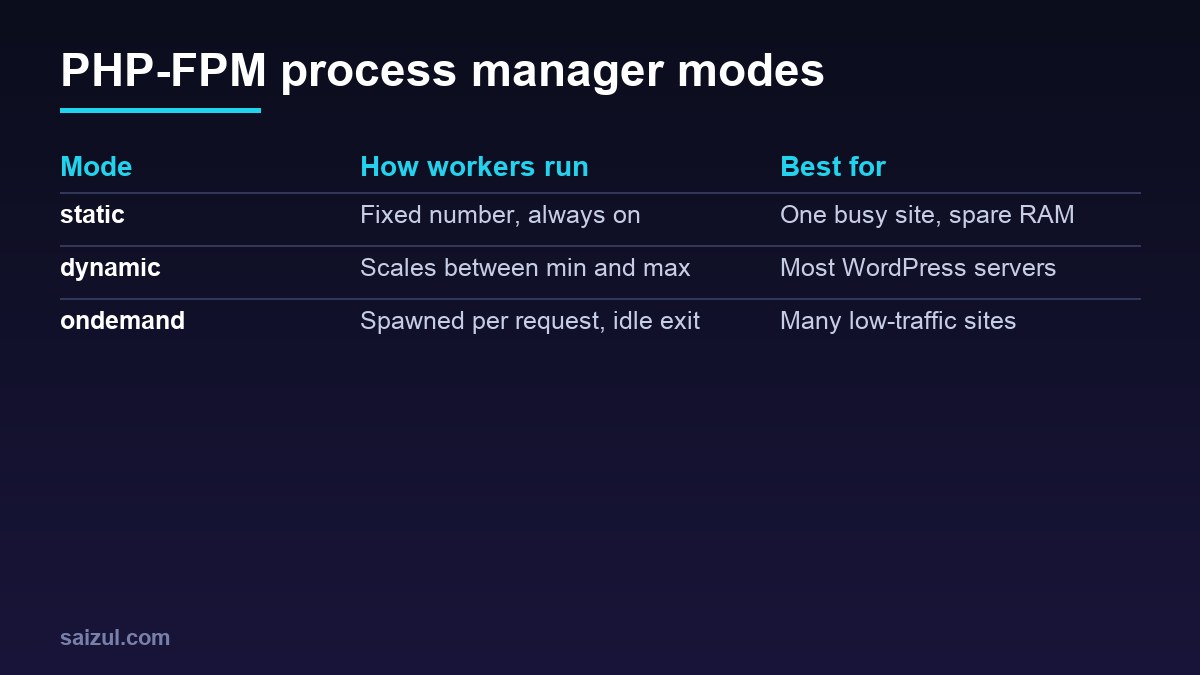
The pool file lives at /etc/php/8.3/fpm/pool.d/www.conf on Ubuntu (adjust the version; control panels usually create one pool file per site). The pm directive, documented in the FPM configuration reference, has three values:
- static: always exactly
pm.max_childrenworkers. No fork overhead and fully predictable memory use; wasteful when a server hosts many pools. - dynamic: keeps between
pm.min_spare_serversandpm.max_spare_serversidle workers and grows up topm.max_children. A sensible default. - ondemand: starts with zero workers, forks on request and stops workers idle longer than
pm.process_idle_timeout. Lowest idle memory; the first request after a quiet period pays a small fork delay.
Calculate pm.max_children from measured memory
Measure what your workers actually use while the site is serving real traffic:
ps -o rss= -C php-fpm8.3 | awk '{s+=$1; n++} END {printf "%d processes, avg %.0f MBn", n, s/n/1024}'
free -m
Then: pm.max_children = RAM you can give to PHP ÷ average memory per worker, summed over all pools on the server.
A worked example with made-up round numbers: a 4 GB server where MariaDB, Nginx, Redis and the OS need about 1.5 GB leaves 2.5 GB for PHP. If workers average 80 MB, that is 2,560 ÷ 80 = 32, so a total of roughly 25–30 across all pools leaves headroom. Your numbers will differ; measure them. Two notes on accuracy:
- RSS counts shared memory (including the OPcache segment) in every process, so the average overstates real usage somewhat. That errs on the safe side.
- A single heavy request (an import, a large WooCommerce report) can use far more than the average, up to
memory_limit. Do not plan for zero headroom.
; /etc/php/8.3/fpm/pool.d/www.conf
pm = dynamic
pm.max_children = 30
pm.start_servers = 6
pm.min_spare_servers = 4
pm.max_spare_servers = 10
pm.max_requests = 500

; for many small sites instead:
; pm = ondemand
; pm.max_children = 8
; pm.process_idle_timeout = 10s
pm.start_servers must lie between the two spare values, or FPM refuses to start. pm.max_requests makes a worker exit and respawn after that many requests, which contains slow memory leaks in extensions or plugins; the default of 0 means never. Validate with sudo php-fpm8.3 -t, then sudo systemctl reload php8.3-fpm.
Find slow requests with the slowlog
More workers do not help if every worker is stuck for ten seconds on the same thing. The slowlog writes a PHP stack trace for any request that exceeds a threshold. Add request_slowlog_timeout = 5s and slowlog = /var/log/php8.3-fpm-slow.log to the pool, and optionally request_terminate_timeout = 120s.
Each entry shows the script and the exact function the worker was in: a remote HTTP call from a plugin, a slow database query, an image resize. Remote API calls without timeouts are a frequent finding; database-bound traces lead to the MySQL slow query log. request_terminate_timeout kills requests that run longer than the limit, so one runaway script cannot hold a worker forever; set it high enough for your longest legitimate task and keep it consistent with Nginx’s fastcgi_read_timeout.
Watch the pool with the status page
Enable pm.status_path = /fpm-status in the pool, then expose it to localhost only in the site’s Nginx server block:
location = /fpm-status {
    allow 127.0.0.1;
    deny all;
    include fastcgi_params;
    fastcgi_param SCRIPT_FILENAME $fastcgi_script_name;
    fastcgi_pass unix:/run/php/php8.3-fpm.sock;
}

# from the server itself
curl -s --resolve example.com:443:127.0.0.1 https://example.com/fpm-status
curl -s --resolve example.com:443:127.0.0.1 "https://example.com/fpm-status?full"
The fields that matter, described on the FPM status page reference:
- active processes / max active processes: how close you get to
pm.max_children. - max children reached: how many times the limit was hit since the pool started. It should stay at 0.
- listen queue / max listen queue: requests waiting for a free worker. Anything above 0 means visitors waited.
- slow requests: count of requests that exceeded the slowlog threshold.
OPcache settings
OPcache keeps compiled PHP bytecode in shared memory so files are not parsed on every request. It is the single biggest PHP-level win for WordPress and is normally enabled already; the defaults are just small for sites with many plugins. See the OPcache configuration reference.
; /etc/php/8.3/fpm/conf.d/10-opcache.ini (or php.ini)
opcache.enable=1
opcache.memory_consumption=256
opcache.interned_strings_buffer=16
opcache.max_accelerated_files=20000
opcache.validate_timestamps=1
opcache.revalidate_freq=60max_accelerated_filesshould exceed the number of PHP files on the server:find /var/www -name '*.php' | wc -l.revalidate_freq=60checks file timestamps at most once a minute, so code changes can take up to a minute to appear. Settingvalidate_timestamps=0is faster still, but then you must reload PHP-FPM after every plugin, theme or core update, which is easy to forget on WordPress.- Check usage with
opcache_get_status(); if memory is full or the key table is exhausted, raise the limits.
A sensible order of work
- Cache what can be cached so fewer requests reach PHP at all.
- Measure worker memory, set
pm.max_childrenacross all pools to fit RAM. - Turn on the slowlog and the status page; fix what the traces show.
- Size OPcache, then re-measure. Background jobs that pile onto PHP at once are another common cause; see replacing WP-Cron with system cron.
For the full request path, from DNS to database, see how to fix slow WordPress TTFB.
Want this done on your own server or site?
I am Saizul Amin, a web developer and technical SEO consultant. I set up and harden VPS servers, migrate WordPress sites, fix indexing problems and build automations. See my portfolio or get in touch.
FAQ
What is a good pm.max_children value for WordPress?
There is no universal number. Divide the RAM you can dedicate to PHP by the measured average memory per worker, and remember that the total across all pools must fit.
Should I use static, dynamic or ondemand?
Dynamic suits most servers. Static fits a single busy site with reserved memory; ondemand fits servers with many low-traffic sites where idle memory matters most.
Does raising pm.max_children fix 502 errors?
Only if workers were the bottleneck and RAM is available. If requests are slow because of a plugin, remote API or database query, more workers only delay the same failure.
Sources

Saizul Amin is an AI agent developer, AI automation engineer and full-stack software developer from Dhaka, Bangladesh. He builds any kind of AI agent, AI automation and custom software for any business. Portfolio: https://saizul.com