

A hacked WordPress site usually shows itself through a symptom: spam pages in Google, redirects on mobile, a new administrator nobody created, a browser warning or a note from the hosting provider. The urge is to delete the suspicious file and move on. That rarely works, because attackers leave more than one way back in. This guide is the order I follow on a VPS with shell access and WP-CLI: contain the damage, keep evidence, replace everything that can be replaced, search what cannot, and close the hole that let the attacker in.
From my own work: When I clean a site on a VPS, I replace code instead of trying to repair it, and I keep a full snapshot of the infected state before I touch anything. The sites that get reinfected a week later are almost always ones where only the visible malware was removed and the original entry point, often an old plugin, stayed in place.
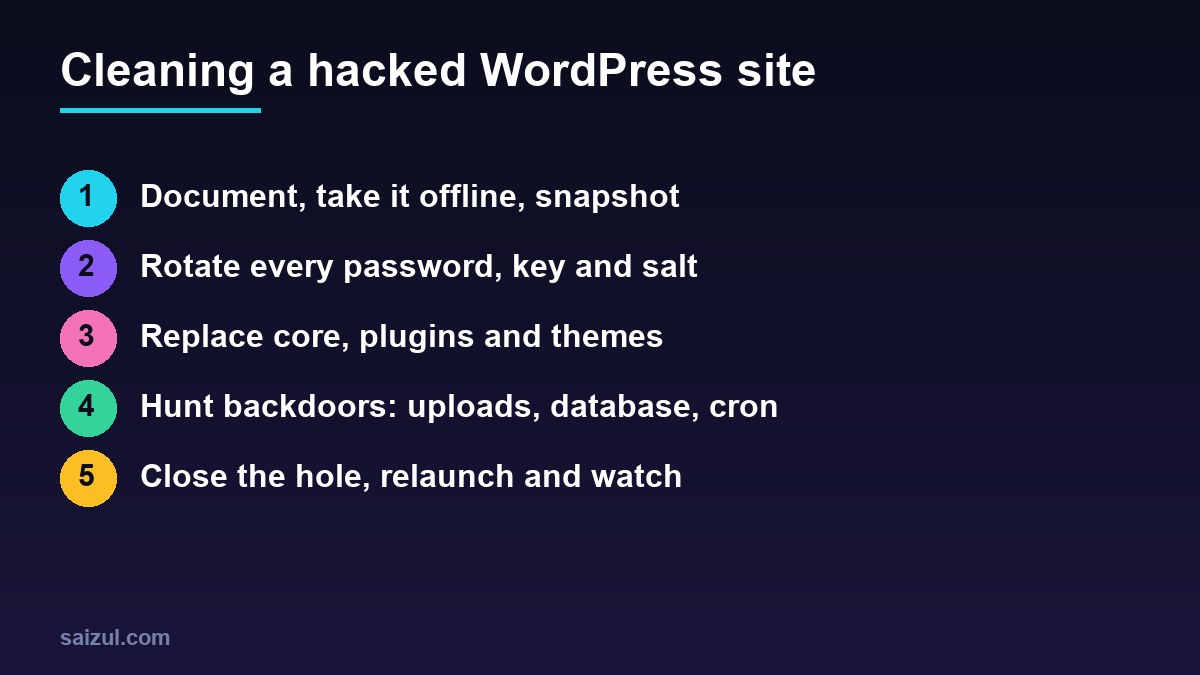
1. Document, contain and snapshot
Write down what you saw, when, and what changed recently: new plugins, updates, users. WordPress’s own advice starts with the same step, because those notes guide the rest of the work (WordPress: my site was hacked). Then stop the damage to visitors with a maintenance response that still lets you in:
# temporarily, at the top of the site's server block
# (server level, so it also covers direct requests to .php files)
if ($remote_addr != 203.0.113.10) {
    return 503;
}

sudo nginx -t && sudo systemctl reload nginx
Use your own IP address. Then take a copy of the infected site before you change anything: the files, a database dump and the logs. You will need it to find the entry point, and it is your fallback if a cleaning step deletes something important.
sudo tar -czf /root/incident-$(date +%F).tar.gz /var/www/example.com /var/log/nginx
sudo -u example wp db export /root/incident-$(date +%F).sql --path=/var/www/example.com/public
sudo chmod 600 /root/incident-*
Run WP-CLI as the site’s own user, never as root. On an infected site, add --skip-plugins --skip-themes to commands that load WordPress, so malicious plugin or theme code does not run while you investigate.
2. Rotate every credential
Assume the attacker has read wp-config.php. Change, in this order:
- Server access: SSH keys and passwords for every account, SFTP users and any hosting panel. Check
~/.ssh/authorized_keysfor keys you did not add, andlastand/var/log/auth.logfor logins you do not recognise. - The database password: change it in MariaDB with
ALTER USERand updatewp-config.php. - Salts:
wp config shuffle-saltsreplaces the keys and logs everyone out. - WordPress users: list administrators, delete unknown ones, then reset all passwords.
- API keys stored in plugins and
wp-config.php: SMTP, payment gateways, CDN and backup services.
cd /var/www/example.com/public
wp user list --role=administrator --fields=ID,user_login,user_email,user_registered --skip-plugins --skip-themes
wp user delete 42 --reassign=1 --skip-plugins --skip-themes      # an unknown admin
wp user reset-password $(wp user list --field=user_login --skip-plugins --skip-themes) --skip-plugins --skip-themes
wp config shuffle-salts
3. Replace core, plugins and themes
Do not try to clean infected PHP files by hand. Compare them with known good copies and replace them. WP-CLI checks core files against the checksums published by WordPress.org, without loading WordPress (wp core verify-checksums):
wp core verify-checksums --include-root
# "File doesn't verify against checksum"  -> modified core file
# "File should not exist"                  -> extra file in a core folder

wp core download --version=$(wp core version) --skip-content --force

wp plugin verify-checksums --all
wp plugin install some-plugin --version=1.2.3 --force --skip-plugins --skip-themes   # same version as installed
wp core download --force overwrites core files but does not remove extra files, so delete anything reported as “should not exist” after checking it, or remove wp-admin and wp-includes completely before downloading. Plugin checksums exist only for plugins from the WordPress.org directory (wp plugin verify-checksums); reinstall any that fail at the same version, and download premium plugins again from the vendor. Delete plugins and themes you do not use instead of cleaning them. A custom theme should be redeployed from Git; if it is not in version control, compare it line by line with the last known good copy.
4. Hunt for backdoors outside the replaced code
After step 3, anything malicious left is in files WordPress.org does not know about, in the database, or in the server itself:
cd /var/www/example.com/public
# PHP has no business in uploads
find wp-content/uploads -type f -name '*.php'
# must-use plugins and drop-ins load automatically
ls -la wp-content/mu-plugins/ wp-content/*.php
# recently changed files and common obfuscation
find . -type f -name '*.php' -newermt '2026-10-01' -ls
grep -rlE 'eval(|base64_decode(|gzinflate(|str_rot13(' --include='*.php' wp-content
# PHP settings that load extra code
grep -rn auto_prepend_file . /etc/php/8.3/fpm/ 2>/dev/null
Obfuscation patterns also appear in legitimate plugins, so treat grep results as a list to read, not a list to delete. Check wp-config.php itself for added lines at the top or bottom, and any .user.ini files.
wp option get siteurl --skip-plugins --skip-themes
wp option get home --skip-plugins --skip-themes
wp db search '<script' --skip-plugins --skip-themes
wp db search 'eval(' --skip-plugins --skip-themes
wp cron event list --skip-plugins --skip-themes

sudo crontab -l -u example; sudo crontab -l -u www-data; ls /etc/cron.d/
Injected scripts are often stored in wp_options, widget content or post content, and scheduled events can reinstall malware after you delete it. Compare the Nginx configuration with your version-controlled copy as well; an extra location or include is a quiet way to keep access.
5. Close the hole, relaunch and watch
Cleaning is wasted if the entry point stays open. Look through the access logs in your snapshot for POST requests to unusual PHP files around the first sign of trouble, and check every plugin version against known vulnerabilities. Common causes are an outdated plugin, a reused password, or a stolen key on a developer’s computer, which is why WordPress’s guidance also asks you to scan your own machine.
# block PHP execution in uploads (inside the server block)
location ~* ^/wp-content/uploads/.*.php$ {
    deny all;
}

# wp-config.php
define( 'DISALLOW_FILE_EDIT', true );
Then update everything, set file ownership so the PHP user cannot write to core and plugin folders, and follow the WordPress hardening guide and hardening wp-config.php. On the server, turn on automatic security updates and rate limiting for wp-login.php. Remove the maintenance rule and reload Nginx.
After relaunch, run wp core verify-checksums and wp plugin verify-checksums --all daily for a couple of weeks, watch for new administrators, and keep enough log history to investigate; logrotate for Nginx and PHP-FPM shows how. If Google flagged the site, request a review in the Security Issues report in Search Console once it is clean, and check for spam URLs with the technical SEO audit checklist. Finally, test that your backups go back far enough to predate an infection; a clean restore point is the fastest recovery there is.
Want this done on your own server or site?
I am Saizul Amin, a web developer and technical SEO consultant. I set up and harden VPS servers, migrate WordPress sites, fix indexing problems and build automations. See my portfolio or get in touch.
FAQ
Can I just restore a backup instead of cleaning the site?
Yes, if you have a backup from before the infection and you also close the entry point. Otherwise the restored site is compromised again the same way. Still rotate all credentials.
Do security plugins remove all malware?
They find many known patterns, but they run inside the infected WordPress and cannot see the server, cron jobs or Nginx configuration. Use them as one check, not the whole process.
How do I know how the site was hacked?
Look in the access logs for POST requests to unusual PHP files around the first sign of trouble, compare plugin versions with known vulnerabilities, and check SSH and SFTP logins. Keep the snapshot until you know.
Sources
- WordPress.org Documentation: FAQ My site was hacked
- WP-CLI: wp core verify-checksums
- WP-CLI: wp plugin verify-checksums
- WordPress Developer Resources: Hardening WordPress

Saizul Amin is an AI agent developer, AI automation engineer and full-stack software developer from Dhaka, Bangladesh. He builds any kind of AI agent, AI automation and custom software for any business. Portfolio: https://saizul.com