

Every WordPress server runs scheduled jobs: WP-Cron, database dumps, offsite backups, certificate renewal, log cleanup. For decades the answer was a line in a crontab, and cron still works. Ubuntu itself, however, has moved most of its own scheduled work to systemd timers: package updates, logrotate, Certbot renewals and the fstrim job all run from timers on Ubuntu 24.04. This post compares the two honestly, shows when a timer is worth the extra file, and converts two typical WordPress VPS jobs.
From my own work: On my own VPS, new jobs get a systemd timer and old crontab lines stay until I have a reason to touch them. The reason is usually the same: a backup job that failed silently for weeks because its output went to a mail command that was never configured.
What cron does well and where it falls short
Cron is installed on Ubuntu 24.04, needs one line per job, and every admin can read it. For a quick job on a server you look at often, that is hard to beat. The weaknesses show on servers nobody watches:
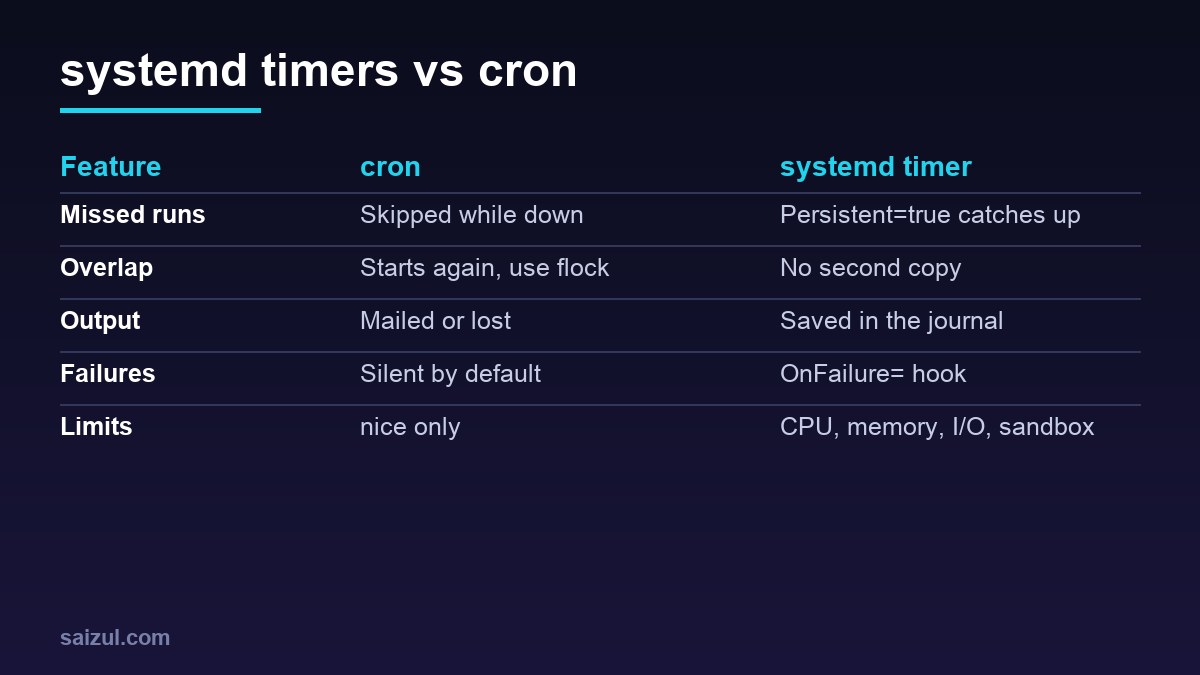
- Missed runs are gone. If the server is down or rebooting at 03:00, the 03:00 backup does not happen.
- Runs can overlap. A five-minute job that sometimes takes seven starts a second copy, unless you wrap it in
flock. - Output disappears. Cron mails output to the user, which needs a working mail setup. Without one, people add
>/dev/null 2>&1and errors vanish. - A small, different environment.
PATHis minimal, and the same command behaves differently in a shell and in cron.
What a timer adds
A timer is two unit files: a .service that says what to run and a .timer that says when. The timer starts the service of the same name by default (systemd.timer). What you get in return:
- Catch-up runs. With
Persistent=true, systemd stores the last run time on disk and starts a missed calendar job as soon as the timer is active again, for example after a reboot. - No overlap. If the service is still running when the timer elapses, systemd leaves it running and does not start a second copy.
- Logs. Standard output and errors go to the journal, with exit codes, timestamps and run times:
journalctl -u wp-backup.service. - Spread load.
RandomizedDelaySec=adds a random delay, so ten sites on one server do not all start their backups in the same second. - Limits and sandboxing. The service can have
CPUQuota=,MemoryMax=, a low I/O priority and the hardening options from systemd service hardening.
The cost is two files instead of one line, and a schedule syntax that takes a few minutes to learn.
Calendar syntax and how to test it
OnCalendar= uses the format DayOfWeek Year-Month-Day Hour:Minute:Second, with shorthands such as hourly, daily and weekly (systemd.time). Check any expression before you use it:
systemd-analyze calendar --iterations=3 '*-*-* 03:15:00'     # cron: 15 3 * * *
systemd-analyze calendar --iterations=3 '*:0/5'               # cron: */5 * * * *
systemd-analyze calendar --iterations=3 'Mon *-*-* 04:00'     # cron: 0 4 * * 1
systemd-analyze calendar --iterations=3 '*-*-01 02:00'        # cron: 0 2 1 * *
The output shows the normalised form and the next run times, in the server’s time zone unless you add one such as UTC at the end. Monotonic timers are the other kind: OnBootSec=10min runs ten minutes after boot, and OnUnitActiveSec=1h runs an hour after the last start, whatever the clock says.
Example 1: WP-Cron every five minutes
Once WordPress’s page-load cron is switched off with DISABLE_WP_CRON, as described in replacing WP-Cron with a real cron job, something has to run due events. As a timer:
# /etc/systemd/system/wp-cron-example.service
[Unit]
Description=WP-Cron for example.com
After=mariadb.service

[Service]
Type=oneshot
User=example
Group=example
WorkingDirectory=/var/www/example.com/public
ExecStart=/usr/local/bin/wp cron event run --due-now --quiet
Nice=10
TimeoutStartSec=10min

# /etc/systemd/system/wp-cron-example.timer
[Unit]
Description=Run WP-Cron for example.com every 5 minutes

[Timer]
OnCalendar=*:0/5
RandomizedDelaySec=30
AccuracySec=10s

[Install]
WantedBy=timers.target
Type=oneshot means the service is active while the command runs, which is what makes the no-overlap rule work. Do not add RemainAfterExit=yes to a repeating job; the service would then count as still active and the timer would never start it again (systemd.service). AccuracySec= defaults to one minute, so lower it for jobs that should run close to the scheduled time. Persistent= is left out because a missed five-minute run does not need catching up.
Example 2: a nightly backup that never silently skips
# /etc/systemd/system/wp-backup.service
[Unit]
Description=Nightly database and files backup
OnFailure=notify-failure@%n.service

[Service]
Type=oneshot
ExecStart=/usr/local/sbin/wp-backup.sh
Nice=15
IOSchedulingClass=idle
CPUQuota=50%
MemoryMax=512M

# /etc/systemd/system/wp-backup.timer
[Timer]
OnCalendar=*-*-* 03:15:00
RandomizedDelaySec=15min
Persistent=true

[Install]
WantedBy=timers.target
Persistent=true runs the backup after a reboot if 03:15 passed while the server was down. OnFailure= starts another unit when the job exits with an error; make notify-failure@.service a small oneshot that sends a message to your chat or monitoring with curl, using %i for the failed unit’s name. The backup script itself can stay the one from automated MySQL and MariaDB backups.
Enable, check and run by hand
sudo systemctl daemon-reload
sudo systemctl enable --now wp-cron-example.timer wp-backup.timer

systemctl list-timers --all            # next and last run of every timer
sudo systemctl start wp-backup.service # run the job now, once
journalctl -u wp-backup.service -n 50  # its output and exit status
systemctl status wp-backup.service
Enable the .timer, not the .service; the service has no [Install] section on purpose. To pause a job, sudo systemctl stop wp-backup.timer. When you move a job from cron, remove the crontab line in the same step, or it runs twice. Journal size is capped on Ubuntu, but a chatty job every five minutes adds up; the logrotate guide shows how to check and limit it.
Which one to use
Keep cron for quick, harmless jobs where a missed or doubled run does not matter, and on shared or managed servers where you cannot add unit files. Use a timer for anything that must not silently fail or overlap: backups, WP-Cron on busy sites, offsite sync, cleanup that deletes files. You are already relying on timers whether you chose them or not; systemctl list-timers shows the ones behind automatic security updates and Certbot renewals.
Want this done on your own server or site?
I am Saizul Amin, a web developer and technical SEO consultant. I set up and harden VPS servers, migrate WordPress sites, fix indexing problems and build automations. See my portfolio or get in touch.
FAQ
Are systemd timers better than cron?
For jobs that must not be missed or run twice, yes: they catch up after downtime, never overlap, and log to the journal. For a quick, harmless job, cron is still fine.
How do I see when a systemd timer runs next?
Run systemctl list-timers –all. It shows the next and last run for every timer and the unit each one starts.
Do systemd timers run missed jobs after a reboot?
Only calendar timers with Persistent=true. systemd stores the last run time and starts the job once if a scheduled time passed while the server was off.
Sources
- freedesktop.org: systemd.timer
- freedesktop.org: systemd.time (calendar events)
- freedesktop.org: systemd.service

Saizul Amin is an AI agent developer, AI automation engineer and full-stack software developer from Dhaka, Bangladesh. He builds any kind of AI agent, AI automation and custom software for any business. Portfolio: https://saizul.com