

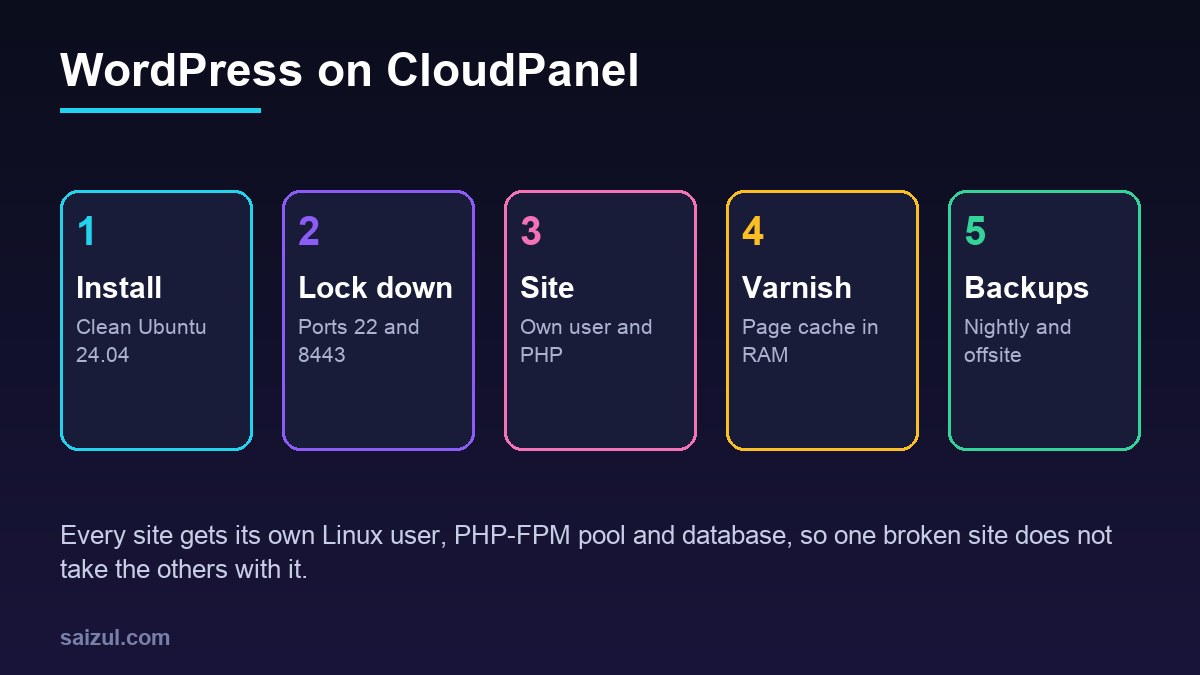
Running WordPress on a bare VPS means configuring Nginx, PHP-FPM, the database, certificates and backups by hand for every site. CloudPanel is a free control panel that does that work without hiding the server. It installs Nginx, several PHP versions, MySQL or MariaDB, Redis and Varnish, then creates each site with its own Linux user, PHP-FPM pool and database. This guide sets it up on a clean Ubuntu 24.04 VPS, locks down the panel, creates a WordPress site, and covers PHP versions, Varnish Cache and backups, with the commands checked against the CloudPanel documentation.
From my own work: I use CloudPanel for client servers that will be handed over to someone who does not want to edit Nginx files, and plain Nginx where I am the only admin. The problems I get called in for are rarely CloudPanel itself: an admin panel left open on port 8443, Varnish caching a WooCommerce page it should not, or backups that only ever existed on the same disk.
When CloudPanel fits
CloudPanel suits a VPS with a handful to a few dozen PHP sites, run by people who want a web interface plus SSH when they need it. It has no mail server, so send WordPress mail through a provider, as in the SPF, DKIM and DMARC guide. It needs a full virtual machine, not an LXC or OpenVZ container, and a clean server: install it first, then add sites.
Install on a clean Ubuntu 24.04 server
Log in as root on a fresh Ubuntu 24.04 VPS, update it, and run the installer with the database engine you want. For Ubuntu 24.04 the documentation lists MySQL 8.4 and 8.0 and several MariaDB versions; the engine cannot be swapped later without a migration, so choose now (CloudPanel installation).
apt update && apt -y upgrade && apt -y install curl wget sudo

curl -sS https://installer.cloudpanel.io/ce/v2/install.sh -o install.sh;
echo "8146dbe0a488e7088b04071b0c34d59aa0ab1fe9dcec382d395fd155c9e6c476 install.sh" |
sha256sum -c && sudo DB_ENGINE=MYSQL_8.4 bash install.sh

# MariaDB instead, for example:  DB_ENGINE=MARIADB_11.4
sha256sum -c stops the install if the script does not match the published checksum, which changes with each installer release, so copy the current line from the documentation. Then open https://YOUR-IP:8443, accept the self-signed certificate, and create the admin user at once: until you do, anyone who finds the port can.
Lock down the panel and SSH
CloudPanel ships with its own firewall, built on UFW and managed under Admin Area → Security. Manage the rules there rather than with ufw on the command line, so the panel and the server agree. The documentation recommends opening port 22 and port 8443 only to your own IP addresses. If you have no static IP, put Basic Auth in front of the panel and switch on two-factor authentication for every panel user:
# as root: Basic Auth in front of the panel
clpctl cloudpanel:enable:basic-auth --userName='admin-gate' --password='a-long-random-password'

# list panel users and their roles
clpctl user:list
Give a client or freelancer a panel account with the User role, which sees only the sites assigned to it, instead of a shared admin login. For SSH itself, switch to keys and disable password logins as in SSH key authentication on Ubuntu.
Create the WordPress site
Point the domain’s A record at the server first, so the certificate can be issued. Then choose + Add Site → Create a WordPress Site and fill in the domain, site title and the WordPress admin account. CloudPanel creates a site user, a database, an Nginx vhost and a PHP-FPM pool, and installs WordPress. If you enter the domain with www, the bare domain redirects to it, and the other way round; all HTTP traffic is redirected to HTTPS. Issue the certificate from the site’s SSL/TLS tab, or from the command line:
clpctl lets-encrypt:install:certificate --domainName=www.example.com

# the site lives in the site user's home directory
/home/example/htdocs/www.example.com/      # WordPress files
/home/example/backups/                     # nightly database dumps
/home/example/logs/                        # Nginx and PHP logs
Site users, SSH and file permissions
The site user is a normal Linux SSH user that owns every file of the site, so a compromised plugin on one site cannot write to another site’s files. Add your public key under Settings → Site User Settings and run WP-CLI as that user, not root, so new files get the right owner:
ssh example@YOUR-IP
cd ~/htdocs/www.example.com
wp --info
wp core verify-checksums
wp plugin list --update=available

# if an upload or a root command left files with the wrong permissions
clpctl system:permissions:reset --directories=770 --files=660 --path=.
For other developers, add users on the site’s SSH/FTP tab instead of sharing the site user’s password, and use SFTP rather than plain FTP. The WP-CLI cheat sheet covers daily commands.
PHP versions and settings per site
CloudPanel installs PHP 7.1 to 8.5 side by side on Ubuntu 24.04, and each site chooses its own version under Settings → PHP Settings. The same screen sets memory_limit, max_execution_time, max_input_vars, post_max_size and upload_max_filesize, and has a field for additional directives. Use PHP 8.3 or newer for WordPress, test a version change on a staging copy first, as in upgrading PHP for WordPress, and switch back in the same screen if something breaks.
The Nginx configuration is on the Vhost tab. CloudPanel checks the syntax on save and reverts a broken change, so it is a safe place for redirects or rate limits for wp-login.php. Leave the {{...}} placeholders alone.
Varnish Cache for WordPress
With Varnish enabled, Nginx still terminates TLS and serves static files. Other requests go to Varnish on port 6081, which answers from memory or passes them to Nginx on port 8080 and PHP-FPM. A PHP controller, loaded through auto_prepend_file, decides which pages may be cached.
Enable it on the site’s Varnish Cache tab and install the CLP Varnish Cache plugin in WordPress, which purges pages when content changes. Then check the settings that matter for a shop: Cache Lifetime, Excluded Params for query strings that must never be cached, and Excludes for paths such as ^/my-account/, /cart/ and /checkout/. After adding an exclude, purge the cache, or the old copy stays (Varnish Cache settings).
# as the site user
clpctl varnish-cache:purge --purge=all
clpctl varnish-cache:purge --purge='https://www.example.com/sample-page/'

# a second request should show a cache age above zero
curl -sI https://www.example.com/ | grep -i x-cache
Varnish keeps 512 MB in memory by default (-s malloc,512m in its systemd unit); raise it only if the RAM is there. Use one page cache, not two: switch off page caching in other plugins. An object cache is a different layer and still helps logged-in users and WooCommerce; see Redis object cache for WordPress.
Backups: nightly dumps and remote copies
CloudPanel dumps every database each night at 3:15 and keeps the dumps for seven days in /home/$siteUser/backups/. The schedule is a line in /etc/cron.d/clp, which you can edit to run more often (CloudPanel databases). Those dumps sit on the same disk as the site, so they protect you from a bad plugin update, not from a lost server.
For that, configure Admin Area → Backups. Remote backups use rclone and support S3, Wasabi, DigitalOcean Spaces, Dropbox, Google Drive, SFTP, or any rclone remote through a custom config. By default every site is included: its vhost and its whole home directory except .ssh, logs and tmp, which means the nightly database dumps go offsite too (CloudPanel remote backups). Check the instance time zone before you set the schedule, and use a storage key that can only write to its own bucket.
# restore test, as the site user, after downloading backup.tar into ~/tmp
cd ~/tmp && tar xf backup.tar
find . -name '*.sql.gz' | sort | tail -3    # the newest database dumps
clpctl db:import --databaseName=example-restore-test --file=PATH/TO/DUMP.sql.gz
Create the empty example-restore-test database in the panel first, check that the posts are there, then delete it. Repeat every few months, as in automated MySQL and MariaDB backups; a backup nobody has restored is a hope. Finally, add a real cron job on the Cron Jobs tab as in replacing WP-Cron, and keep the OS patched with unattended-upgrades.
Want this done on your own server or site?
I am Saizul Amin, a web developer and technical SEO consultant. I set up and harden VPS servers, migrate WordPress sites, fix indexing problems and build automations. See my portfolio or get in touch.
FAQ
Is CloudPanel free for WordPress hosting?
Yes. CloudPanel Community Edition is free and installs on your own VPS. You pay only for the server, the backup storage and any mail provider.
Does CloudPanel work on Ubuntu 24.04?
Yes. Ubuntu 24.04 is supported, with a choice of MySQL 8.4, MySQL 8.0 or MariaDB at install time. Start from a clean server with root access.
Should I use Varnish or a caching plugin on CloudPanel?
Use one page cache. Varnish with the CLP Varnish Cache plugin is fast and built in; if you enable it, switch off page caching in other plugins and exclude cart, checkout and account pages.
Sources
- CloudPanel Docs: Installation on other clouds and dedicated servers
- CloudPanel Docs: Varnish Cache settings
- CloudPanel Docs: Databases and database backups
- CloudPanel Docs: Remote backups

Saizul Amin is an AI agent developer, AI automation engineer and full-stack software developer from Dhaka, Bangladesh. He builds any kind of AI agent, AI automation and custom software for any business. Portfolio: https://saizul.com