

Running Docker Compose in production is fine for a single VPS, as long as the Compose file is written for a server and not for a laptop. That means pinned image versions, healthchecks and restart policies, memory and log limits, secrets kept out of the YAML, ports bound to 127.0.0.1 behind a reverse proxy, and backups you have actually restored. This checklist walks through each item with a complete example for Ubuntu 24.04 and Docker Compose v2.
From my own work: When I take over a server that runs Compose, the problems are rarely exotic. The two I see most are a disk filled by container logs that were never rotated, and a database port published on
0.0.0.0that the owner believed UFW was blocking. Both take one line each to fix.
What changes when you run Docker Compose in production
A development Compose file is built for fast feedback: bind-mounted source code, debug ports, latest images and no limits. Docker’s own guidance is to keep the base file and add production settings in a second file, such as compose.production.yaml, that removes code volumes, binds ports differently, sets environment variables and adds restart policies (Use Compose in production). You start it with both files:
docker compose version          # Docker Compose version v2.x
docker compose -f compose.yaml -f compose.production.yaml config --quiet
docker compose -f compose.yaml -f compose.production.yaml up -d --wait
config --quiet validates the merged file without printing it, and --wait makes up wait until services are running and healthy, so a broken deploy fails in the terminal instead of silently. On Ubuntu 24.04, install Docker from Docker’s own apt repository; the docker-compose-plugin package gives you the docker compose subcommand. The old Python docker-compose v1 command is retired and should not be on a new server.
A production-ready compose.yaml
Here is a complete file for a small web app with a PostgreSQL database. Every setting in it is explained in the sections below:
name: shop

services:
  app:
    image: ghcr.io/example/shop-api:1.8.2
    restart: unless-stopped
    env_file: .env
    environment:
      DATABASE_HOST: db
      DATABASE_PASSWORD_FILE: /run/secrets/db_password
    secrets:
      - db_password
    ports:
      - "127.0.0.1:3000:3000"
    depends_on:
      db:
        condition: service_healthy
        restart: true
    healthcheck:
      test: ["CMD", "wget", "-qO-", "http://127.0.0.1:3000/healthz"]
      interval: 30s
      timeout: 5s
      retries: 3
      start_period: 30s
    mem_limit: 512m
    cpus: 1.0
    pids_limit: 200
    logging:
      driver: local
      options:
        max-size: "10m"
        max-file: "5"

  db:
    image: postgres:17
    restart: unless-stopped
    environment:
      POSTGRES_USER: shop
      POSTGRES_DB: shop
      POSTGRES_PASSWORD_FILE: /run/secrets/db_password
    secrets:
      - db_password
    volumes:
      - db_data:/var/lib/postgresql/data
    healthcheck:
      test: ["CMD-SHELL", "pg_isready -U shop -d shop"]
      interval: 10s
      timeout: 5s
      retries: 5
    mem_limit: 1g
    logging:
      driver: local

secrets:
  db_password:
    file: ./secrets/db_password.txt

volumes:
  db_data:
The database has no ports at all. The app reaches it by its service name, db, on the project’s private network, and nothing outside the host can connect to it.
Pin image tags and know what you are running
image: postgres means postgres:latest, which changes whenever upstream publishes a new release. A routine docker compose pull can then move you to a new major version of your database without you deciding to. Pin at least the major version for databases and an exact version for your own images:
- Your own images: tag every build with a version or the Git commit, such as
shop-api:1.8.2, and never redeploy a tag with different content. - Databases and caches: pin the major version, such as
postgres:17orredis:7, so minor security releases arrive but major upgrades stay a planned job. - Strict reproducibility: pin a digest. The image then cannot change under you, and you update it on purpose.
# show the digest of the image you tested
docker buildx imagetools inspect postgres:17 | grep -m1 Digest

# then pin it in compose.yaml
image: postgres:17@sha256:<digest-from-above>
A dependency bot such as Renovate can open pull requests when a pinned tag or digest has a newer release, which turns updates into reviewed changes instead of surprises.
Healthchecks and restart policies
A healthcheck tells Docker how to test that a service actually works, not just that its process exists. start_period gives slow services time to boot before failures count. With depends_on and condition: service_healthy, Compose waits for the database to be healthy before it starts the app, and restart: true restarts the app when Compose restarts the database.
The test command must exist inside the image. Many slim images have wget but not curl, and some have neither; for those, add a tiny health command to your own image or use the language runtime, for example ["CMD", "node", "healthcheck.js"]. Check the result:
docker compose ps                     # STATUS shows (healthy) or (unhealthy)
docker inspect --format '{{json .State.Health}}' shop-app-1
Restart policies decide what happens when a container exits:
no: the default. Never restart.on-failure[:max-retries]: restart only after a non-zero exit code.always: restart whenever it stops; a manually stopped container comes back when the Docker daemon restarts.unless-stopped: likealways, but a container you stopped yourself stays stopped after a reboot. This is the right default for most services on a VPS.
One detail catches people out: plain Docker Engine marks a container unhealthy but does not restart it on that basis. The health status feeds depends_on, --wait and your monitoring. Point an uptime monitor at the public URL as well; the Uptime Kuma monitoring guide shows a setup that alerts within a minute.
Set memory, CPU and process limits
Without limits, one container with a memory leak can push the whole server into swap or trigger the kernel OOM killer, which may pick your database. Service-level limits keep the damage inside the faulty container:
mem_limit: hard memory cap. If the container goes over, the kernel kills a process inside that container, not on the host.cpus: how much CPU time the container may use, here one core.pids_limit: caps the number of processes, which stops a fork loop from exhausting the host.
docker stats --no-stream --format 'table {{.Name}}t{{.CPUPerc}}t{{.MemUsage}}t{{.PIDs}}'Size limits from real usage under load, with headroom, and leave memory for the host itself, the reverse proxy and the page cache. For containers that do not need to write to their filesystem, read_only: true and dropping capabilities add a further layer; the Docker security hardening guide covers those options in depth.
Rotate container logs before they fill the disk
The default json-file logging driver does not rotate logs unless you configure it, so a chatty container slowly fills the disk. The local driver rotates and compresses by default, keeping five files of 20 MB each per container (local logging driver). Set it once for the whole daemon:
# /etc/docker/daemon.json
{
  "log-driver": "local",
  "log-opts": {
    "max-size": "10m",
    "max-file": "5"
  }
}
sudo systemctl restart docker
docker compose up -d --force-recreate # existing containers keep their old driver
docker compose logs --tail=100 -f appThe daemon default only applies to containers created after the change, which is why the example also sets logging per service. Log option values are strings, so quote numbers such as "5". docker compose logs works with both local and json-file.
Keep secrets out of the Compose file
Compose reads two kinds of files that people often confuse:
.envnext tocompose.yamlis used for interpolation:${APP_VERSION}in the YAML is replaced with its value.env_file:on a service passes every variable in that file into the container’s environment.
Environment variables are convenient but easy to leak through docker inspect, crash reports and debug pages. For passwords and keys, Compose secrets are safer: each secret is mounted as a file at /run/secrets/<name>, and only services that list it can read it (Secrets in Compose). The official PostgreSQL, MySQL and MariaDB images accept _FILE variants of their password variables for exactly this.
mkdir -p secrets && chmod 700 secrets
openssl rand -base64 32 | tr -d 'n' > secrets/db_password.txt
chmod 600 secrets/db_password.txt .env

# fail early if a required variable is missing
image: ghcr.io/example/shop-api:${APP_VERSION:?set APP_VERSION in .env}
Keep .env and secrets/ out of Git, and be careful with docker compose config without --quiet: it prints the resolved file, interpolated values included, which is not something to paste into a ticket.
Bind ports to localhost behind a reverse proxy
This is the most important line in the file. A port written as "3000:3000" listens on every interface, and Docker’s own firewall rules route that traffic before UFW’s rules apply, so a UFW rule that blocks the port does not protect it (Docker and ufw). Bind to the loopback address instead and let Nginx or Caddy terminate TLS in front:
ports:
  - "127.0.0.1:3000:3000"     # reachable only from the host

# check what is listening on public interfaces
sudo ss -tlnp | grep -v '127.0.0.1'
The Nginx reverse proxy guide for Docker apps shows the proxy side, including WebSocket headers and certificates, and the UFW firewall guide explains the Docker interaction in more detail. Services that only talk to each other, like the database here, need no ports entry at all.
Back up volumes and databases
Containers are disposable; named volumes are not. Back up three things: the database with its own dump tool, any named volumes with files, and the project directory with compose.yaml, .env and secrets/, stored encrypted.
cd /srv/shop
# consistent PostgreSQL dump from the running container
docker compose exec -T db pg_dump -U shop -Fc shop > backups/shop-$(date +%F).dump

# archive a named volume (the real name is <project>_<volume>)
docker run --rm -v shop_uploads:/data:ro -v "$PWD/backups":/backup alpine
  tar czf /backup/uploads-$(date +%F).tgz -C /data .

# restore test into a throwaway database
docker compose exec -T db createdb -U shop restore_test
docker compose exec -T db pg_restore -U shop -d restore_test < backups/shop-$(date +%F).dump
Copy the files off the server. The automated MySQL backups guide covers rotation and scheduling for MySQL and MariaDB containers, and the rclone offsite backups guide shows encrypted copies to S3-compatible storage. A backup you have never restored is a hope, not a backup.
Update images without surprises
cd /srv/shop
docker compose pull                      # fetch new images for pinned tags
docker compose up -d --wait              # recreate only what changed
docker compose ps
docker image prune -f                    # remove dangling old images

# deploy one service without touching its dependencies
docker compose up -d --no-deps --wait app
To roll back, set the previous tag in compose.yaml or .env and run up -d again; this is why tags must be immutable. Take a database dump before any update that touches the database image. Docker Engine updates through apt restart the daemon, and with it every container; adding "live-restore": true to daemon.json keeps containers running while the daemon restarts.
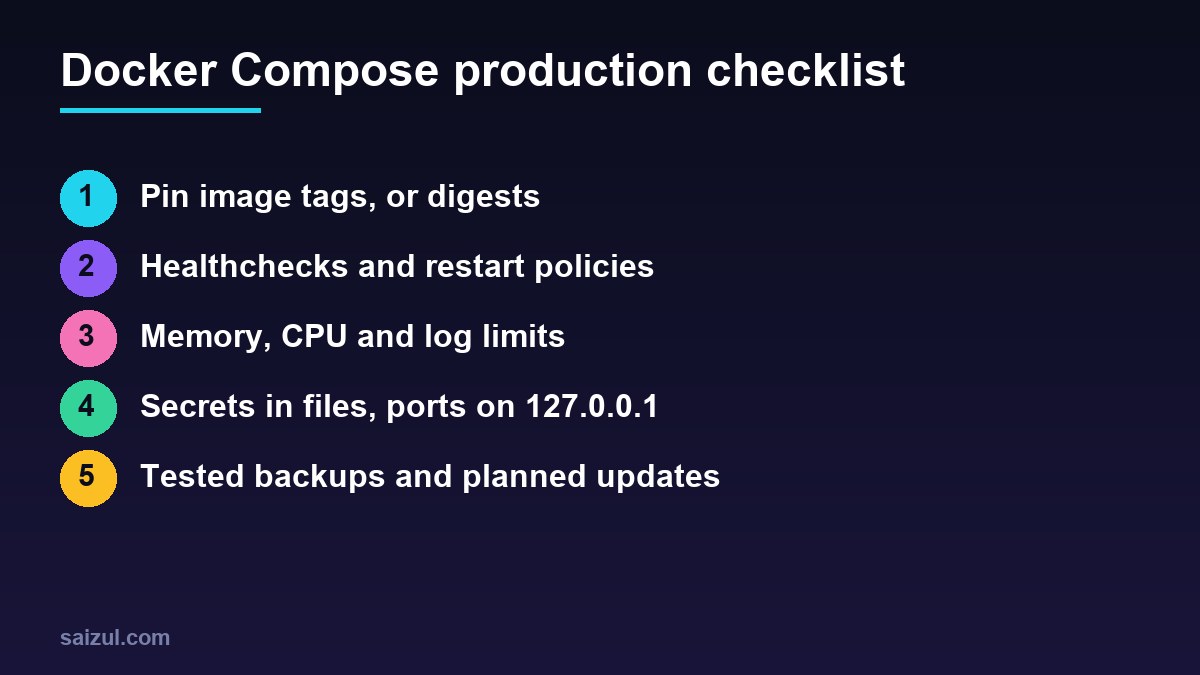
Docker Compose production checklist
- Base file plus a production override, validated with
docker compose config --quiet. - No
latest: exact tags for your images, pinned majors or digests for the rest. - A healthcheck on every long-running service and
depends_onwithservice_healthy. restart: unless-stoppedon services that should survive a reboot.mem_limit,cpusandpids_limitsized from real usage.- The
locallog driver orjson-filewithmax-sizeandmax-file. - Passwords as Compose secrets;
.envandsecrets/mode 600 and not in Git. - Published ports bound to
127.0.0.1; databases with no published ports. - Database dumps and volume archives copied offsite, with a tested restore.
- Updates with
pullandup -d --wait, and a written rollback step.
Want this done on your own server or site?
I am Saizul Amin, a web developer and technical SEO consultant. I set up and harden VPS servers, migrate WordPress sites, fix indexing problems and build automations. See my portfolio or get in touch.
FAQ
Is Docker Compose good for production?
Yes, for a single server. Compose handles restart policies, healthchecks, limits and secrets well. If you need several hosts, rolling updates across nodes or automatic rescheduling, look at Docker Swarm or Kubernetes instead.
Does Docker bypass UFW?
For published ports, yes. Docker routes container traffic in the nat table before UFW rules apply. Bind ports to 127.0.0.1 and put a reverse proxy in front, or do not publish the port at all.
Should I use restart always or unless-stopped?
unless-stopped is the better default on a VPS. Both restart crashed containers and start them after a reboot, but unless-stopped respects a container you stopped on purpose.
How do I limit memory in Docker Compose?
Set mem_limit on the service, for example mem_limit: 512m, and optionally cpus and pids_limit. Check real usage with docker stats before choosing the numbers.
How do I stop Docker logs from filling the disk?
Use the local logging driver, which rotates and compresses by default, or set max-size and max-file for json-file in /etc/docker/daemon.json. Recreate containers so they pick up the new settings.
Where should I store secrets for Docker Compose?
In files outside Git, referenced as Compose secrets and mounted at /run/secrets. Use .env only for non-sensitive settings or values the image cannot read from a file, and set it to mode 600.
Sources
- Docker Docs: Use Compose in production
- Docker Docs: Compose file reference, services
- Docker Docs: Local file logging driver
- Docker Docs: Secrets in Compose
- Docker Docs: Packet filtering and firewalls

Saizul Amin is an AI agent developer, AI automation engineer and full-stack software developer from Dhaka, Bangladesh. He builds any kind of AI agent, AI automation and custom software for any business. Portfolio: https://saizul.com