


Docker disk cleanup becomes urgent the day a VPS hits 100% and the database, the web server and Docker itself all start failing. The tempting fix is docker system prune -a --volumes -f, which frees space fast and can also delete the only copy of a database volume or the images a stopped stack needs to start again. This guide shows how to find what is really using the space, what each prune command removes, the order to clean in, how to stop container logs and build cache from filling the disk again, and how to run a filtered cleanup from a systemd timer on Ubuntu 24.04.
From my own work: The worst Docker cleanup I was asked to recover from was on a staging server: someone ran a full prune with
--volumeswhile the database container was stopped for an upgrade. The volume was unused at that moment, so it was deleted. Since then my rule is simple: automate image, container and build cache pruning, cap the logs, and only ever remove volumes by hand, by name, after a backup.
Measure first: where Docker disk space goes
Start with the host, then Docker’s own accounting. docker system df shows images, containers, local volumes and build cache, with a RECLAIMABLE column; -v breaks it down per object (Docker: docker system df).
# Which filesystem is full, and how big is Docker's data root?
df -h /
sudo du -sh /var/lib/docker
docker info --format '{{.DockerRootDir}}  driver={{.Driver}}'

# Docker's view: images, containers, volumes, build cache
docker system df
docker system df -v | less

# Container writable layers (SIZE) and their images
docker ps -a --size --format 'table {{.Names}}t{{.Status}}t{{.Size}}'

# The silent one: container log files
sudo sh -c 'du -h /var/lib/docker/containers/*/*-json.log 2>/dev/null' | sort -h | tail -n 10
Typical culprits on a long-running server are, in no fixed order: old image versions left behind by every deploy, build cache on hosts that run docker build, a chatty container with an unlimited JSON log, a container writing data into its own layer instead of a volume, and named volumes from projects you removed months ago. Look at the numbers before you delete anything, so you know which of these you are dealing with.
If docker info shows overlayfs as the driver rather than overlay2, the engine uses the containerd image store, and image content may also be under /var/lib/containerd; include it in your du checks.
What each Docker prune command removes
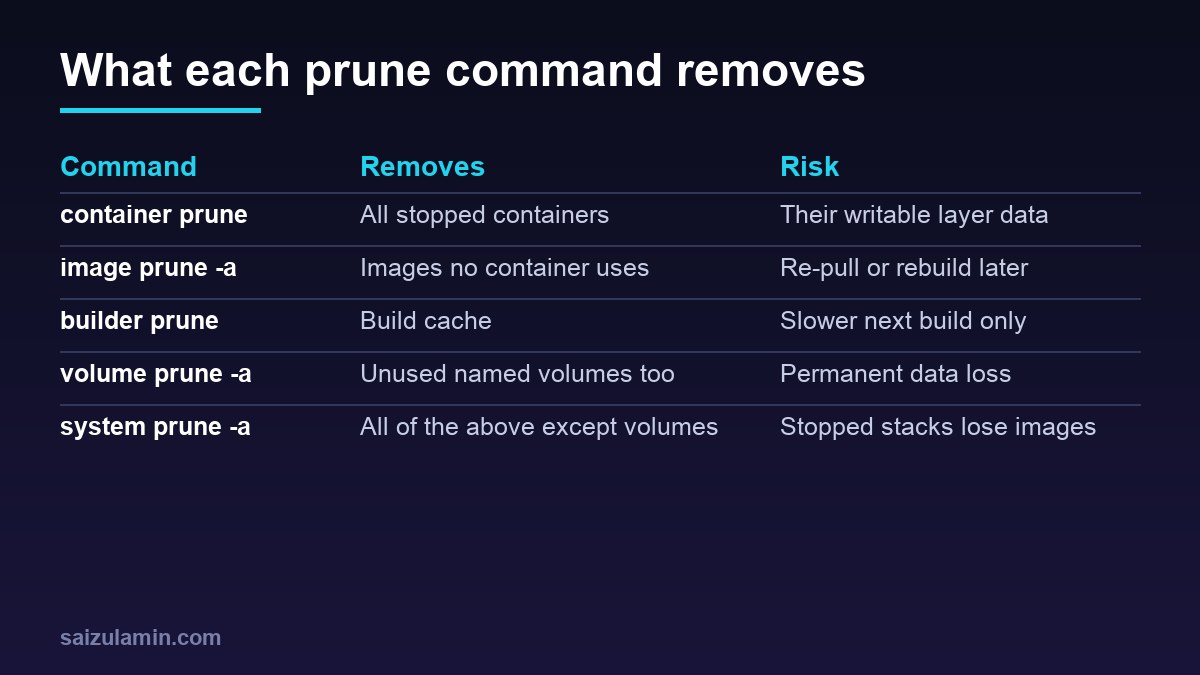
Every prune command asks for confirmation unless you pass -f, and most accept --filter (Docker: Prune unused objects). The definitions of unused are what catch people out:
| Command | Removes | Keeps | Watch out for |
|---|---|---|---|
docker container prune |
All stopped containers | Running containers | Data written inside a stopped container is gone |
docker image prune |
Dangling images (untagged layers) | All tagged images | Very safe |
docker image prune -a |
Every image not used by any container | Images used by running or stopped containers | Images for stacks that are currently down |
docker builder prune |
Dangling build cache (-a: all unused cache) |
Images | Only slows the next build |
docker network prune |
Networks with no containers | Default networks | Negligible disk use, safe |
docker volume prune |
Unused anonymous volumes | Named volumes | Data loss is permanent |
docker volume prune -a |
Unused anonymous and named volumes | Volumes attached to any container | Deletes databases of stopped or removed stacks |
docker system prune |
Stopped containers, unused networks, dangling images, unused build cache | Volumes, tagged images | Removes stopped containers first |
docker system prune -a --volumes |
All of the above, all unused images, unused anonymous volumes | Named volumes | Chained effect on stopped stacks |
Note the chain in docker system prune -a: it deletes stopped containers first, which makes their images unused, which makes those images eligible too (Docker: system prune). A Compose project you stopped with docker compose down has no containers at all, so its images go as well. The next docker compose up pulls them again, and if the tag has moved, or the registry or a locally built image is gone, you may not get the same thing back.
A safe Docker disk cleanup order
Work from no risk to more risk, and re-run docker system df after each step. Often the first two steps free enough.
# 1. Dangling images and dangling build cache: no meaningful risk
docker image prune -f
docker builder prune -f

# 2. Build cache not used in the last 7 days (build hosts and CI runners)
docker builder prune -a -f --filter "until=168h"

# 3. Stopped containers older than 24 hours (review the list first)
docker ps -a --filter status=exited --filter status=created
docker container prune -f --filter "until=24h"

# 4. Unused images created more than 14 days ago, except ones labelled keep
docker image prune -a -f --filter "until=336h" --filter "label!=keep"

# 5. Unused networks
docker network prune -f
Two details about filters. until on images compares the image’s creation time, not when you pulled or last used it, so a base image built a year ago and pulled yesterday is already old by that measure. That is fine because an image in use by any container is never pruned. And you can protect anything you build yourself by adding LABEL keep=true to the Dockerfile and filtering with label!=keep.
Volumes: review, back up, then delete by name
Do not put volume pruning in automation. List what is not attached to any container, find out what each one is, and back it up before removing it:
# Volumes no container references (running or stopped)
docker volume ls --filter dangling=true

# What is it? Compose labels tell you the project and volume name
docker volume inspect --format '{{.Name}}  {{index .Labels "com.docker.compose.project"}}  {{.CreatedAt}}' VOLUME_NAME

# How big is it?
sudo du -sh /var/lib/docker/volumes/VOLUME_NAME/_data

# Back it up to the current directory before removing
docker run --rm -v VOLUME_NAME:/data:ro -v "$PWD":/backup alpine
  tar czf /backup/VOLUME_NAME-$(date +%F).tar.gz -C /data .

# Then remove exactly that volume
docker volume rm VOLUME_NAME
Anonymous volumes (long hexadecimal names) usually come from images that declare a VOLUME and containers run without a named mount. Many are leftovers, but an anonymous volume can still hold the data of a database container you removed. Check before deleting. For proper backups of the volumes you keep, the restic backup guide shows encrypted, scheduled snapshots.
Stop container logs from filling the disk
The default json-file logging driver has no size limit, so a container that logs every request can grow a multi-gigabyte file over time. Set a default rotation in /etc/docker/daemon.json; values must be strings (Docker: JSON File logging driver):
{
  "log-driver": "json-file",
  "log-opts": {
    "max-size": "10m",
    "max-file": "3"
  }
}
# validate the file, then restart the daemon
sudo dockerd --validate --config-file /etc/docker/daemon.json
sudo systemctl restart docker
# existing containers keep their old log settings until recreated
cd /srv/myapp && docker compose up -d --force-recreate
# confirm on a container
docker inspect --format '{{.HostConfig.LogConfig}}' myapp-web-1Restarting the daemon restarts containers unless live-restore is enabled, so do it in a quiet window. You can also set limits per service in Compose with a logging: block, which is the better choice when only one service is noisy; the Docker Compose production checklist includes it. If a log file is filling the disk right now and you cannot recreate the container yet, sudo truncate -s 0 on that one -json.log file is the emergency option. Docker’s documentation warns against touching these files with external tools, so treat it as a one-off and fix the limit properly afterwards.
Keep build cache under control with garbage collection
On hosts that build images, BuildKit’s cache grows until garbage collection kicks in, and its defaults are sized for large disks. You can define your own policy in daemon.json under builder.gc (Docker: Build garbage collection). This example, merged into the same file as the log settings, keeps recently used cache and caps the rest for a small VPS:
{
  "log-driver": "json-file",
  "log-opts": { "max-size": "10m", "max-file": "3" },
  "builder": {
    "gc": {
      "enabled": true,
      "policy": [
        { "reservedSpace": "5GB", "keepDuration": ["168h"] },
        { "reservedSpace": "5GB" },
        { "reservedSpace": "10GB", "all": true }
      ]
    }
  }
}
The policy key names have changed across Engine releases (older versions used defaultKeepStorage and keepStorage), so validate with dockerd --validate and check the documentation for your version. On CI runners that build constantly, a scheduled docker builder prune -a -f --filter until=72h is a simple and predictable alternative.
Automate a weekly Docker cleanup with a systemd timer
Put only the low-risk, filtered commands in automation. Create the script:
sudo tee /usr/local/sbin/docker-cleanup >/dev/null <<'EOF'
#!/bin/sh
# Weekly Docker cleanup: never touches volumes
set -eu
echo "before:"; docker system df
docker container prune -f --filter "until=168h"
docker image prune -a -f --filter "until=336h" --filter "label!=keep"
docker builder prune -a -f --filter "until=168h"
docker network prune -f --filter "until=168h"
echo "after:"; docker system df
EOF
sudo chmod 755 /usr/local/sbin/docker-cleanup
Then a service and a timer:
# /etc/systemd/system/docker-cleanup.service
[Unit]
Description=Prune unused Docker data (no volumes)
Requires=docker.service
After=docker.service

[Service]
Type=oneshot
ExecStart=/usr/local/sbin/docker-cleanup

# /etc/systemd/system/docker-cleanup.timer
[Unit]
Description=Weekly Docker cleanup

[Timer]
OnCalendar=Sun *-*-* 04:30:00
RandomizedDelaySec=15m
Persistent=true

[Install]
WantedBy=timers.target
sudo systemctl daemon-reload
sudo systemctl enable --now docker-cleanup.timer
systemctl list-timers docker-cleanup.timer
# run once now and read the output
sudo systemctl start docker-cleanup.service
journalctl -u docker-cleanup.service -n 50 --no-pagerA timer is preferable to cron here because the output lands in the journal and Persistent=true catches up after downtime; if you prefer cron, the cron expression guide has the syntax. Finally, alert on disk usage before it reaches 100%, with a disk check in your monitoring such as Uptime Kuma push monitors or a simple script that warns above 80%.
What never to do
- Never delete files under
/var/lib/docker/overlay2by hand. Layers are shared and tracked in Docker’s metadata; deleting directories corrupts images and containers. Use the CLI. - Never run
docker volume prune -aorsystem prune --volumesfrom a script. A stack that is down for maintenance has unused volumes at that moment. - Never keep data in a container’s writable layer. If
docker ps --sizeshows a large container, that data belongs in a volume or bind mount. - Do not prune during a deploy. An image pulled but not yet started can be removed in between.
Docker disk cleanup checklist
- Measured with
df,docker system df -v,docker ps --sizeand log file sizes before deleting anything. - Dangling images and build cache pruned first; filtered image and container pruning after.
- Volumes reviewed, backed up and removed by name only.
- Default log rotation set in
daemon.json, containers recreated to pick it up. - Build cache garbage collection or a scheduled builder prune on build hosts.
- A weekly systemd timer without volume pruning, plus a disk usage alert.
Want this done on your own server or site?
I am Saizul Amin, a web developer and technical SEO consultant. I set up and harden VPS servers, migrate WordPress sites, fix indexing problems and build automations. See my portfolio or get in touch.
FAQ
Is docker system prune safe?
Without flags it removes stopped containers, unused networks, dangling images and unused build cache, and keeps volumes and tagged images. That is reasonably safe, but stopped containers and anything written inside them are gone. Adding -a also removes every image not used by a container.
Does docker system prune delete volumes?
Not by default. With –volumes it removes unused anonymous volumes. Named volumes are only removed by docker volume prune –all or docker volume rm.
Why is /var/lib/docker still large after pruning?
Check container log files and container writable layers, which prune does not shrink while containers exist. Also check volumes with docker system df -v, and the containerd directory if you use the containerd image store.
How do I limit Docker container log size?
Set log-opts max-size and max-file for the json-file driver in /etc/docker/daemon.json, restart Docker, and recreate containers. Compose services can also set limits in a logging block.
Can I schedule Docker cleanup automatically?
Yes. Run filtered container, image, builder and network prune commands from a systemd timer or cron job weekly, and leave volume removal as a manual step.
Sources
- Docker Docs: Prune unused Docker objects
- Docker Docs: docker system df
- Docker Docs: docker system prune
- Docker Docs: Build garbage collection
- Docker Docs: JSON File logging driver

Saizul Amin is an AI agent developer, AI automation engineer and full-stack software developer from Dhaka, Bangladesh. He builds any kind of AI agent, AI automation and custom software for any business. Portfolio: https://saizul.com